-
Written By Shivam Rathore
-
Updated on May 8th, 2026
Fix SQL Server Error 2575: Repair Database Corruption Issues
User Query: My SQL database is showing Error 2575, and nothing opens. Tried a couple of methods and tricks, but the data is still locked out completely. Some of those records go back years, and I cannot afford to lose them. What actually fixes this properly?
While working in Microsoft SQL Server, you might suddenly see SQL Server Error 2575 show up. It usually points to serious database inconsistency or page‑level corruption. SQL Server can no longer read or validate some database pages the way it should.
If this error sits there too long, you can lose access to data, see failed transactions, or even face full database downtime. In this guide, you’ll find a mix of troubleshooting steps and a practical DatabaseFileRecovery SQL Database Recovery option to help you fix SQL Server Error 2575 for real.
Download Now Purchase Now
Why Repair SQL Server Error 2575?
Fixing this error is very important, as ignoring it can result in:
- Permanent data loss from MDF or NDF files.
- The database may jump into suspect mode and stop responding.
- Apps start failing mid‑transaction, and users notice downtime.
- Every extra day without a fix makes more parts of the database unstable.
- Small issues can turn into bigger, harder‑to‑fix corruption later.
What Causes SQL Server Error 2575?
This error generally occurs due to:
- Database pages get damaged, and SQL Server cannot read through them at all.
- An unexpected shutdown during an active transaction breaks the database structure silently.
- Failing disks or unstable storage quietly corrupt data until access fails.
- A virus or malicious program gets into the database files and damages them directly.
- Changes or updates don’t finish and leave things in a broken state or with server errors.
How To Resolve SQL Error 2575 Manually?
Read all three methods carefully before touching a live database because none of them is without risk. Start with Method 1 without exception. Anyone who skips the diagnostic and runs Method 2 first will permanently lose data they could have saved.
Method 1: Run DBCC CHECKDB to Repair Corruption
This is the diagnostic step that tells you exactly how bad the corruption is before any repair begins. Do not skip this and jump straight to repair commands without understanding what you are dealing with first:
- Open SQL Server Management Studio on your system and sign in.
- From there, connect to the specific SQL Server instance you need to check.
- Now, open a new query window and run the command below against your database:
| DBCC CHECKDB (‘YourDatabaseName’) |
- Once it finishes, go through the output carefully and note every error reported before moving forward.
Note: If DBCC CHECKDB reports no errors, the corruption may be intermittent or related to disk cache issues. Run it a second time to confirm before assuming the database is clean.
Method 2: Repair Database Using REPAIR_ALLOW_DATA_LOSS
Only reach for this method after Method 1 confirms corruption and no valid backup exists. This command removes corrupted data permanently to bring the database back online, and data loss is not a possibility here; it is a certainty for affected pages:
Step 1: In this step, set the Database to Emergency Mode
Run the command below to force read-only access to the corrupted database:
| ALTER DATABASE YourDatabaseName SET EMERGENCY; |
Step 2: Switch to Single-User Mode
After that, restrict all other connections before running any repair command:
| ALTER DATABASE YourDatabaseName SET SINGLE_USER WITH ROLLBACK IMMEDIATE; |
Step 3: Run the Repair Command
Now execute the repair command and give SQL Server time to finish:
| DBCC CHECKDB (‘YourDatabaseName’, REPAIR_ALLOW_DATA_LOSS); |
Note: Run this command more than once if needed. Each pass can uncover additional broken linkages that were hidden behind the first set of errors.
Step 4: Switch Back to Multi-User Mode
Once the repair completes, restore normal database access immediately:
| ALTER DATABASE YourDatabaseName SET MULTI_USER; |
Check the database right after and confirm it opens and runs queries without errors. That completes the second method to fix SQL Server error using commands.
Method 3: Fix SQL Server Error 2575 from Backup
This is always the safest path and should be attempted before either of the repair commands above. No data gets removed, no corruption spreads further, and the database comes back exactly as it was at backup time:
- First, confirm the backup file exists and is accessible on your system right now.
- After that, open SQL Server Management Studio and connect to your SQL Server instance.
- Then, run the restore command below with your actual database name and backup file path:
| RESTORE DATABASE YourDatabaseName
FROM DISK = ‘C:\Backup\YourDatabase.bak’ WITH REPLACE; |
- Finally, open the restored database and run a quick query to confirm all tables are intact.
Note: Always take a full backup before running Method 2. Once REPAIR_ALLOW_DATA_LOSS removes a corrupted page, that data is gone permanently with no recovery path available.
What Are The Shortcomings of Manual Methods?
- Manual repair removes corrupted data to fix errors, and that data never comes back.
- Without solid SQL knowledge, running the wrong command turns a bad situation into a disaster.
- Sometimes, not all data comes back, even if the commands appear to finish.
- Big databases take a long time to check and repair using a manual approach.
- Old or missing backups make it risky to rely only on manual fixes.
- In real‑world setups, these steps feel too slow and too risky to depend on.
Is There a Safer Way to Repair SQL Database Error 2575?
DBCC CHECKDB repair commands delete corrupted data permanently, and backup restoration only works when a clean backup exists. These methods usually fail in case of severe corruption. The DatabaseFileRecovery SQL Database Recovery Software was built specifically for these scenarios. It reads corrupted MDF and NDF files directly and recovers every database object without touching the original file or risking further damage.
Steps:
- At first, install and run the SQL Recovery Software on your PC.
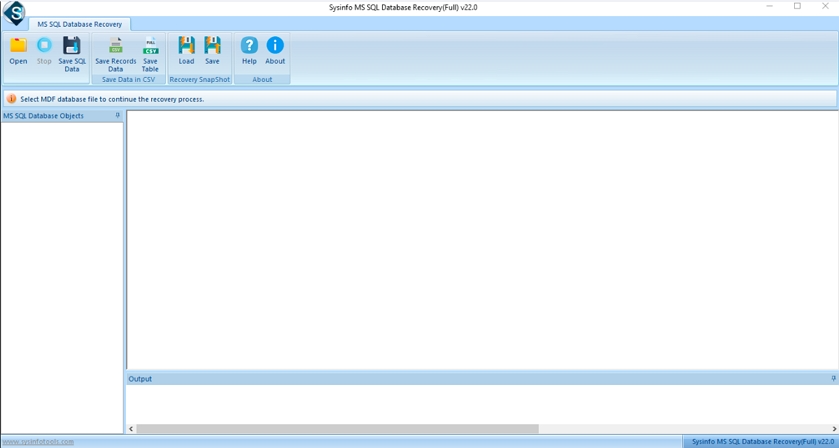
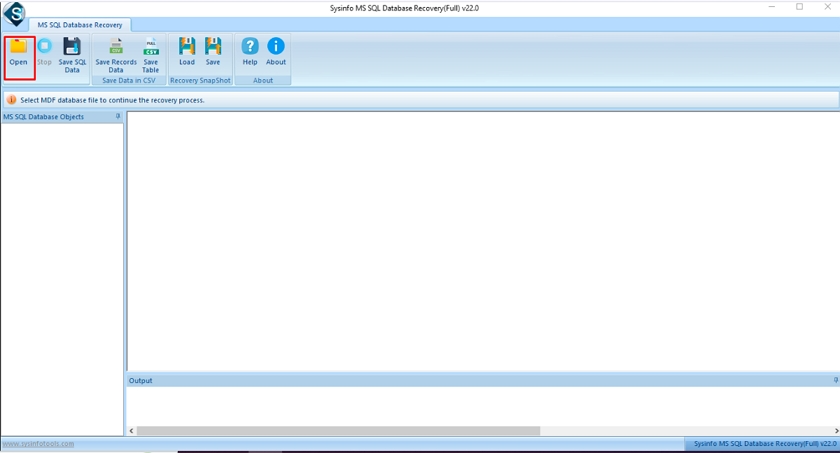
- After that, click on the open button and select the corrupt MDF files.
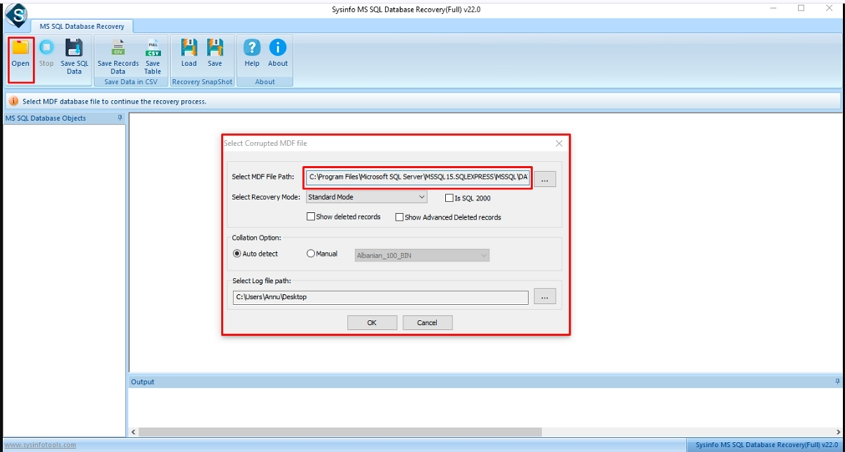
- Further, browse the MDF file path and select the recovery mode.
- Moving ahead, you can preview the files or folders of the corrupt files and then select the database object.
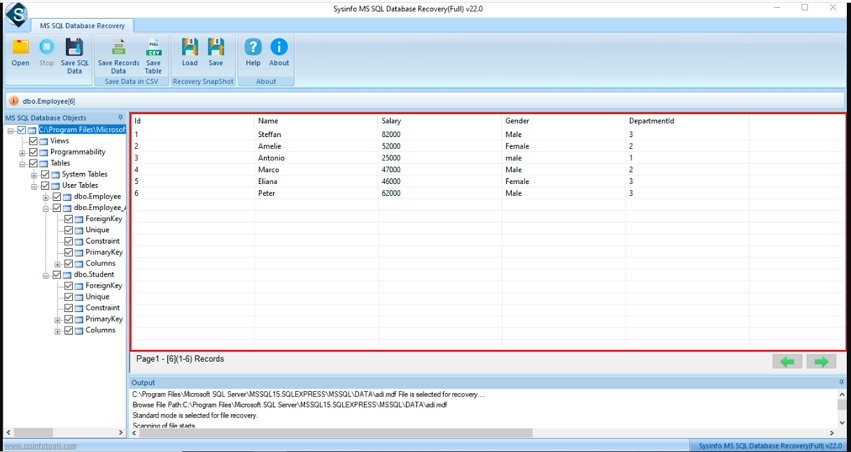
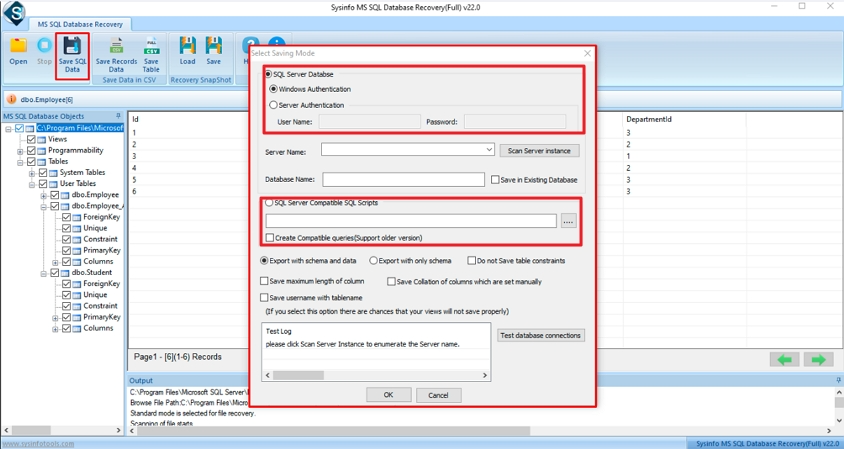
- Then, choose from SQL Server Database or SQL Server Compatible scripts for saving recovered files. Hit Ok button.
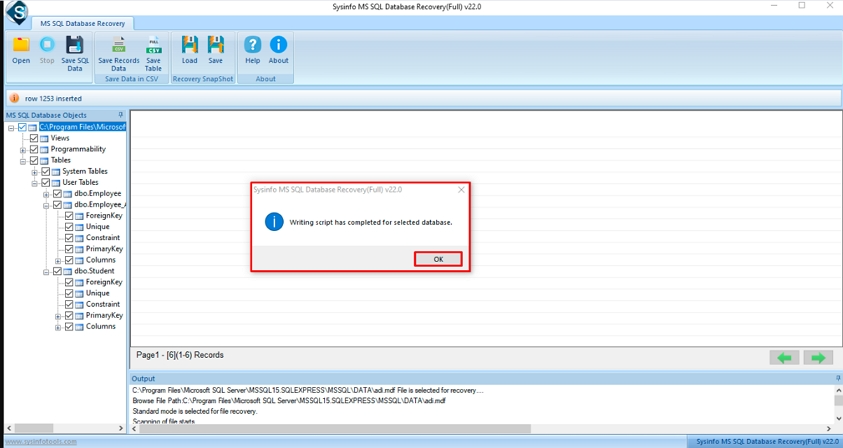
- In the end, the tool will show a pop-up message as the process is completed.
What Makes SQL Database Recovery Software the Right Choice?
- Dual recovery modes handle both minor page errors and severe MDF file corruption accurately.
- Tables, views, stored procedures, triggers, and BLOB data all come back intact.
- Preview recovered objects one by one before committing to any save operation.
- Recovered data goes out as a SQL database file or as SQL Server scripts.
- MDF and NDF files from any SQL Server version between 2005 and 2022 are supported.
- ROW and PAGE compression both work without any issues during recovery.
- Download the demo and scan your file for free before purchasing anything.
When Manual Repair Left a Business Without Its Database
A healthcare provider could not access patient records after SQL Server Error 2575 corrupted their database overnight. Manual repair commands made the situation worse and deleted rows that could not be recovered. DatabaseFileRecovery SQL Database Recovery Software pulled every table, trigger, and stored procedure out of the damaged MDF file cleanly and completely.
Conclusion
SQL Server Error 2575 does not give users much time before data becomes permanently inaccessible. To fix SQL Server Error 2575 without risking further data loss, manual methods are simply not enough. DatabaseFileRecovery SQL Database Recovery Software reads damaged MDF and NDF files directly and brings every database object back cleanly. Scan your corrupted file free with the demo and see exactly what can be recovered before purchasing.
Frequently Asked Questions
Q1. What is SQL Server Error 2575?
Ans. SQL Server Error 2575 is a database consistency error indicating that an Index Allocation Map page is allocated to the wrong object. It signals structural corruption inside the MDF file requiring immediate attention.
Q2. What causes SQL Server Error 2575?
Ans. Common causes include sudden power failures, bad disk sectors, hardware malfunctions, incomplete transactions, and virus attacks. Any event that interrupts SQL Server while writing to the database can trigger this error.
Q3. How do I identify SQL Server Error 2575 in logs?
Ans. Run DBCC CHECKDB against the affected database inside SQL Server Management Studio. The output will explicitly report Error 2575 alongside the affected object name, index ID, and page allocation details.
Q4. Is REPAIR_ALLOW_DATA_LOSS safe for fixing Error 2575?
Ans. No. It permanently removes corrupted data pages to bring the database online. Use it only as a last resort when no clean backup exists. DatabaseFileRecovery SQL Database Recovery Software is a safer alternative that recovers data without permanent deletion.
About The Author:

Meet Shivam, an experienced SEO executive and content strategist. He combines creativity with strategy to craft engaging content that connects with audiences and supports brand goals. With strong expertise in digital marketing and content planning, Shivam helps businesses thrive online.
Related Post