-
Written By Robert Scott
-
Updated on April 21st, 2026
Simple Guide to Fix SQL Server Error 9002: Transaction Log Full
User Query: My production SQL database stopped with Error 9002, which means the transaction log is full. I must fix SQL Server Error 9002 immediately. What steps restore writes safely, without data loss or extended downtime?
Working with databases often comes with unexpected errors, and one of the most common is SQL Server Error 9002. This issue appears when the transaction log file runs out of space and cannot record new transactions. As a result, database activities may pause or fail.
When the log becomes full, it directly impacts the performance and availability of SQL Server. Although the manual method can be used to fix SQL Server Error Code 9002, it may not be very effective. To counter that, we will provide you with an SQL LOG RECOVERY solution to help you.
Download Now Purchase Now
Understanding the Transaction Log and Error 9002
The transaction log records every database modification, ensuring ACID compliance and point-in-time recovery. Consequently, it grows with each operation. Without regular log backups or proper autogrowth settings, space depletes rapidly. Therefore, Error 9002 appears when the log cannot extend further. First, it blocks new write transactions for that database, and then applications time out. As a result, users experience service disruption. Understanding this behavior helps you prevent and resolve the issue effectively.
What Do You Need Before Fixing SQL Server Error 9002?
|
What to Do When SQL Server Shows Error 9002?
Error 9002 points to a full transaction log. When that happens, SQL Server can’t continue normal operations. It may look serious, but it’s usually manageable. Freeing up space and resolving the cause behind the log growth often restores everything quickly. Below, we have covered manual steps to fix SQL Error 9002.
- Start by firing up SSMS and connecting to the instance. Double-check you have the required permissions before you start the process.
- Next, run a transaction log backup right away. It is the fastest way to clear inactive space and get the log moving again.
- Check the drive holding your log file. Remove unnecessary files or temp files to free up room now.
- After that, relocate the log file to a drive with reliable free space if the current volume stays constrained.
- Track down open or long-running transactions that block log reuse. Terminate stalled queries or let critical processes finish.
- Finally, shrink the log file only after truncation succeeds. Run the operation in measured increments to avoid fragmentation and preserve performance.
Using T-SQL to Fix SQL Server Error 9002
When basic steps don’t help, T-SQL can give you a clear idea of what’s blocking the log so you can resolve it properly.
Steps:
- Open SSMS first. Connect to your server. Then hit New Query to get a blank window ready. Set the database context before running any commands.
- Pull the current log status with this query:
SELECT name, log_reuse_wait_desc
FROM sys.databases
WHERE name = ‘YourDatabaseName’;
- Now, read the log_reuse_wait_desc output. The output tells you straight up what is holding the log hostage. Most of the time, it is a backup that never ran, a query that never finished, replication doing its thing, or a snapshot sitting in the way.
- If the output points to replication or Change Data Capture, verify the configuration quickly:
SELECT is_published, is_subscribed, is_cdc_enabled
FROM sys.databases
WHERE name = ‘YourDatabaseName’;
- Then, fix the identified root cause. Run a log backup if the system is waiting on one. Terminate the idle query if a transaction is holding space. Adjust or remove the replication feature if it is anchoring the file.
- Once the wait status clears, run a CHECKPOINT to flush pending writes. Shrink the log file if needed, only after space is genuinely reusable. Do not shrink the log until it is truly free. Forcing it early just scrambles your file layout and sets you up for the next crash.
Why Manual Methods Are Not a Practical Choice?
- Manual troubleshooting of SQL Server Error 9002 can take a lot of time when dealing with large databases.
- Identifying the exact cause behind the transaction log full issue is not always easy.
- There is always a risk of incomplete resolution if the root cause is not properly fixed.
- Log file structure and growth settings may not be handled correctly during manual fixes.
- It is not ideal for production environments where downtime must be minimal.
- Basic SQL knowledge is important to avoid issues while executing commands.
- Manual steps increase the chance of human error during execution.
What is the Smarter Way to Troubleshoot SQL Error Log 9002?
Manual fixes for Error 9002 take time and carry risk. The DatabaseFileRecovery SQL Log Recovery Tool automates log analysis and recovery. It identifies blockers, extracts usable data, and restores access fast. Teams reduce downtime, skip complex T-SQL steps, and protect database integrity with a controlled, repeatable process that just works. Below, we will explore the steps to run the tool and fix the error. In case you get other SQL errors, you can use the SQL Database Recovery tool to fix those errors.
Steps to resolve SQL Server error 9002:
- At first, install and run the SQL Log Recovery tool on your system.
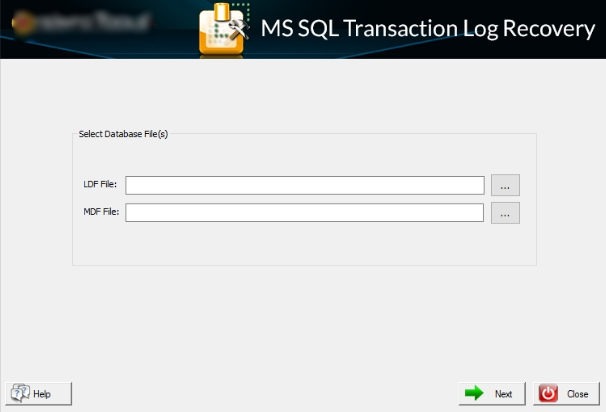
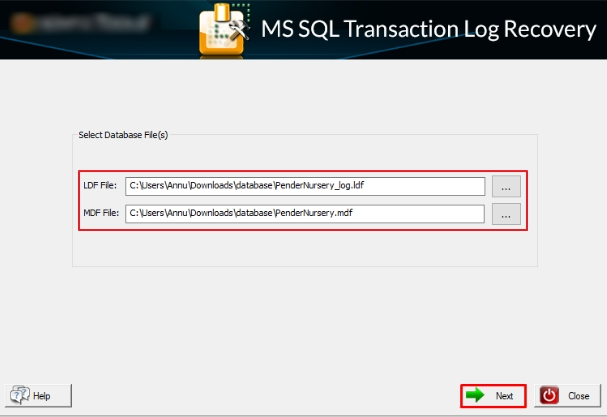
- Now you need to add the SQL transaction log LDF and MDF files to the tool. Then, hit Next.
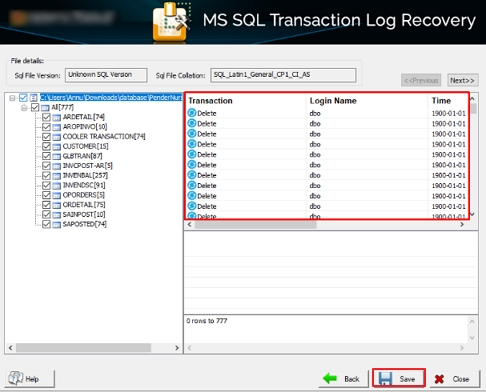
- Further, preview the added SQL transaction log records and select the logs you want to fix. Click Save.
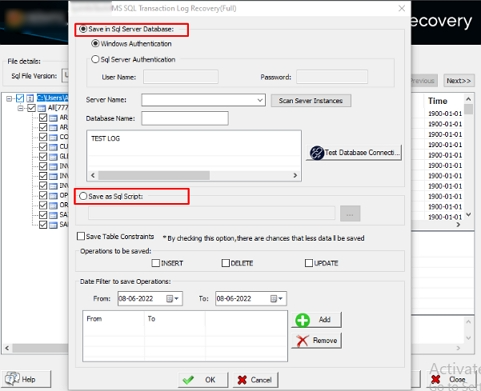
- After that, select from Save in SQL Server Database or Save as SQL Scripts and fill in the required fields.
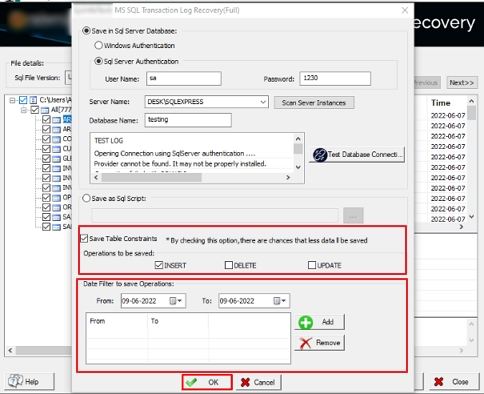
- As the last step, pick the table constraints to save, apply a date filter if required, and click OK to finish recovering the SQL logs.
Why Is an Automated SQL Log Recovery Tool Important?
- Automates SQL log recovery so you spend less time on manual troubleshooting.
- Spots the root cause of transaction log issues fast without digging through logs.
- Recovers SQL logs without needing deep DBA expertise or complex scripts.
- Keeps your data intact and consistent throughout the entire recovery process.
- Handles large or heavily corrupted SQL database files without breaking a sweat.
- Speeds up the recovery process so your database is up and running sooner.
- Removes the guesswork and human error that come with manual recovery steps.
- Walks you through recovery with a clean, straightforward interface.
- Processes SQL log files safely with zero data loss or file corruption.
- Delivers faster, more reliable results than traditional hand-coded fixes.
To Wrap Up
Error 9002 stops operations when the transaction log fills. Manual troubleshooting takes time and carries risk. The DatabaseFileRecovery SQL LOG RECOVERY tool delivers an automated solution to fix SQL Server Error 9002. It locates retention blockers, handles log data safely, and restores access quickly. This approach cuts downtime and protects file integrity.
Frequently Asked Questions(FAQS):
Q1. What is SQL Server Error 9002?
Ans. SQL Server Error 9002 appears when the transaction log is full and cannot record new operations. The DatabaseFileRecovery SQL LOG RECOVERY tool helps analyze and recover log data, making it easier to handle such situations.
Q2. Why does the transaction log become full?
Ans. The log usually fills up due to missing backups, long-running transactions, or limited disk space. With the DatabaseFileRecovery SQL LOG RECOVERY tool, users can identify log issues more easily and recover data without complex troubleshooting.
Q3. Can I delete the log file to fix Error 9002?
Ans. No, deleting the log file is not safe and can lead to data loss. Instead, using the DatabaseFileRecovery SQL LOG RECOVERY tool allows you to safely recover and manage log data without damaging the database.
Q4. How often should I back up the transaction log?
Ans. For active databases, frequent log backups are recommended to prevent issues like Error 9002. Along with backups, the DatabaseFileRecovery SQL LOG RECOVERY tool can be used when log-related problems occur.
Q5. Does switching to SIMPLE recovery mode fix the error permanently?
Ans. Switching to SIMPLE mode may reduce log growth temporarily, but it is not a long-term solution. The DatabaseFileRecovery SQL LOG RECOVERY tool provides a more reliable way to handle log issues and recover data when needed.
About The Author:

With more than five years of experience in email migration, Data Recovery, Email Backup, and File Management, I combine my years of experience with a strong interest in new technology. My professional journey is fueled by a genuine passion for navigating and mastering the latest advancements in these fields, ensuring that I stay ahead of the curve and bring innovative solutions to the table.
Related Post