-
Written By Shivam Rathore
-
Updated on April 27th, 2026
Fix MS SQL Server Error 1105: Restore Database Space Quickly
When a production database stops suddenly, and you cannot perform any insert or update operation, it gets difficult. In your MS SQL, you must have faced many issues, and one unavoidable error is 1105. It states that the database cannot allocate space for the object as the filegroup is full. So, you must fix MS SQL Server Error 1105 with the troubleshooting tricks and the dependable SQL Database Recovery Tool specified in this guide. It ensures that you manage the data availability smartly and ensure no transactions are halted, applications broken, or SLAs impacted.
Download Now Purchase Now
Understanding MS SQL Server Error 1105
To resolve MS SQL Server error 1105, it is necessary to understand what the error exactly is. The error basically tells that it cannot allocate additional space for a table, index, or internal object. No disk is available in the SQL database file group.
Symbolically, it is represented as NO_MORE_SPACE_IN_FG and arises due to the following factors:
- Filegroup full
- The database reached maximum efficiency
- Autogrowth is restricted/disabled
To have a better overview, let’s check out the root causes of the error code 1105 in MS SQL.
|
Reason |
Explanation |
|
Data File Up to the Max Size |
Each MDF and NDF file in the database has its own size limits. If that marks complete, no more data can be written within them. |
|
Exhausted Database Disk Space |
If the underlying disk space is full, then even if your autogrowth is enabled, the error may occur. |
|
Misconfigured/Disabled AutoGrowth |
SQL Server is unable to expand the files automatically if your AutoGrowth functionality is capped too low or off. |
|
Configuration Problems in Filegroup |
Neither primary nor secondary files have additional files or space to divide the data. |
|
Lare Index & Transactional Operation |
Performing bulk imports, index rebuilding, and ETL jobs takes up the space much faster than usual. |
How to Securely Fix MS SQL Server Error 1105?
We will discuss the native troubleshooting tricks and the smart automated software solution for instant fixes. You can explore all of them with their stepwise guide below. Ensure you are technically proficient for manual solutions.
Troubleshoot MS SQL Error 1105
There are some common and advanced manual fixes that we will go through in order to efficiently fix and simplify storage creation. Follow the stepwise procedure as given below:
Step 1: Clear Your Disk Space
Check the drive hosting your database files, whether it is free or not, and if it isn’t, extend your storage space.
Step 2: Manage AutoGrowth
To ensure that your database doesn’t become unpredictable, avoid percentage-based growth for very large datasets. Further, adjust the autogrowth with these commands:
|
ALTER DATABASE YourDBName MODIFY FILE ( NAME = ‘YourDBName_Data’, FILEGROWTH = 100MB ); Or USE [MASTERTABLE] GO ALTER DATABASE [YourDBName] MODIFY FILE (Name = N’YourDBName’, MAXSIZE = UNLIMITED) GO |
Step 3: Upload New File to Filegroup
Using this command, you can help reduce the load and instantly add capacity to your SQL database:
|
ALTER DATABASE YourDBName ADD FILE ( NAME = ‘YourDBName_Data2’, FILENAME = ‘D:\SQLData\YourDBName_Data2.ndf’, SIZE = 400MB, FILEGROWTH = 100MB ); |
Step 4: Later, Increase the Current File Size
You need to use the command below to expand the file size based on the data volume:
|
ALTER DATABASE YourDBName MODIFY FILE ( NAME = ‘YourDBName_Data’, SIZE = 2GB ); |
Step 5: Clear Cluttered/Unused Data
To ensure your database is clean, make sure you deal with the following:
- Obsolete Records -Deleted
- Old Data -Archived
- Staging Tables -Truncated
- Temp Tables and Logs -Removed
Step 6: Shrink Data (Optional)
If you find that the size is still not suitable and you need to shrink some data, then use this command. But with caution, as it can result in fragmentation.
|
DBCC SHRINKFILE (‘YourDBName_Data’, 1000); |
That’s it. The manual troubleshooting ends here.
Smart Fix MS SQL Server Error 1105
Often, it can happen that the error code 1105 is just a symptom of other major issues. For example: corrupted MDF/NDF files, orphaned objects, and failed restore or incomplete transactions that consume the space and create complexities. In such cases, the above native fixes don’t help. To deal with these, you need the professional DatabaseFileRecovery MS SQL Database Repair Tool. It is highly efficient and trusted by experts for instant recovery without loss and downtime.
Simple Steps to Fix SQL Error 1105 Automatically
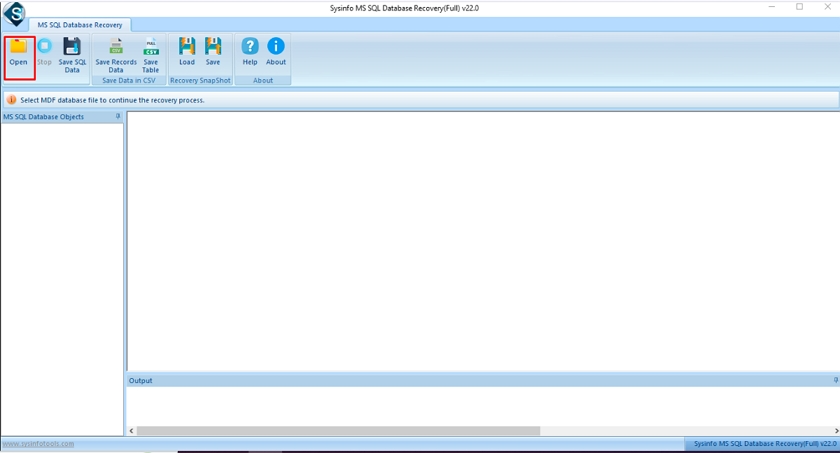
- Start the SQL Recovery Tool and click the Open button.
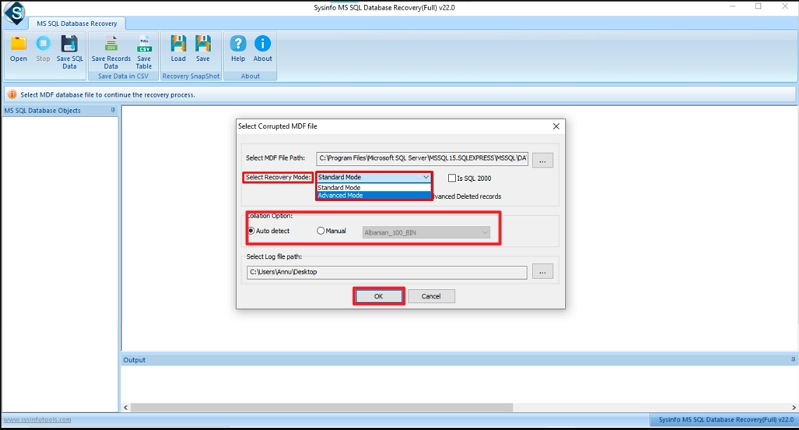
- Then, choose the MDF file, recovery mode, other file options, and click OK.
- Further, preview the data of the SQL files within the software. Check tables and records.
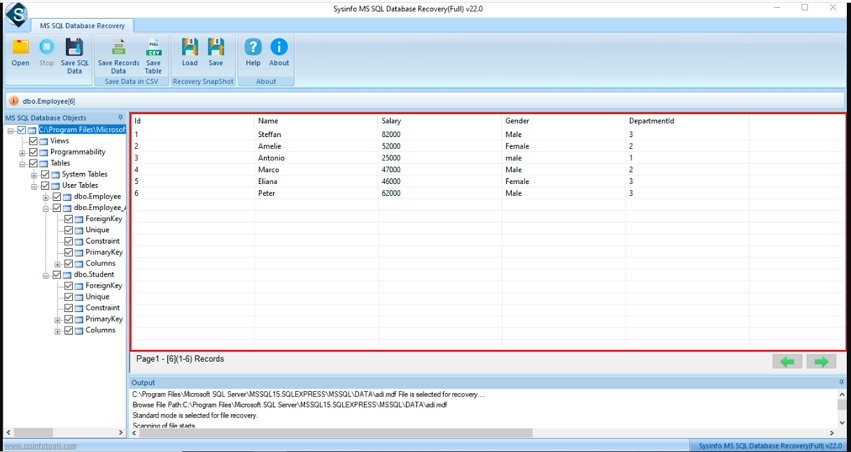
- Afterward, tap Save SQL Data and select whether to save data in a new database online or as a script on PC.
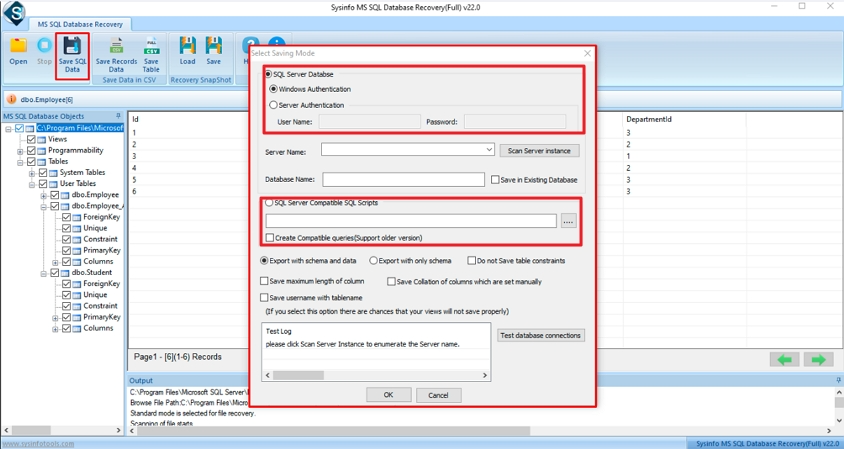
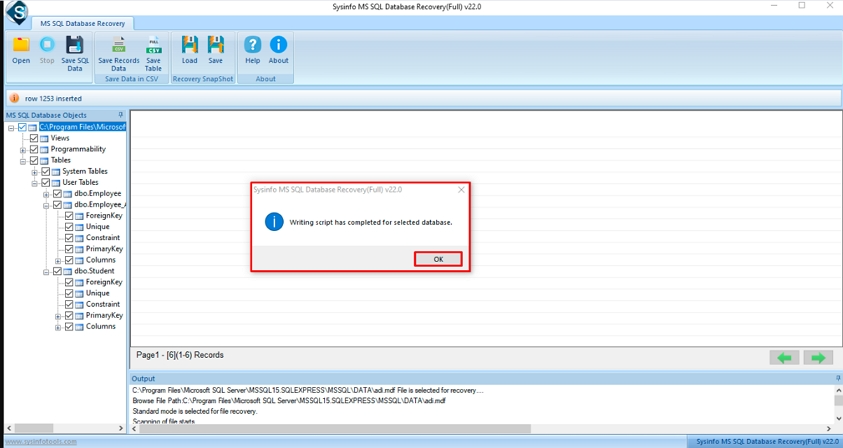
- Finally, your database will be restored and saved with ease. You can click OK.
How The SQL Database Repair Tool Proves Beneficial?
- Seamlessly recover corrupted and inaccessible DB files
- Extract data from damaged filegroups for easy use
- Reduce the unnecessary consumption of storage
- Support for all SQL versions and Windows OS
- Recovers easily and enables preview in Demo Version too
- Needs no expertise, is user-friendly, and 100% secure
|
Real Scenario: Hidden corruption bloating file size caused a finance database error 1105. The DatabaseFileRecovery SQL Database Recovery Software extracted all valid data and reduced the storage footprint by 30%, restoring operations to normal. It helped resolve MS SQL Server Error 1105 in minimal time with no loss. |
Fix MS SQL Server Error 1105: Prevention Tips
|
Tip |
Explanation |
|
Monitor DB File Growth on a Proactive Basis |
Set the alerts in your database threshold to ensure you can manage it on time |
|
Fix AutoGrowth Settings |
Use MB/GB increments and avoid the percentage growth |
|
Data Distribution Among Filegroups |
Do not keep your data stored in a single filegroup, especially for large databases. Segregate it into different files. |
|
Index Maintenance Scheduling |
Optimize the storage space by rebuilding and reorganizing the database indexes |
|
Archiving Historical Data Regularly |
Move the old data to a different storage on a regular basis |
|
Track Trends for Optimal Disk Usage |
If you have a planned disk storage capacity, then it can beat the emergency fix. |
Note that most teams consider filegroups optional, yet they are essential to filegroup design and performance improvement. Effective filegroup design allows you to scale horizontally for storage capacity, improve performance, and avoid single-point bottlenecks in storage.
Final Remarks
Error 1105 isn’t just a notification; it’s an indication that a system-wide constraint surfaces in the interface at runtime. When you fix MS SQL Server Error 1105 quickly, it helps restore operations. When you prevent it, you achieve business continuity.
The most knowledgeable database administrators anticipate storage problems when building systems to eliminate unforeseen storage outages. Hence, follow the troubleshooting tricks or best use the DatabaseFileRecovery SQL Repair Tool and keep your database in a perpetual functioning state.
Frequently Asked Questions(FAQS):
Q1. What is MS SQL Server Error 1105?
Ans. It is a storage-related issue that indicates that SQL Server cannot allocate additional space for the filegroup or file to make room for additional files.
Q2. What causes SQL Server Error 1105?
Ans. The most common causes of Error 1105 are out-of-disk space, AutoGrowth feature limits, maximum file sizes, and poorly configured filegroups.
Q3. Can third-party tools help in fixing SQL Server Error 1105?
Ans. Yes, tools like SQL Server Recovery Tool can help fix SQL error 1105, especially when you’re experiencing a corrupt database or excessive growth of a file. Database recovery and storage optimization will be much easier with the dedicated software.
Q4. How can database administrators prevent Error 1105 in SQL Server?
Ans. The best way to avoid storage issues is through storage monitoring, proper auto-growth configuration, multiple filegroup usage, and regular database maintenance.
Q5. How can I prevent SQL Server Error 1105 in the future?
Ans. To avoid reaching storage exhaustion, you should implement proactive capacity planning, set up automated alerts, and perform routine data cleansing/archive processes.
About The Author:

Meet Shivam, an experienced SEO executive and content strategist. He combines creativity with strategy to craft engaging content that connects with audiences and supports brand goals. With strong expertise in digital marketing and content planning, Shivam helps businesses thrive online.
Related Post