-
Written By Shivam Rathore
-
Updated on May 21st, 2026
Step-by-Step Guide to Resolve SQL Server Error 17113
Error 17113 can stop an entire SQL Server instance from starting, and it often scares admins into panicking. But in most cases, the root cause lies in the master database path or service‑account permissions, not deep‑level corruption. Here’s how you can cleanly resolve SQL Server Error 17113 without guess‑and‑check, and avoid turning a simple config issue into a full‑scale disaster. This guide walks you through the manual and DatabaseFileRecovery SQL Database Recovery solution in detail.
Download Now Purchase Now
What Is SQL Server Error 17113?
SQL Server Error 17113 appears when the SQL Server service cannot locate or access the master database during startup. Windows usually show it as:
“Windows could not start the SQL Server (instance) service on the local computer. Error 17113 (0x42D9).”
This does not mean the SQL Server itself is broken; it means the engine can not find master.mdf or can not read it due to path or permission issues.
Quick Checks Before You Fix SQL Server Database Error 17113
- Open Event Viewer on the server, go to Windows Logs → Application, and look for the exact Error 17113 entry.
- Check the SQL Server error log, usually in Program Files\Microsoft SQL Server\MSSQL\LOG\ERRORLOG, to see if it mentions master.mdf or any file‑access issues.
- Make a note of which SQL Server instance is failing (for example, MSSQLSERVER, SQLEXPRESS, or a custom‑named instance).
- These details help you tell early whether you are facing a wrong path, a permission problem, or a damaged master database, so you can choose the right fix instead of guessing.
What Are the Manual Methods to Fix SQL Server Error 17113?
When you need to resolve SQL server issues without any third‑party tools, you can rely on a few core manual methods that directly target the root causes: path issues, permission problems, and account‑related startup failures.
Resolve SQL Server Error 17113 Using PowerShell
You can also resolve this error using PowerShell, especially when you’d rather work from the command line than use GUI tools. This approach comes in handy for starting and stopping the instance or tweaking the service‑logon account without leaving the terminal.
Check and Start the SQL Server Service
- First, open PowerShell as Administrator. To list SQL-related services, run:
Get-Service | Where-Object { $_.Name -like “MSSQL*” -or $_.Name -like “SQL*” } - Note your instance name, such as MSSQLSERVER or MSSQL$INSTANCENAME. If it’s stopped, try:
Start-Service -Name “MSSQLSERVER” If the service still fails and you see Error 17113 in the logs, move on.
Change the Service Logon Account
- If the problem is tied to the account, stop the service first:
Stop-Service -Name “MSSQLSERVER” -Force - Then set the startup type (this doesn’t change the account but keeps it auto-starting):
Set-Service -Name “MSSQLSERVER” -StartupType Automatic - Next, change the account itself using the sc command inside PowerShell:
sc config MSSQLSERVER obj= “LocalSystem” - Replace MSSQLSERVER with your actual service name and LocalSystem if you need a domain account. After that, restart the instance:
Start-Service -Name “MSSQLSERVER” This alone often helps you fix MS SQL Error 17113 when permissions or the account are the real issue.
Test and Verify
- Once the service starts, check its status:
Get-Service -Name “MSSQLSERVER”
If it shows Running, connect via Management Studio or sqlcmd and run a simple query like SELECT @@VERSION to confirm the instance is healthy. If it still fails, quickly open the SQL Server ERRORLOG and Windows Event Viewer to see if the error still points to master.mdf or access-denied messages.
Correct the Path Using SQL Server Configuration Manager
This is the most common manual fix for Error 17113.
- Open SQL Server Configuration Manager from the Start menu under Microsoft SQL Server → Configuration Tools.
- In the left pane, go to SQL Server Services.
- Right‑click the failing SQL Server instance (for example, SQL Server (MSSQLSERVER)) and choose Properties.
- Switch to the Startup Parameters tab.
- Find the row that starts with –d and click inside the value box; this is the current path to master.mdf.
- If the file has been moved (drives, disks, or reinstalled), change the path to the real location of master.mdf (e.g., C:\Program Files\Microsoft SQL Server\MSSQL15.MSSQLSERVER\MSSQL\DATA\master.mdf).
- Click Update, then OK, and restart the SQL Server service from Services (services.msc).
Once the engine can actually reach master.mdf, the error usually vanishes, and the instance starts cleanly.
Why Do Manual SQL Server Fixes Feel Difficult?
- Small typing mistakes in startup parameters can stop Microsoft SQL Server from starting properly.
- Fixing permissions folder by folder eats into your time, especially on busy production servers.
- Running PowerShell or SC commands without real experience can easily mess up the service account or paths.
- Each manual step forces you to check logs and restart the service, which slows everything down.
- On large or clustered setups, doing everything manually can push you close to downtime or data loss.
How Can a SQL Server Recovery Tool Help You?
If you are tired of spending hours using manual fixes only to end up with the same Error 17113. It is time to bring in the DatabaseFileRecovery SQL Database Recovery tool as a practical, low‑stress solution. It walks you through the process in a simple interface, so you do not need to be a technical expert. The tool also handles common attach‑failure errors and helps you avoid long rebuild windows. The utility gives you a safer, faster way to move past Error 17113 and keep your SQL Server instance running.
Steps To Resolve SQL Server Error 17113:
- At first, install and open the SQL Database Recovery Software and run it as an administrator.
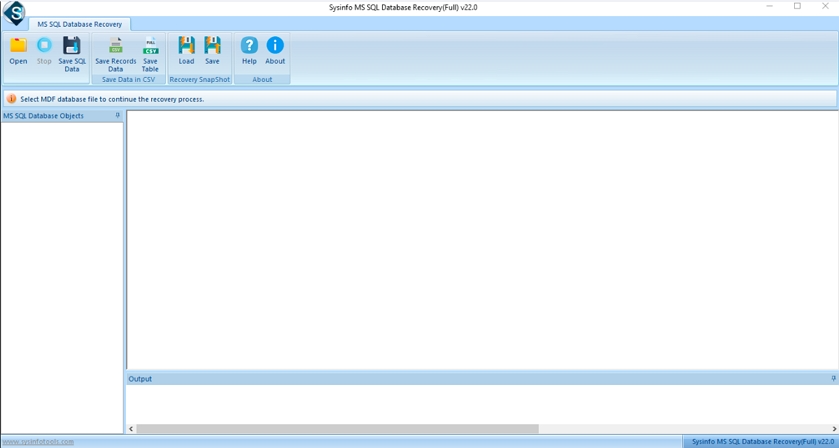
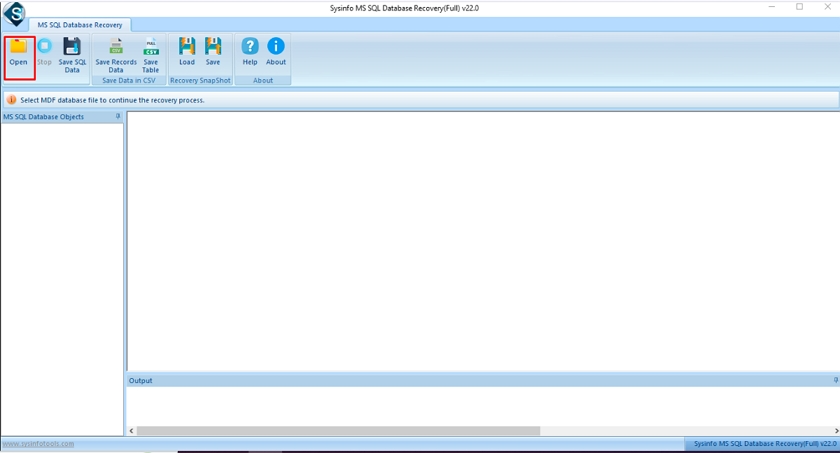
- After that, tap on the Open button and add the corrupt MDF files to the panel.
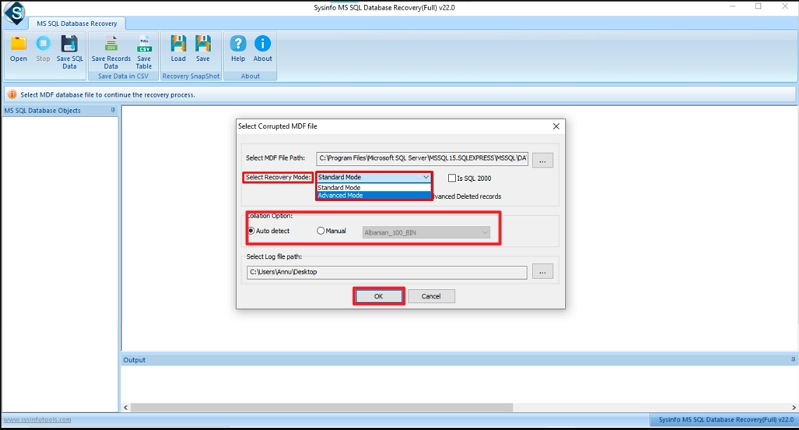
- Further, choose from the Standard or Advanced recovery mode, and pick from the Collation option.
- Moving ahead, you can preview the Files, Folders, or Subfolders of the corrupt added files.
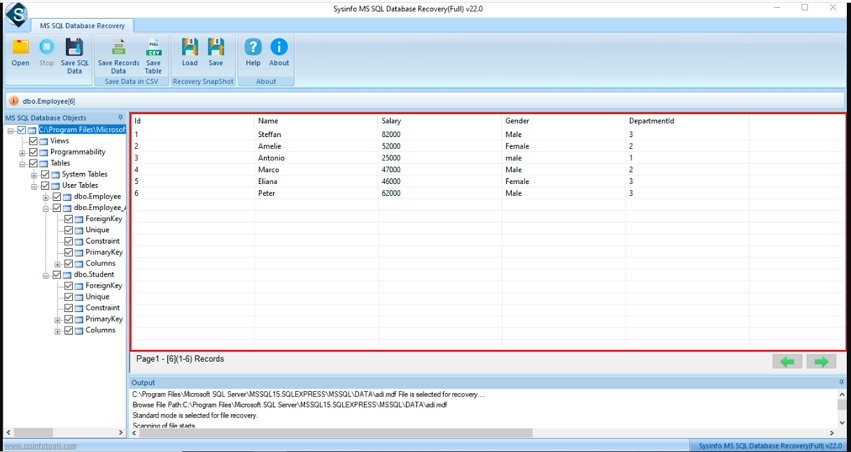
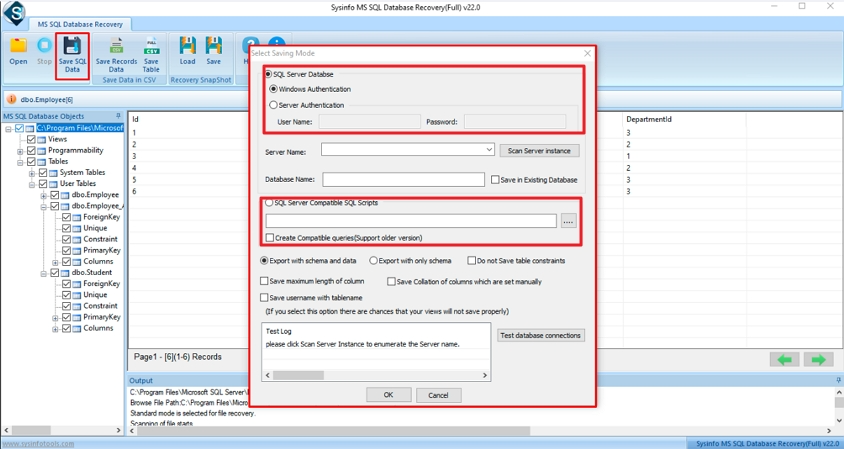
- In the end, you can pick options for saving recovered files from SQL Server Database or SQL Server Compatible Scripts. Then, hit the OK button.
What Are The Core Features Of The Tool?
- Open damaged SQL database files without changing server settings again and again.
- Recover SQL tables, records, and other database items from inaccessible MDF files.
- Check the database content before saving the repaired SQL file on the system.
- Large SQL database files load properly during the recovery process without stopping midway.
- Save the repaired database data back into Microsoft SQL Server or separate SQL scripts easily.
Real Case ScenarioOne user moved a SQL Server instance to a new drive but forgot to update the path in Configuration Manager. The service refused to start and threw Error 17113. He spent hours checking the registry, tweaking permissions, and testing different accounts. After that, they decided to switch to the DatabaseFileRecovery SQL Database Recovery tool to repair SQL Server database error 17113. The software helped to recover all the corrupt files and resume workflow in a few hours. |
Ending Thoughts
If you keep trying to resolve SQL Server errors only with manual steps, you are trading effort for risk. A safer, faster way is to use a trusted SQL‑recovery tool that can inspect and repair database files without guesswork. DatabaseFileRecovery SQL Database Recovery tool helps you scan and repair damaged MDF files, recover missing objects, and export data cleanly. The tool does not replace your knowledge but backs it up, so you can resolve SQL Server error 17113 and similar issues faster, with zero data loss.
Frequently Asked Questions
Q1. What causes MS SQL Error 17113?
Ans. Microsoft SQL Server Error 17113 usually appears because of damaged MDF files, incorrect startup paths, permission problems, or inaccessible database locations on the server.
Q2. Where can I see the detailed error information?
Ans. You can check the SQL Server ERRORLOG file or Windows Event Viewer for detailed information related to the startup failure and database issue.
Q3. Will I lose user data if I fix this error?
Ans. Not always, many users recover the database successfully after correcting startup issues. For damaged MDF files, the DatabaseFileRecovery SQL Database Recovery Tool helps recover accessible database content safely.
Q4. What should I do if the master.mdf file is permanently corrupted?
Ans. If the master.mdf file cannot be repaired manually; you may need to rebuild system databases or recover accessible SQL data using DatabaseFileRecovery SQL Database Recovery Tool.
About The Author:

Meet Shivam, an experienced SEO executive and content strategist. He combines creativity with strategy to craft engaging content that connects with audiences and supports brand goals. With strong expertise in digital marketing and content planning, Shivam helps businesses thrive online.
Related Post