-
Written By Shivam Rathore
-
Updated on December 11th, 2025
Resolve MySQL Error 1146 and Restore Missing Tables
MySQL Error 1146 usually pops up with the message “Table doesn’t exist,” and it can be pretty annoying when you’re in the middle of something. Whatever the reason, this error can stop your app from working the way it should. In this guide, I’ll walk through the usual causes, how you can resolve MySQL Error 1146 with manual methods, and by using the DatabaseFileRecovery MySQL Database Recovery Tool. Download Now Purchase Now
What is MySQL Error 1146?
MySQL error 1146 basically pops up when MySQL can’t spot the table you’re asking for. The message looks something like:

Most of the time, it just means MySQL isn’t able to find the table where it expects it to be.
Native Approach to Resolve MySQL Error 1146
If you want to solve this error yourself, you can do a few things to check before moving to the advanced repair options:
1. Verify the Table Name
Start by looking at your query again. A small typo or using the wrong database can easily trigger the error. Double-check the spelling and the database you’re connected to.
2. Check the MySQL Data Folder
Head to:
/var/lib/mysql/your_db/
and see if the table files are actually there. If they show up but MySQL still can’t read them, move on to the next step.
3. Re-create the Table (If You Know the Structure)
If the table is gone and you know how it was set up, you can manually rebuild it with a simple CREATE TABLE command. It’s basic, but it works when the structure is known.
4. Restore from a Backup
If you have a backup file, use this to resolve MySQL table doesn’t exist:
5. Recover an InnoDB Table (.ibd method)
When the table is used with InnoDB and the .ibd file is available:
- Create a new table with the same structure and run:

- Replace the new .ibd with the old one and run:

6. Check User Permissions
Sometimes the table exists, but you don’t have access. To fix MySQL Error 1146, verify permissions with:
Best Way to Resolve MySQL Error 1146
When MySQL tables go missing or the files get messed up, one simple option is to use a MySQL Recovery Tool. It basically goes through the .ibd and .frm files and tries to pull out whatever it can. You don’t need MySQL running for it to work, and it handles both InnoDB and MyISAM tables. It works on any Windows machine and is pretty straightforward to use, so you can get the database back without too much hassle.
Quick Steps to Migrate from Hotmail to Gmail Using the Tool
- Firstly, download and start the DatabaseFileRecovery MySQL Repair Tool and load your database files.
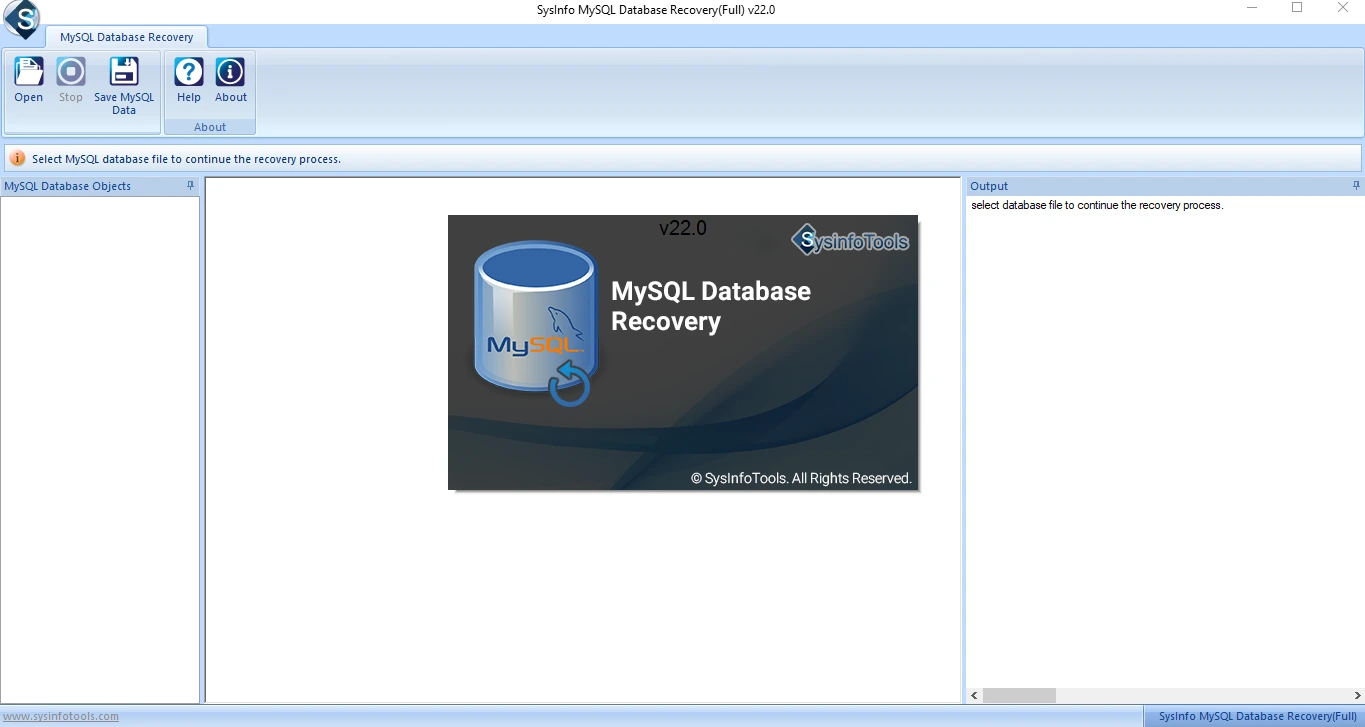
- Thereafter, once they appear, hit OK and look through the list of tables and other items on the left panel.
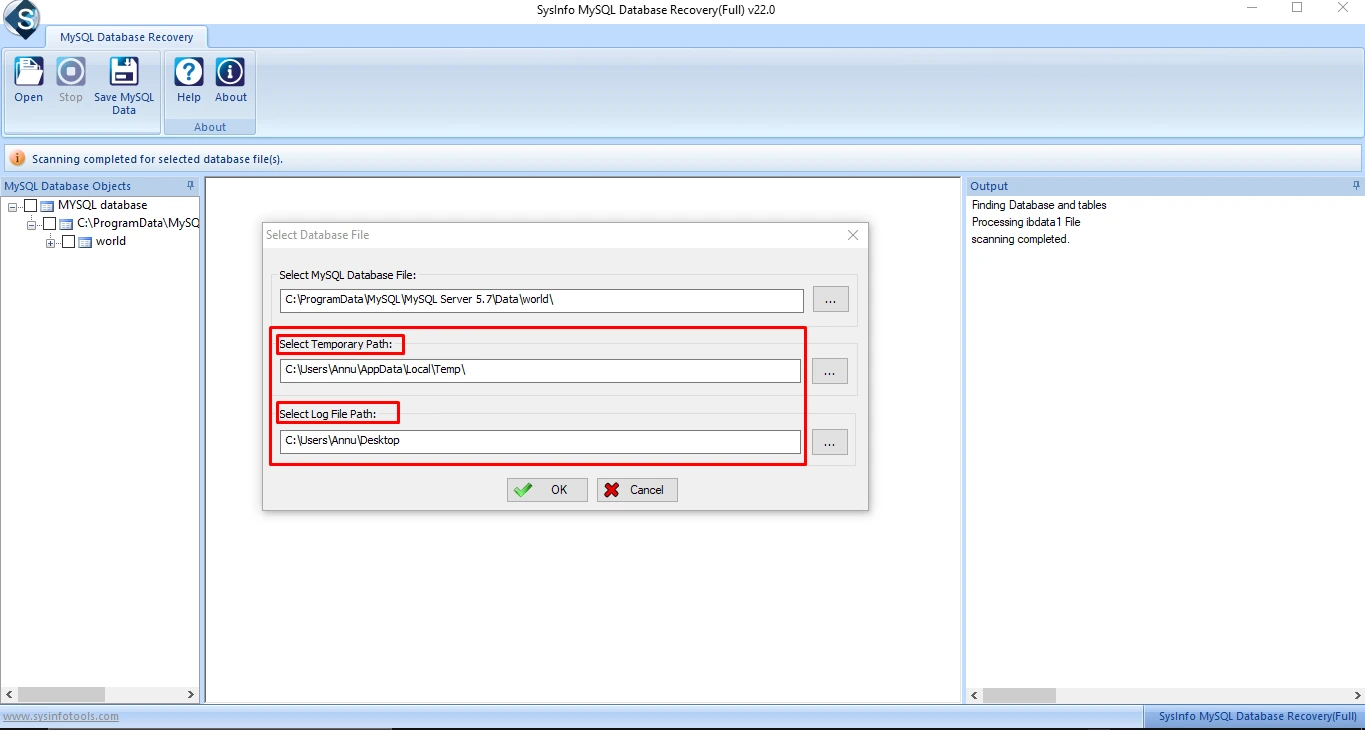
- After that, add your ibdata1 file so the tool can show everything properly.
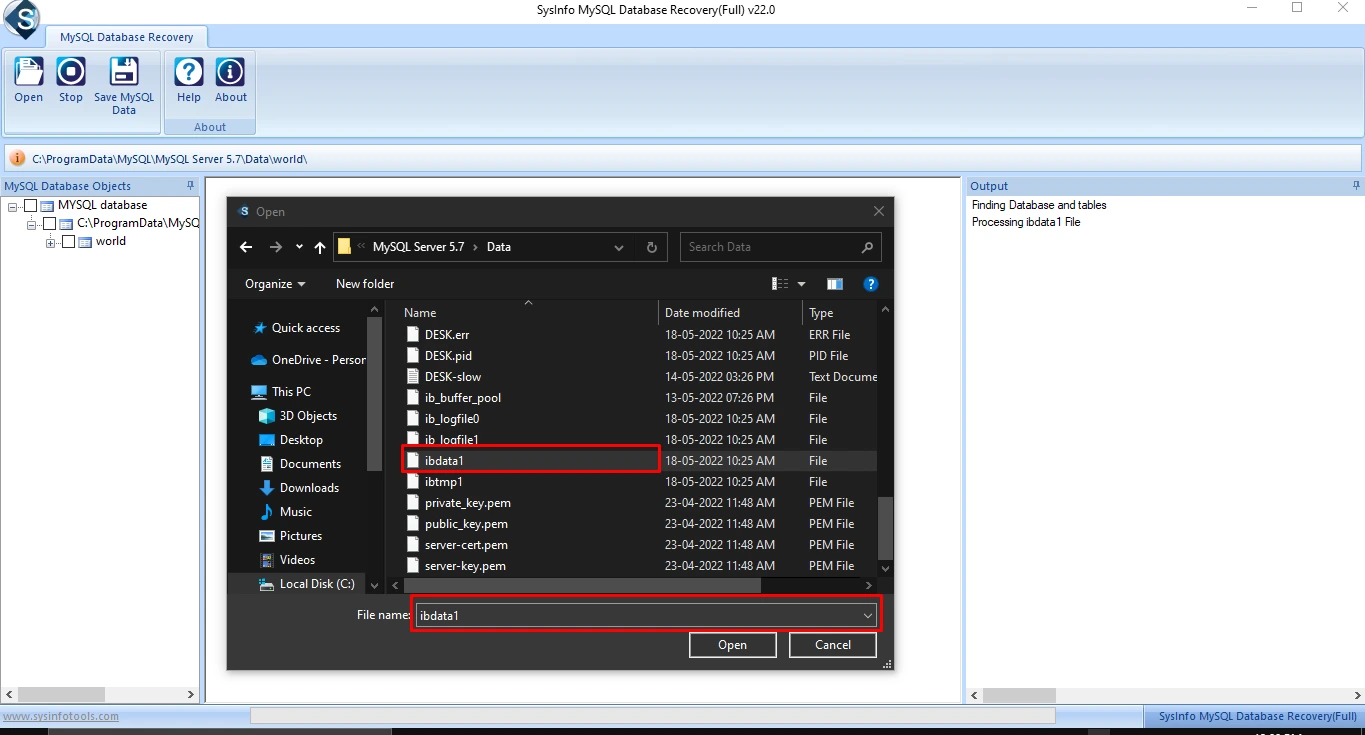
- Then, select the folders you want to recover and click Save MySQL Data.
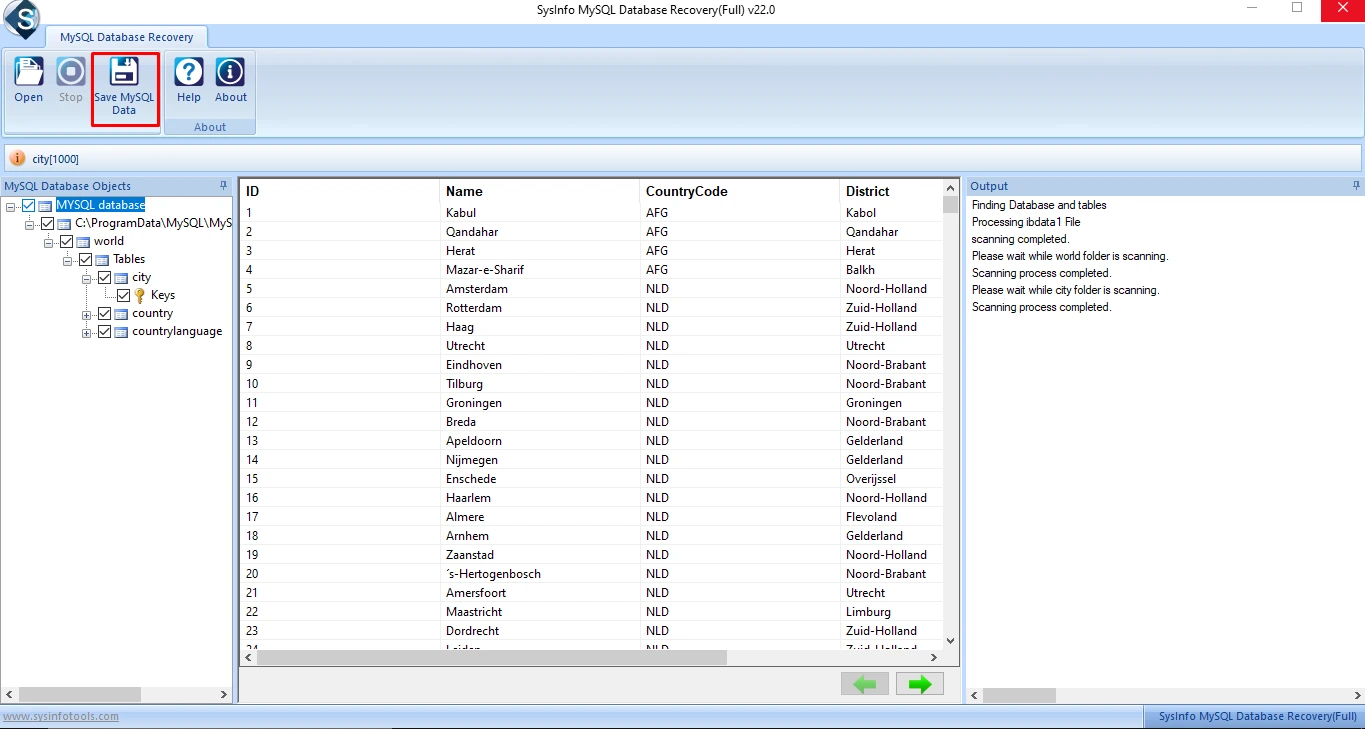
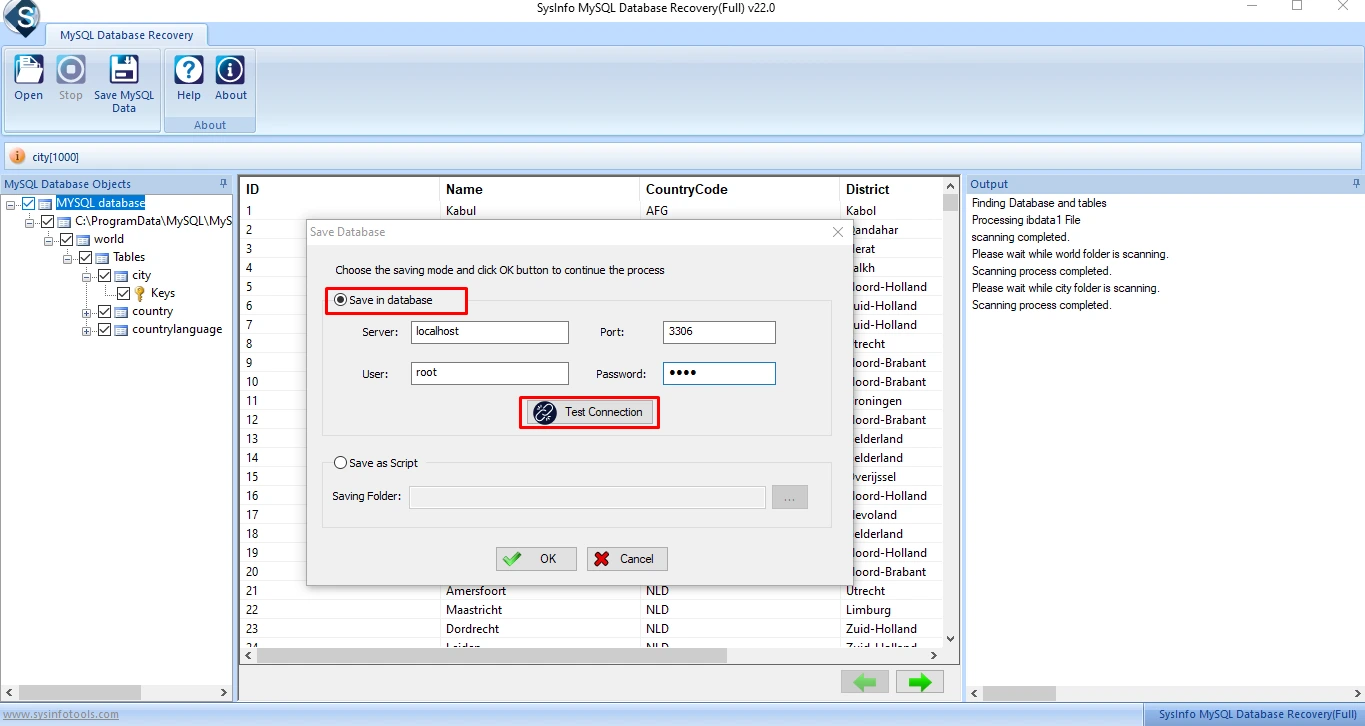
- Finally, choose where you want the recovered files to be stored, confirm the connection details, and press OK to start the recovery.
Conclusion
MySQL Error 1146 can show up for different reasons, not just because a table is missing. Sometimes the files don’t line up, the table structure breaks, or the database storage runs into issues in the background. When the database is big, this error can be annoying to deal with, but it’s still something you can fix. Once you figure out what went wrong, you can use the method that fits to resolve MySQL Error 1146, whether it’s a simple check or using a repair too, and get your tables back so your database works normally again.
Frequently Asked Questions
Q1. Execution of query 0 failed because of MySQL error code 1146. What does it mean?
Ans: This error means MySQL can’t find the table you’re querying. Usually, the table is missing, renamed, or corrupted, causing the query to fail immediately.
Q2. What causes MySQL to show error 1146?
Ans: MySQL shows Error 1146 when the table is deleted, moved, or the database is selected incorrectly. Corrupted table files can also trigger this issue. In such cases, the MySQL Database Recovery Tool helps repair damaged files and rebuilds the affected MySQL tables.
Q3. How do I restore a missing table in MySQL after error 1146 appears?
Ans: First, verify the table name and check for backups. If needed, recreate the table manually or restore it using the MySQL Database Recovery Tool.
Q4. What tool can repair or restore MySQL tables after Error 1146 appears?
Ans: The best solution is to use the MySQL Database Recovery Tool. It scans damaged MySQL database files, repairs corrupted tables, and recovers lost data. The tool works even if you have not installed MySQL on your system.
Q5. How do I fix MySQL Error 1146 in WordPress or other CMS platforms?
Ans: To fix this error in WordPress, check if the missing table exists in phpMyAdmin. Restore the table from a backup if needed. Also, confirm that your database prefix is correct. Use the MySQL Database Recovery Tool to recover it and restore your missing WordPress or CMS database tables.
About The Author:

Meet Shivam, an experienced SEO executive and content strategist. He combines creativity with strategy to craft engaging content that connects with audiences and supports brand goals. With strong expertise in digital marketing and content planning, Shivam helps businesses thrive online.
Related Post