-
Written By Shivam Rathore
-
Updated on January 15th, 2026
Step-by-Step Guide to Fix SQL Server Error 40
User Search Query: I’m on SQL Server 2019 with SSMS. Error 40. I’m a total newbie. This error is something I’ve been struggling with since yesterday, when I installed the server. I can’t connect to the server. The only thing that I could think of was the firewall warning I saw in the installation process, but I could be wrong. Can anyone help?
~ HOFredditor
“SQL Server Error 40” is a common error faced by database users. It usually happens because of network issues or wrong server settings. The server may also be down or not running at that time. This problem can be annoying, especially for database administrators. This blog helps you fix SQL Server Error 40. It also explains easy manual steps to fix the connection problem. A professional DatabaseFileRecovery SQL Database Recovery Tool is shared for a faster and safer solution. Using the right steps or tool can help you fix the error quickly and correctly. Download Now Purchase Now
Common Causes of Error 40 in SQL Server
- Sometimes people miss small details. The server name or instance name might be wrong, and even a small mistake there can break the connection.
- Network problems also cause this error quite often. If the system can’t reach the server because of LAN or internet issues, the connection fails.
- Some setups disable remote connections. When that happens, users trying to connect from another machine will see Error 40.
- Lastly, the SQL Server Browser service matters more than people think. If it’s stopped, the client may not be able to locate the correct SQL Server instance.
Manual Way to Fix SQL Server Error 40
There are 4 major steps you should take to fix this error manually. If the given steps do not work, you need to switch to the automated method to successfully resolve SQL Error 40.
- First, check SQL Server instance is running. Open Services and look for your SQL Server service, such as MSSQLSERVER. If it stopped, right-click on it and start the service.
- Next, open SQL Server Configuration Manager and check that TCP/IP is enabled. Open its properties and confirm that the default port is set to 1433.
- After that, open SQL Server Management Studio. Right-click the server name, go to Properties, and under Connections, make sure the option to allow remote connections is turned on.
- Finally, check your firewall settings. Go to Windows Firewall and allow SQL Server through it. The TCP ports 1433 and 1434 should not be blocked.
Limitations
- It takes time and needs careful checking of many settings.
- Firewall and permission changes can be risky if done incorrectly.
- The method does not guarantee a fix in every case.
- No automatic error detection or guidance is provided during the process.
Automated Method to Fix SQL Server Error 40
If the manual steps don’t fix the issue and the process feels tiring, the problem may be deeper than connection settings. A proper connection needs a healthy database to work. In some cases, SQL Server does not even start because its system databases are badly damaged. When this happens, manual fixes won’t help. Using SQL Database Recovery Software can repair the database and help restore the connection.
Steps to Fix SQL Error 40
- First, download and run SQL Recovery Software.
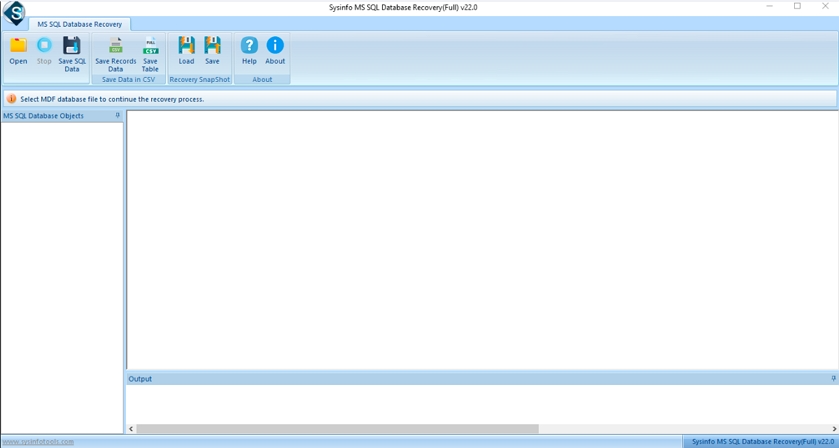
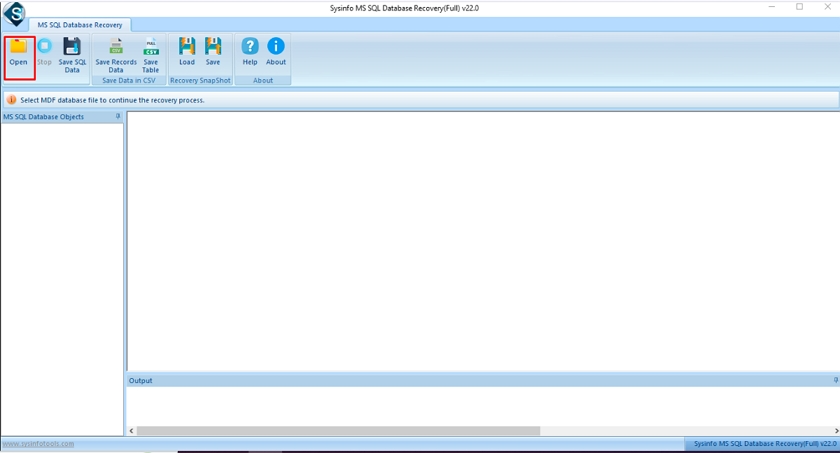
- Then, click Open and select the corrupt MDF File.
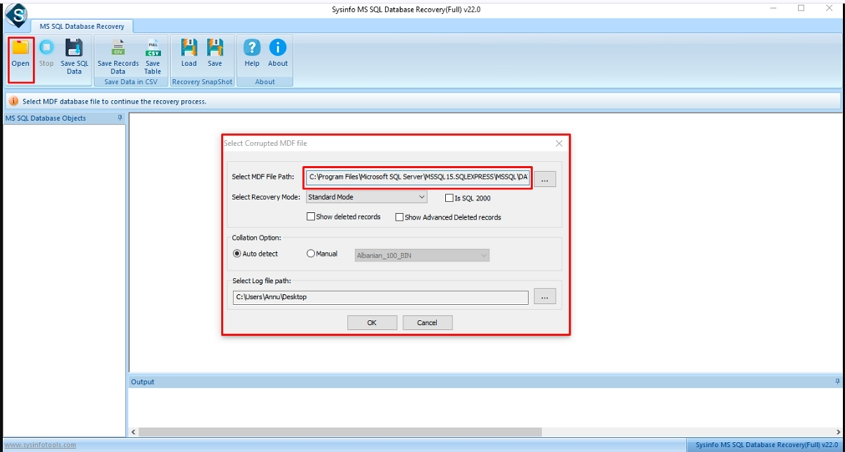
- Thereafter, check the path of the MDF file you selected.
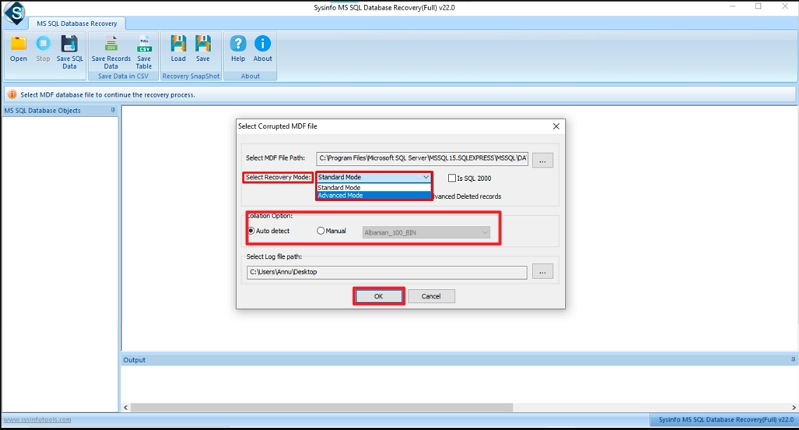
- After that, choose Recovery Mode, Collation, and click Ok.
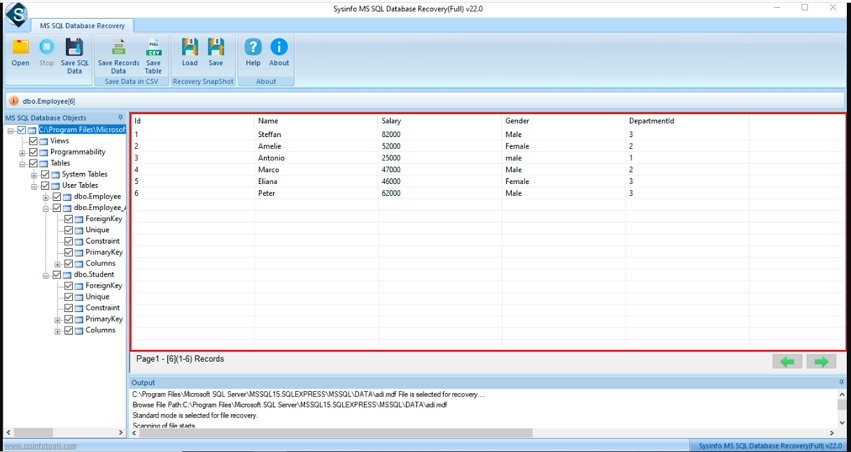
- Further, preview files and select database objects.
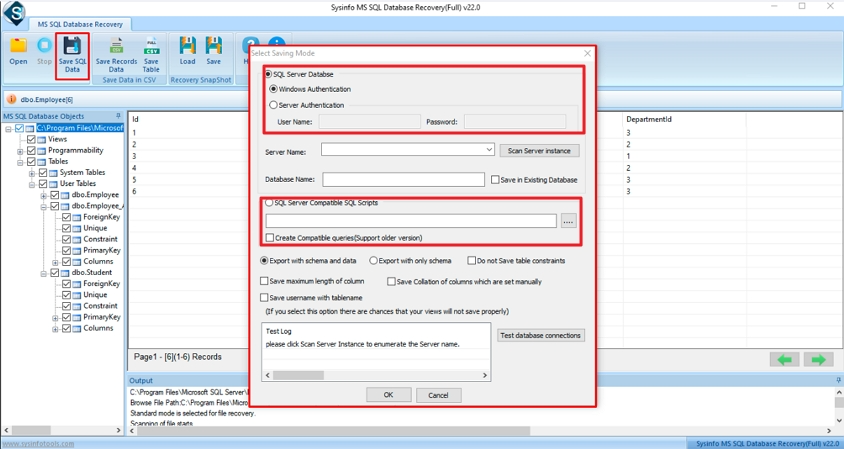
- Then, choose either SQL Server Database or SQL Server Compatible Scripts. Click the OK.
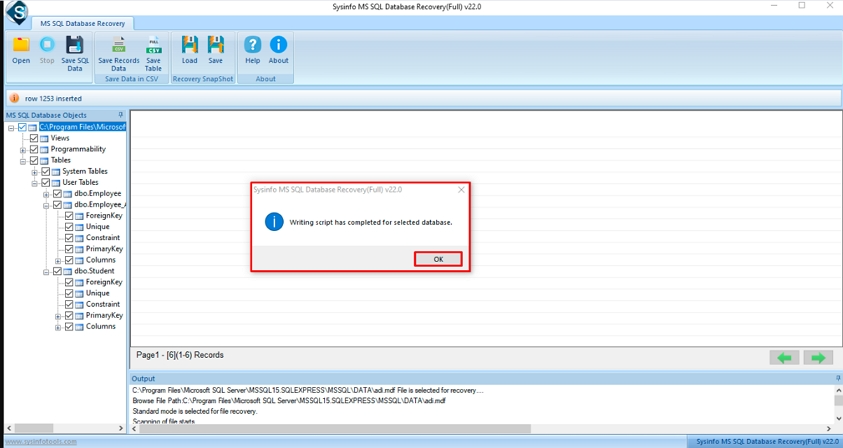
- Finally, the process completion message will appear, then click Ok.
Conclusion
Today, every organizations is depends on MS SQL to store and handle their data. Sometimes, users commonly face an issue called SQL Server Error 40. This blog explains why this error happens and shares simple ways to fix SQL Server Error 40. If your database is badly damaged and manual fixes fail, a trusted SQL Database Recovery Software helps resolve the issue faster.
Frequently Asked Questions
Q1: Does SQL Server Error 40 occur only on remote connections?
Ans: No, this error can also occur in a local connection as well. It means that the client cannot connect to the SQL Server.
Q2: What is the best method to fix SQL Server error 40?
Ans: You can use the manual fixes. In that case, manual fix not work; use the professional DatabaseFileRecovery SQL Database Recovery Tool.
Q3: Can antivirus software cause SQL Server Error 40?
Ans: Yes, antivirus programs can sometimes block SQL Server connections by interfering with the ports or network traffic.
About The Author:

Meet Shivam, an experienced SEO executive and content strategist. He combines creativity with strategy to craft engaging content that connects with audiences and supports brand goals. With strong expertise in digital marketing and content planning, Shivam helps businesses thrive online.
Related Post