-
Written By Shivam Rathore
-
Updated on February 13th, 2026
Fix MySQL Shutdown Unexpectedly: Causes and Step-by-Step Fix
User Query: Does anyone have a better solution to fix the error of MySQL shutting down? I will really appreciate a reliable way to solve this problem.
It usually shows up in XAMPP or similar setups when MySQL refuses to start. This error creates a problem for many uers and this can happen due to some reasons. A corrupted data folder. A port conflict. An improper shutdown. Or even another MySQL service already running in the background. In this blog, we’ll cover the possible solution to fix MySQL Shutdown Unexpectedly and use the DatabaseFileRecovery MySQL Database Recovery Tool.. Download Now Purchase Now
Need to Fix XAMPP Error: MySQL Shutdown Unexpectedly
- Ongoing projects get interrupted because the database server is not running in the background.
- phpMyAdmin becomes inaccessible, which means databases cannot be viewed or managed.
- Database connection errors start appearing in web applications that depend on MySQL.
- Testing and debugging cannot continue because the backend is not responding.
- Deadlines may get delayed since the local server environment is not working as expected.
Manual Methods to Fix MySQL Shutdown Unexpectedly
There are some manual methods that you can use to fix that error. But still, you don’t get the results. We have an automated solution for this.
1. Run XAMPP as Administrator
- Close XAMPP.
- Then, go to the XAMPP installation folder.
- After that, right-click on xampp-control.exe.
- Thereafter, choose Run as administrator.
- Start MySQL again and check.
2. Change the MySQL Port
- Open this path: C:\xampp\mysql\bin.
- Further, find my.ini and open it in Notepad.
- After that, search for 3306 and change it to 3307 (or 3308).
- Then, save the file or restart the system and try again.
- At last, if it doesn’t work, change it back.
3. Restore the Backup Folder
- Open C:\xampp\mysql.
- You’ll see data and backup folders.
- Stop MySQL from the control panel.
- Thereafter, rename the data folder to something like data_old.
- Afterwards, copy everything from the backup folder into a new data folder.
- Start MySQL again.
4. Repair the Database to Fix MySQL Database Corruption
- Firstly, open PowerShell as an administrator.
- After that, run: mysqld –console –skip-grant-tables –skip-external-locking
- Then run: mysqlcheck -r –databases mysql –use-frm
- Check if MySQL starts properly after this.
5. Rename aria_log_control
- Go to C:\xampp\mysql\data.
- Find the file aria_log_control.
- Rename it to aria_log_control_old.
- Start MySQL and test.
6. Stop MySQL from Services
- Press Windows + R.
- Type services.msc.
- Find MySQL in the list.
- Right-click and choose Stop.
- Then try starting it again from XAMPP.
7. Delete INFO Files
- Go to C:\xampp\mysql\data.
- Delete any files named INFO.
- Restart XAMPP and check MySQL.
8. Rename Data Folder and Copy ibdata1
- Go to C:\xampp\mysql.
- Rename data to data_old.
- Copy the backup folder and rename it to data.
- From data_old, copy your database folders and ibdata1 file (skip mysql, performance_schema, and phpmyadmin).
- Paste them into the new data folder.
- Start MySQL and check again.
Limitations
- These fixes are mostly trial and error. One method may work on one system and fail on another.
- Editing the my.ini file incorrectly can cause more startup errors.
- Restoring the backup folder may not bring back the latest database changes.
- Running repair commands in PowerShell can be risky if typed incorrectly.
- Some steps require basic technical knowledge. Beginners may find them confusing.
Automated Method to Fix MySQL Shutdown Unexpectedly
If nothing above fixes the issue, in that situation, the DatabaseFileRecovery MySQL Database Recovery Tool can be used. It checks the damaged database files and tries to pull the data back out of them. It’s mostly used when MySQL keeps shutting down because the database files are no longer in a healthy state.
Steps to Solve Error MySQL Shutdown Unexpectedly
- Firstly, install the MySQL Database Recovery Tool.
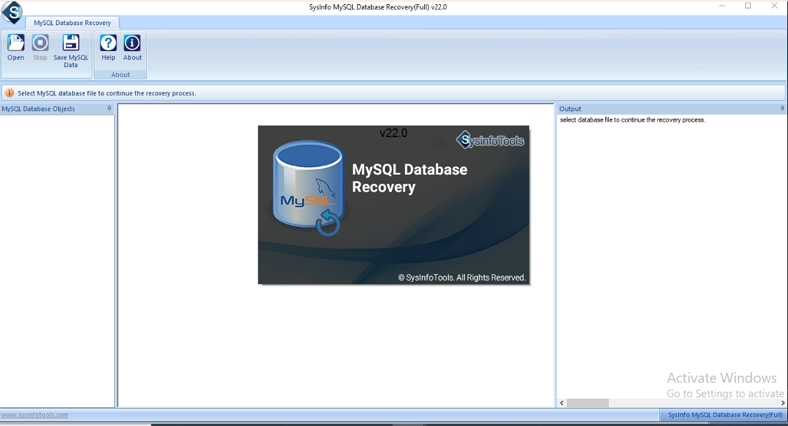
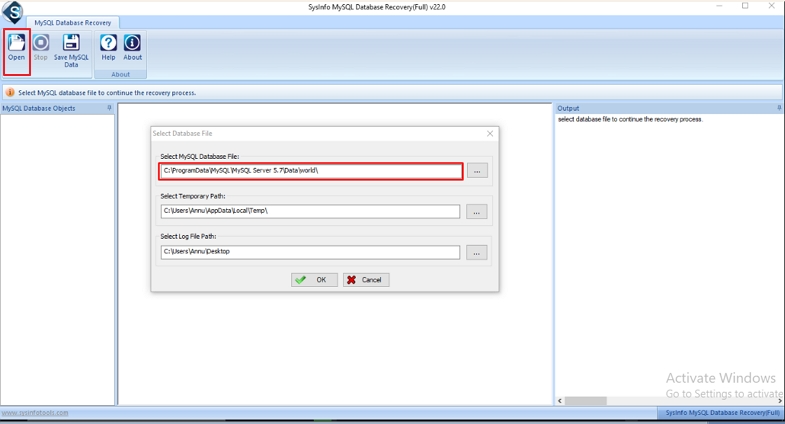
- Then, click on Open and browse the MySQL files that are stored.
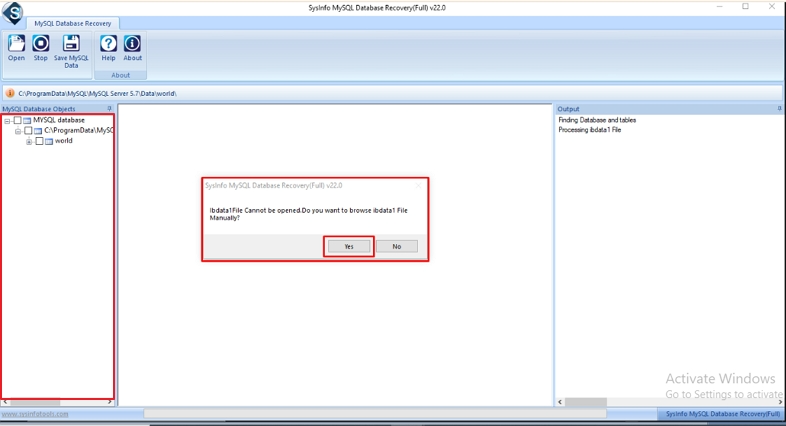
- If the tool asks about the ibdata1 file and it’s missing, choose Yes to add it manually.
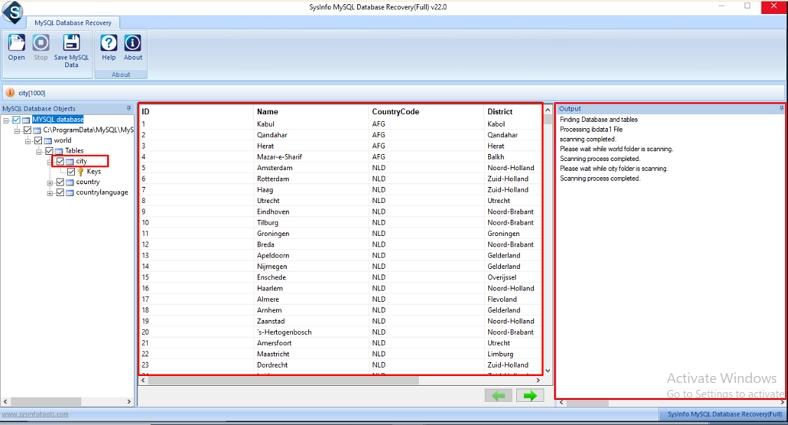
- After loading the files, check the preview and select the tables or folders you want to recover.
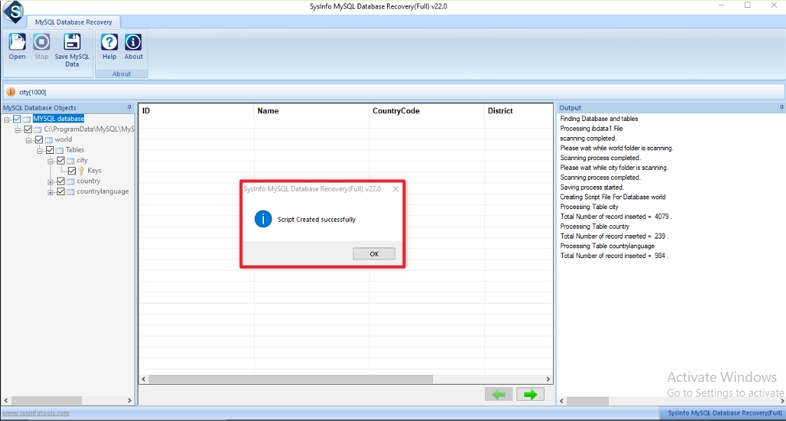
- Click on Save MySQL Data and choose a database or a script file.
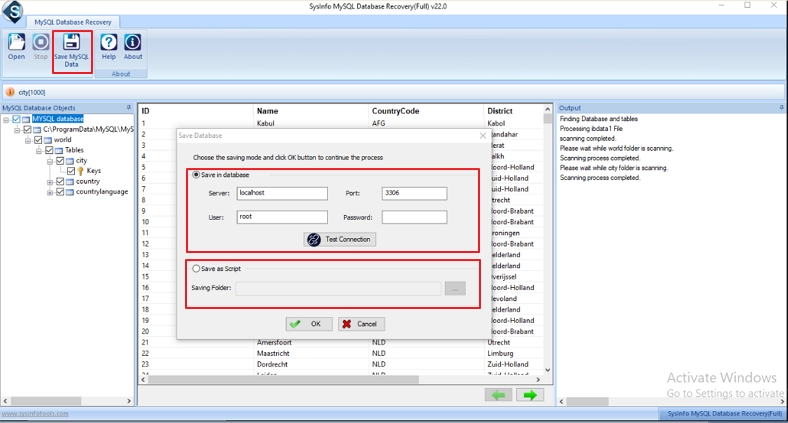
- After that, enter the required details and click OK. Once it’s done, click OK again to close.
Conclusion
To conclude, MySQL can shut down for many reasons. Sometimes it’s low system memory. Sometimes it’s a wrong setting. The steps shared above usually solve the problem if followed carefully. Once MySQL starts running properly again, your local projects work as they should. Moreover, if you have any problem with the tool to fix MySQL Shutdown Unexpectedly, you can contact us.
Frequently Asked Questions
Q.1 Why does MySQL shut down unexpectedly?
Ans: MySQL usually shuts down because of issues like a corrupted data folder, wrong port settings, improper shutdown, or another MySQL service running in the background.
Q.2 How can I Fix MySQL Shutdown Unexpectedly this problem without technical skills?
Ans: The manual methods involve editing files, changing ports, and running commands in PowerShell, which can be confusing for beginners. If you do not have technical knowledge, you can use the DatabaseFileRecovery MySQL Database Recovery Tool.
Q.3 Is the “MySQL shutdown unexpectedly” error common on Windows?
Ans: Yes, this error is quite common on Windows systems, especially when using XAMPP for local development. It often appears after an improper shutdown, port conflict, or database corruption.
About The Author:

Meet Shivam, an experienced SEO executive and content strategist. He combines creativity with strategy to craft engaging content that connects with audiences and supports brand goals. With strong expertise in digital marketing and content planning, Shivam helps businesses thrive online.
Related Post