-
Written By Robert Scott
-
Updated on October 14th, 2025
Know How to Fix SQL Error 5171 Interruption
If you’ve tried to attach an MDF file to SQL Server only to receive the error message of “SQL Server Error 5171: MDF is not a primary database file,” you’re not alone. This error indicates that SQL Server was unable to verify the consistency of the database file’s structure.
Summary: This can represent corruption, a deformed file, or something incompatible with SQL Server. It is more than a random bug for database administrators, as it can completely halt an organization’s mission-critical operations. Hence, we discuss key causes, free methods, and an advanced SQL Database Recovery Tool to manage this error. Download Now Purchase Now
When either attaching or restoring the database in SQL Server Management Studio (SSMS), you might encounter an error message:
“The file is not a primary database file. (Microsoft SQL Server, Error: 5171)”
This means SQL Server could not validate or verify the file as a valid MDF (primary data) file. The file header or meta-information is unreadable, or it does not fit an expected structure.
|
Note: MDF files store data as pages, and the size of each page is 8 KB. The first one is the header page with all the crucial details like size, signature, compatibility, etc. |
Common Reasons for Microsoft SQL Server Error 5171
This error can pop up due to any of the reasons mentioned below:
- Sudden shut-downs, power outages, or disk problems can damage MDF headers.
- Attempting to attach a log (.LDF) or secondary (.NDF) file as a primary MDF file.
- Attaching an MDF file from a newer version of SQL Server to an older version.
- The database was not detached properly, and documents were moved or copied.
- Damage to the metadata or an altered internal file signature that leads to its corruption.
Symptoms of Error Code 5171 in Microsoft SQL
After understanding the reasons, let’s learn what actually happens when this error arises. It states how exactly the professionals and other users were troubled due to this error:
-
- Database Inaccessibility: This is the first thing that takes over and restricts users from viewing their data.
- Downtimes: It makes it difficult for users to retrieve data from temp table in SQL Server, showing downtime and disruption.
- DB Incompatibility: It is possible that the server versions for the SQL database don’t match.
- Compromised File Integrity: MDF and LDF corruption directly affects the data and structure integrity.
How to Resolve SQL Server Error 5171?
There are a few manual troubleshooting methods that you can try to fix this error code 5171. On the other hand, a professional tool prevails, which immediately fixes the error and MDF file corruption, providing you with database access and direct saving. To understand the methods briefly, follow the step-by-step guide below.
Manually Fix SQL Server Database Error 5171
If there is minimal corruption or a misplaced file, SQL Server’s built-in tools will work as follows:
1) Check the Type of File
Ensure attaching an actual MDF file and not an LDF or NDF file. If you really need to, use SQL Server’s command line to check the file headers.
2) Create a New Database & Replace the MDF
The steps to do so are:
- Initially, create a new blank database with the same name.
- Then, stop your SQL Server service.
- Further, in the same folder as your old (corrupt) file, replace the new MDF with your original file.
- Afterward, start SQL Server and type:
|
EXEC sp_attach_single_file_db @databasename=’DbName’, @physname=’C:\Path\YourDB.mdf’ |
- If successful, SQL Server will automatically rebuild the LDF to resolve SQL Server error 5171.
3) Fix Mirrored Databases
For mirrored databases, you need to use the command “ALTER DATABASE mydatabase SET online” to work. But if the error 5171 occurs instead, then follow these steps:
- First, set your principal database in the SSMS.
- Then, use the command ALTER DATABASE MODIFY FILE to alter the db file.
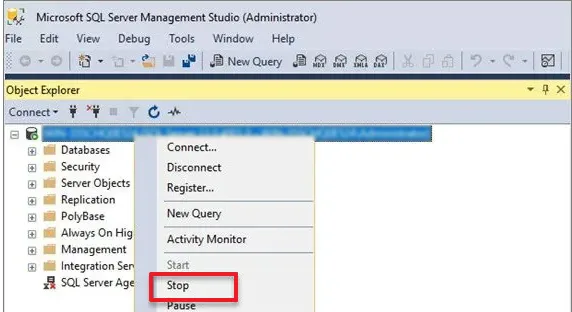
- Next, click the Stop button to halt the currently running server instance.
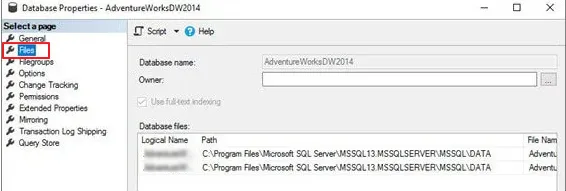
- Further, copy MDF and LDF to a separate directory.
- In the end, restart the SQL Server instance and reattach the MDF and LDF files to fix.
4) Restoration From Backup
If you can, restoring from the latest clean backup is usually the best choice if your database is damaged in any way. Use the command:
|
RESTORE DATABASE DBName FROM DISK = ‘C:\Backup\DBName.bak’ WITH REPLACE; |
If you don’t have a recent backup, begin with a dedicated recovery tool. This is also because, though the above troubleshooting solutions work, they are not suited for everyone and may not give appropriate results in more critical cases.
Professionally Fix Microsoft SQL Server Error 5171
When regular fixes may not work, most users prefer a trusted and verified SQL Database Recovery Tool. It is designed to repair internal corruption, rebuild MDF headers, and recover inaccessible objects (tables, triggers, and stored procedures from the database). Additionally, it:
- Automatically detect and fix MDF and NDF corruption.
- Recover all components (deleted records, constraints, and keys).
- Maintain original hierarchy and integrity with full security.
- Support every SQL Server version (2008 to 2019).
- Resolve SQL Server Error 8946 and restore data on a new db or as scripts.
Quick Steps to Fix SQL Server Database Error 5171
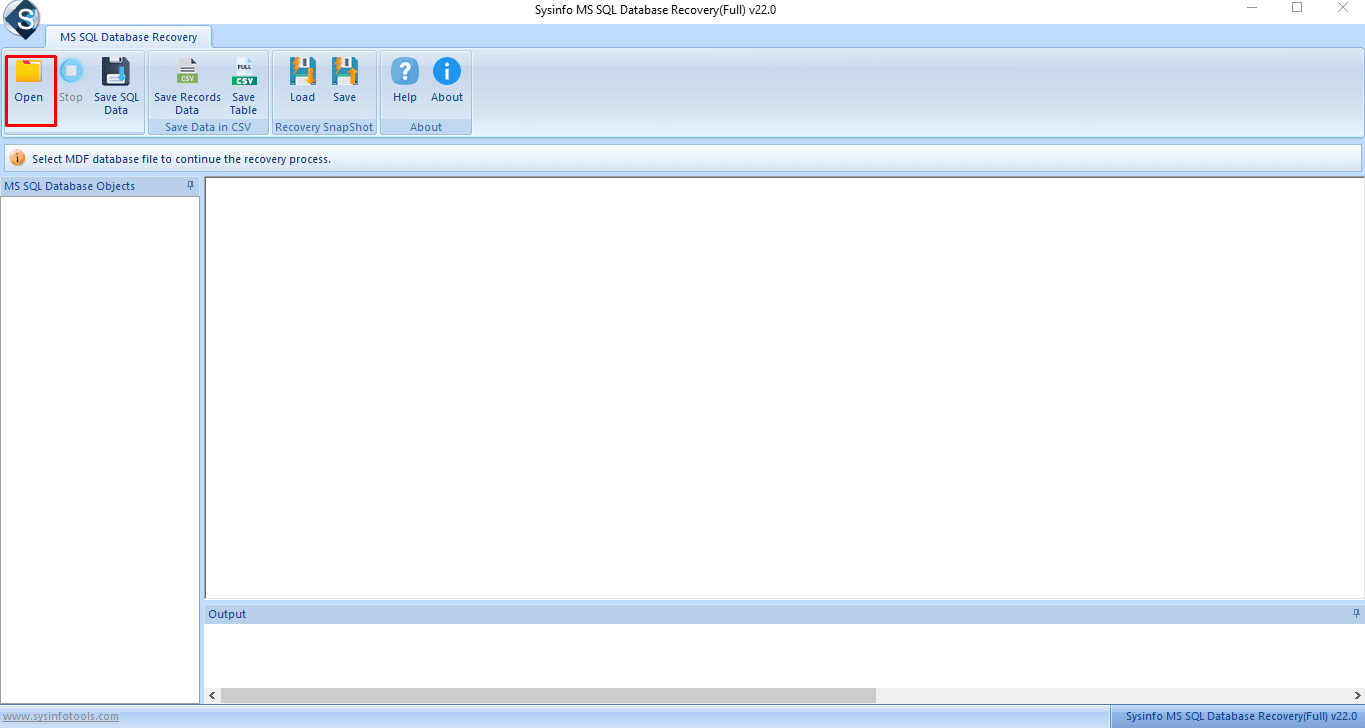
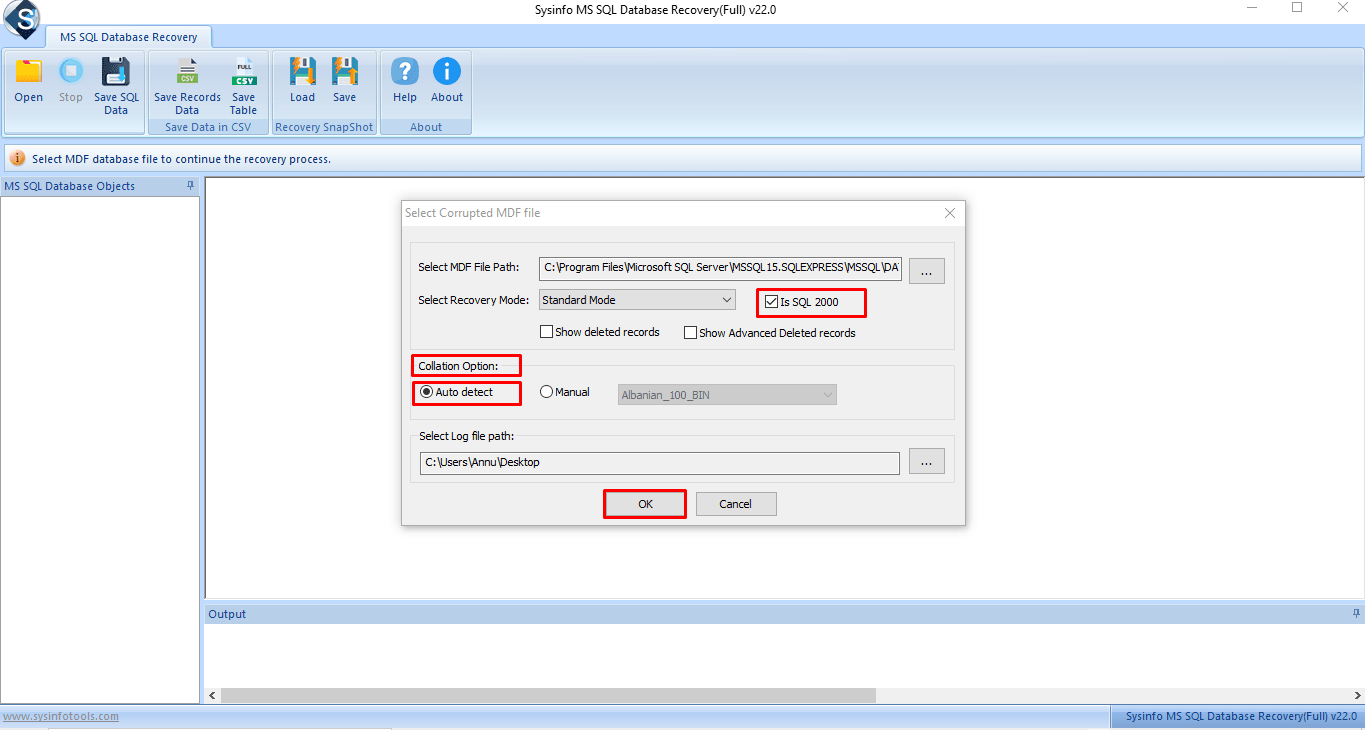
- Launch the SQL Repair Tool and click Open from the top panel.
- Then, choose the MDF file path and pick the recovery mode.
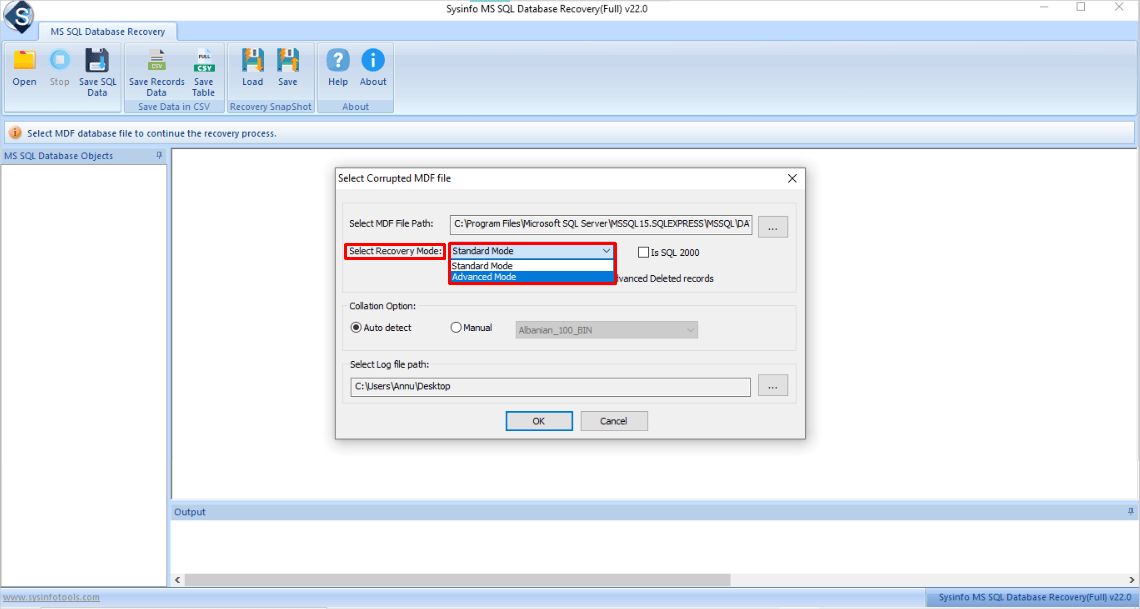
- Apply other filter options and then click OK to scan the files.
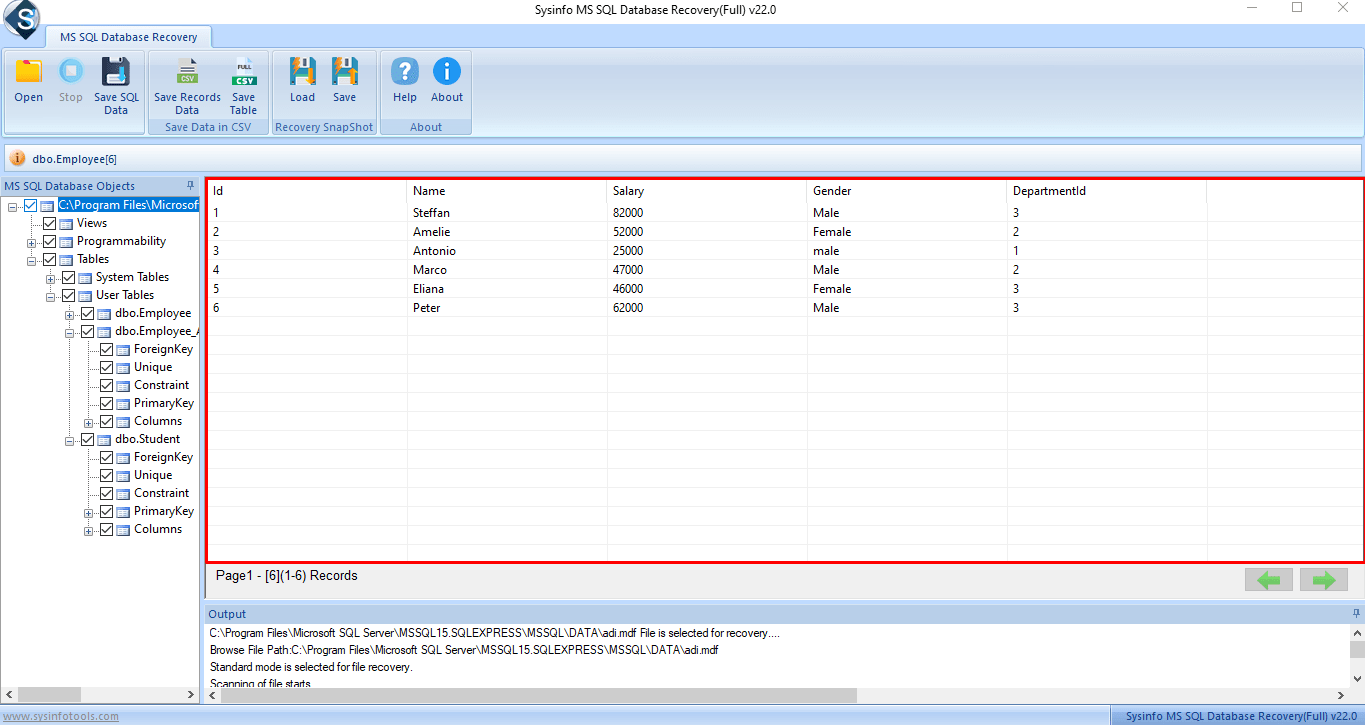
- After that, preview the tables from the tree view and select to recover.
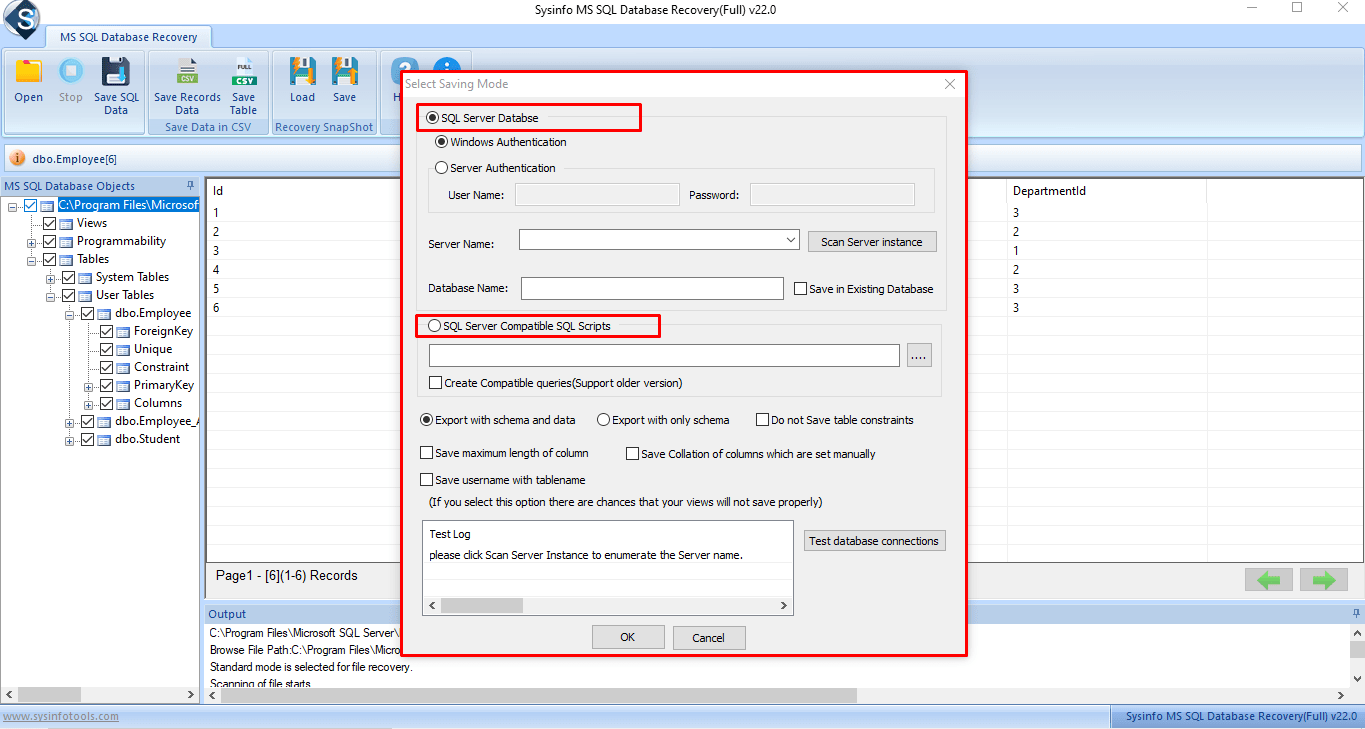
- Press Save SQL Data from the top and choose to save as Database or Scripts.
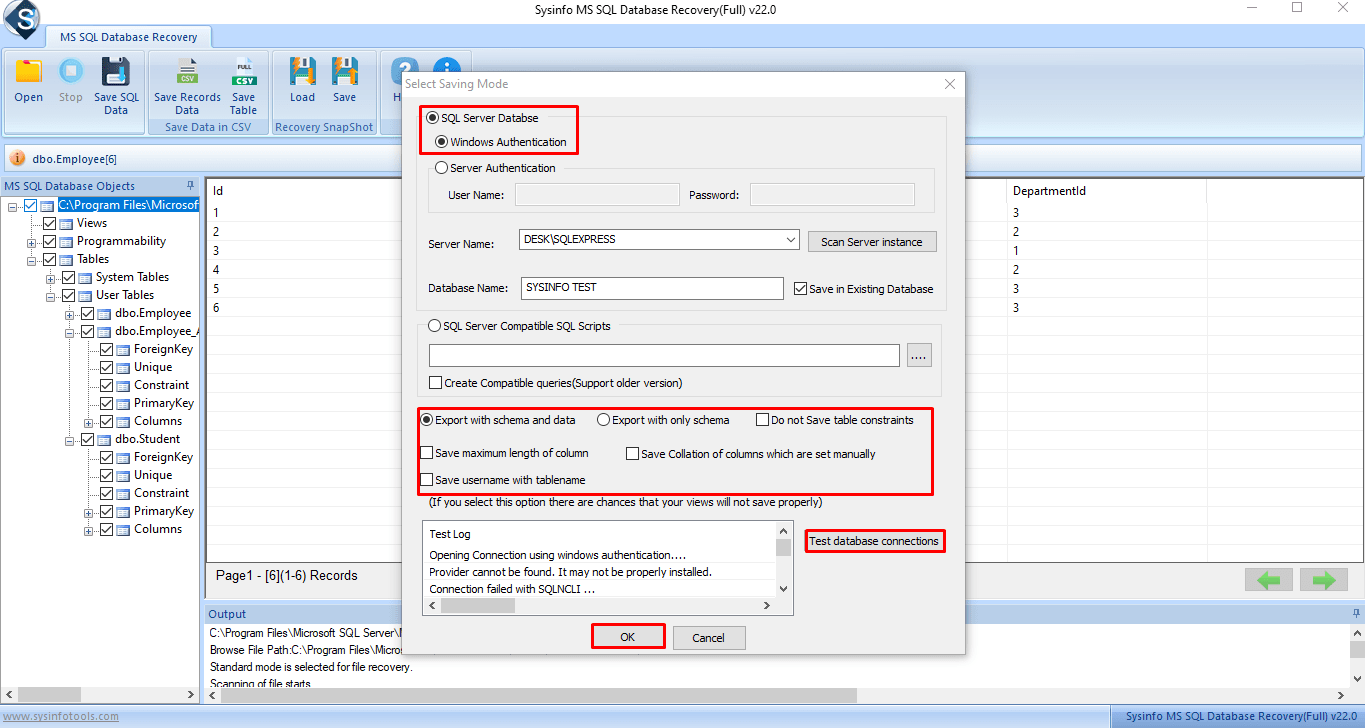
- Apply all other filters accordingly to secure and save your data. Finally, tap OK.
Pro Tips for Prevention of Error 5171
- Always properly detach databases using SSMS before copying or moving MDF files to a separate location.
- Backups should be stored separately on physical storage drives or in the cloud.
- Check regularly for the integrity of the database using DBCC CHECKDB.
- Keep your versions of SQL Server updated to avoid any incompatibility issues.
Conclusion
SQL Server Error 5171 is a critical warning that your MDF file cannot be recognized as a valid primary database file, or is often a major sign of corruption or version mismatch. The manual options for recovery of corrupt databases with minor issues are feasible. However, recovering severely corrupted databases often requires strong, professional-grade recovery options. For business enterprises, especially, ensuring you can get to your data whenever called upon is paramount. Hence, using the recovery tool is ideal to ensure everything follows correctly.
Frequently Asked Questions
1. What is Microsoft SQL Server Error 5171?
Ans. Microsoft SQL Error 5171 occurs when SQL Server cannot recognize an MDF file as a valid primary database file due to corruption, the wrong type of file, or a version mismatch.
2. Which is the best tool to fix SQL Server Error 5171?
Ans. The SysInfo SQL Database Recovery Software is the most reliable solution. It will repair the MDF and NDF file(s), restore tables, stored procedures, and other objects that reside in the database while maintaining the integrity of the original database schema.
3. How long does it take to fix SQL Server Database Error 5171?
Ans. This depends on the size and severity of the corruption of the database. In smaller databases up to 1 GB, this can sometimes take a few minutes. In several larger enterprise database cases, it could be longer, depending on the length to recover data, the number of transactions in the database, and the capabilities of the recovery hardware. To ensure it is done in minimal time, get the SQL Repair Software!
About The Author:

With more than five years of experience in email migration, Data Recovery, Email Backup, and File Management, I combine my years of experience with a strong interest in new technology. My professional journey is fueled by a genuine passion for navigating and mastering the latest advancements in these fields, ensuring that I stay ahead of the curve and bring innovative solutions to the table.
Related Post