-
Written By Shivam Rathore
-
Updated on February 24th, 2026
Step-by-Step Guide to Open VHD File in Windows 11/10
VHD (Virtual Hard Disk) files are powerful tools that extend the storage capacity of physical hard drives. If you have ever heard of them and want to use them or access them, this guide is for you. It explains all about VHD files and how you can open VHD file in Windows with ease for free. Also, if you face any corruption issues with your file, then we have a dedicated VHD Recovery Tool for you to repair and access files without hassle.
Download Now Purchase Now
VHD files are disk image formats that contain the entire structure of hard drives within a single file. It has multiple partitions, files, folders, and even a complete OS. They are used to set up virtual machines that you can use on different systems and are easily shareable. It is like a backup of your system image in Windows Vista and later versions. You may find either a fixed or a dynamic VHD used for the creation.
How to Create a VHD File on Windows?
In order to open a VHD, it must be created first. So, this section provides different ways in which you can create VHD files for your Windows 11/10. Microsoft has two simple techniques, which are:
1) Using Disk Manager
- Initially, right-click the My Computer icon and select Manage.
- Then, in the Computer Management Window, go to the Storage section.
- There, expand and choose Disk Management. Move to the top right.
- Next, click More Actions and choose Create VHD.
- Further, in the open dialog, pick a location to save it and set a size.
- Also, choose the format as VHD and pick a type (Fixed/Dynamic). Press OK.
Now, you can open VHD file in Windows 11/10 once created.
2) By Backup and Restore
- First, on your system, type backup and restore in the search bar.
- Or, open it from the Control Panel and press Create a System Image from the left.
- After that, pick a location where you want to secure the backup and tap Next.
- Furthermore, select the drives that you want to backup and click Next.
- Finally, review the backup settings and click Start Backup to create a VHD.
Once you have your VHDs, you can go through different methods to open and access them.
How to View VHD File Contents in Windows?
There are many ways you can view the VHD content on your Windows OS for free without any third-party tools. These are mentioned here as follows:
1) Via Disk Management Console (Recommended)
- First, click Windows + X keys and open Disk Management.
- Then, from More Actions at the top right, click Attach VHD.
- Afterward, tap Browse, select your VHD from the PC, and click OK.
- Choose Read-only if required, and Windows will mount it as a new drive.
- Later, go to File Explorer, and you will find a new drive letter.
- Press it to open and access VHD/VHDX files in Windows.
2) Through File Explorer
- To open VHD file in Windows 11/10, simply right-click your VHD.
- Then, choose Mount to open it, or you can double-click to access it.
- The hard disk appears in the File Explorer same as previously.
3) With PowerShell
- Start PowerShell as an administrator on your Windows OS.
- Then, run the command: Mount-VHD -Path “C:\Path\To\Your\filename.vhd.”
- You can view it and once done, use the given command to detach it:
Dismount-VHD -Path “C:\Path\To\Your\filename.vhd.”
These are different ways in which you can access VHD files. However, you need technical skills and knowledge for this. Also, a single mistake can result in file corruption.
How to Access VHD File in Windows When Corrupted?
If using the above methods, your VHD gets corrupted in the process, then use the DatabaseFileRecovery VHD Recovery Tool to repair corrupt VHD file. Even though the above solutions are free and useful, they have no support for damaged and corrupted VHD files, unlike this software. It allows you to instantly fix the issues and provides a complete view of your VHD file data. Additionally, it has smart recovery modes and advanced features to manage the VHD data. Moreover, you can try the Demo Version for evaluation of the software before complete recovery.
Step-by-Step Guide to Open VHD File in Windows 11/10
- Launch the VHD File Repair Tool and choose Fixed or Dynamic disk type.
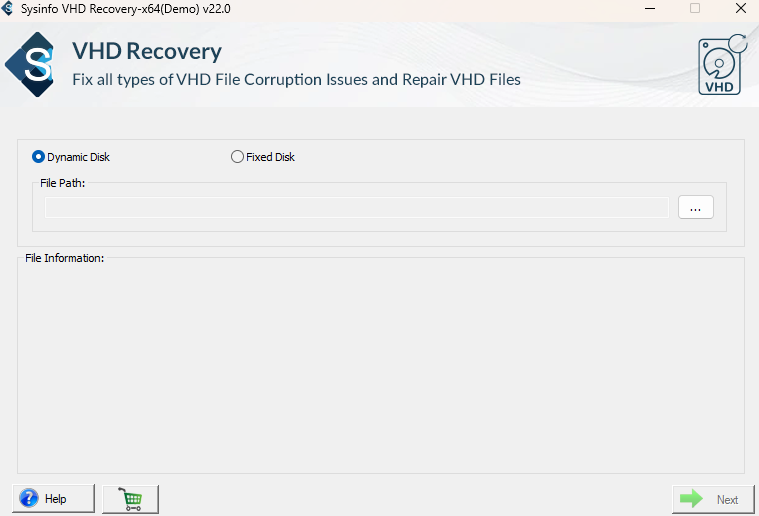
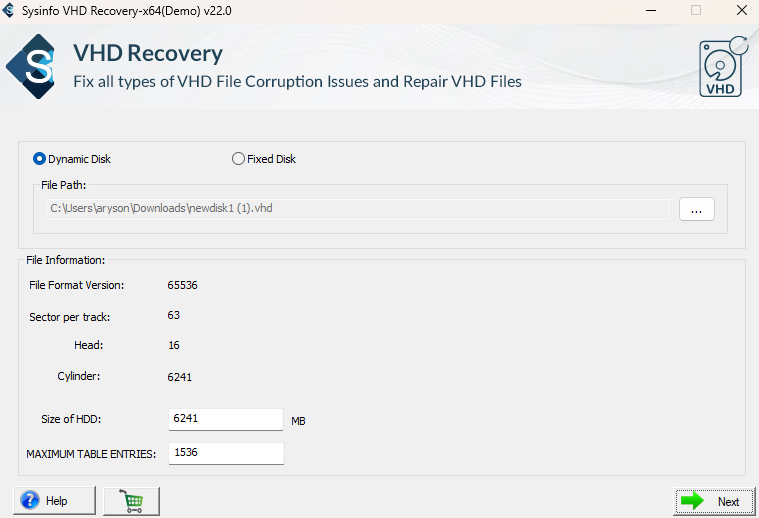
- Then, click (…) and add your VHD file and check its information. Click Next.
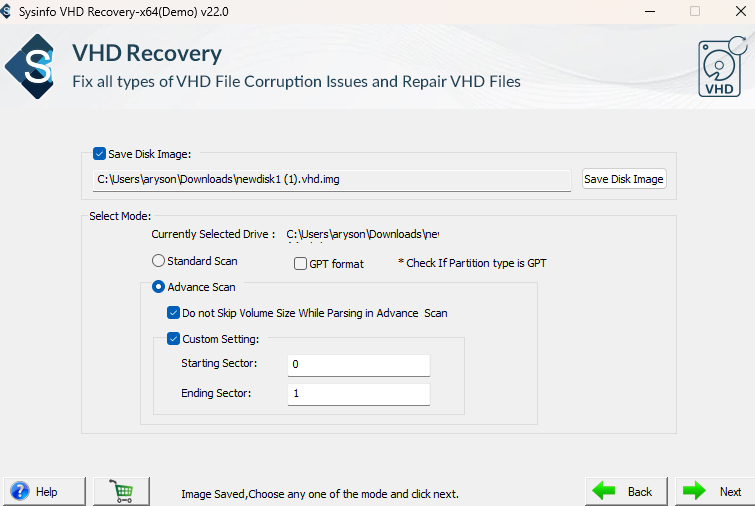
- Further, choose how you want to save the disk image and pick recovery mode. Tap Next.
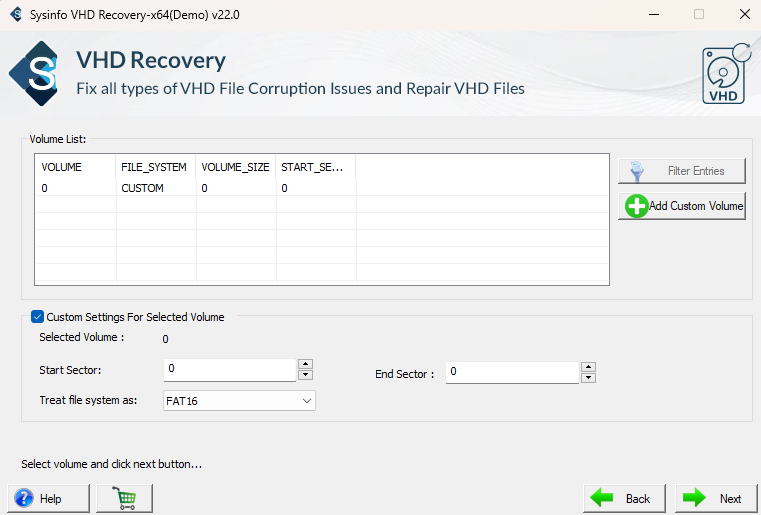
- Afterward, check partitions, apply custom settings, or add volumes, and click Next.
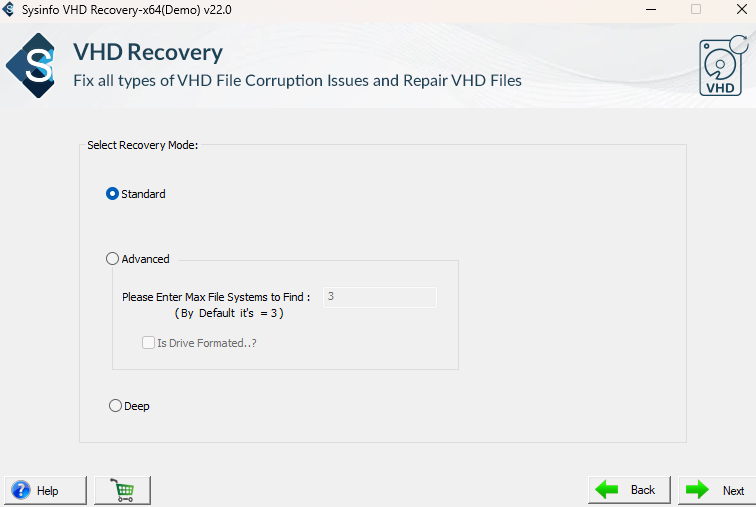
- Again, pick Standard/Advanced/Deep recovery mode as per the corruption and tap Next.
- Finally, check your files’ preview and click Save to secure them on Windows.
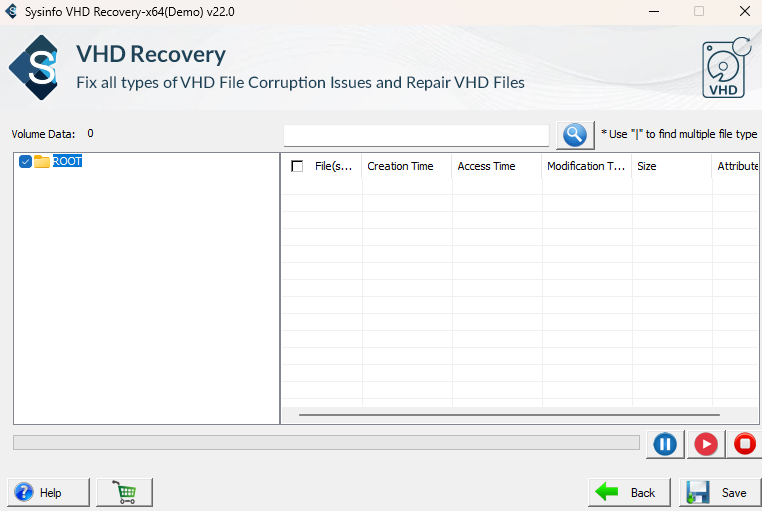
The recovery of your VHD file is complete, and you can easily access it now.
|
Add On: What Causes VHD File Corruption?
So, in these cases, do not immediately format your drive, mount your file to another system, or best use the specialized VHD Recovery Software. |
Conclusion
You can straightforwardly open VHD file in Windows 11/10 because Windows has built-in features for it. With the right tricks as mentioned above, you can easily create them, open them, and even recover from the corruption. Virtual disks allow you to test systems and access data without actually using the primary device, and so it is essential to keep them safe. With DatabaseFileRecovery VHD Repair Software, you can ensure effortless and secure recovery rapidly and flawlessly.
Frequently Asked Questions
Q.1 How can I open a VHD file in Windows 10 or 11?
Ans: To access VHD file in Windows 10 or 11, use:
1. Disk Management
2. Mount via File Explorer
3. PowerShell or
4. VHD Recovery Tool by DatabaseFileRecovery
Q.2 Can I create a VHD file on Windows without technical skills?
Ans: Yes, you can create a VHD file on Windows without technical skills with the built-in Disk Management Console. But basic knowledge is a must to execute the steps correctly.
Q.3 What is the safest way to access a VHD file in Windows 10 or 11?
Ans: The safest way is to use Disk Management if you want to freely view the data. Also, access it in read-only mode if no edits are to be made. However, if your file is corrupted, then the best option is a safe, offline, and quick VHD File Recovery Software, which allows you to open and view content as well as recover and create its backup.
About The Author:

Meet Shivam, an experienced SEO executive and content strategist. He combines creativity with strategy to craft engaging content that connects with audiences and supports brand goals. With strong expertise in digital marketing and content planning, Shivam helps businesses thrive online.
Related Post