-
Written By Shivam Rathore
-
Updated on January 22nd, 2026
How to Fix and Repair Corrupt MS Access 2007 Database
It is very frustrating to handle a broken Access database. In this blog, we’ll go through some simple manual ways to repair the corrupt MS Access 2007 database. Alternatively we have another option, which is to use the DatabaseFileRecovery MS Access Database Recovery Tool . We’ll also cover common reasons why Access files get corrupted, so that you know what you’re dealing with before trying to fix it.
Download Now Purchase Now
Outcomes of Not Fix Corrupted Database in Access 2007
- You may completely lose access to important data stored in the database.
- Regular tasks and workflows can stop working properly.
- Forms, reports, or queries may fail to open or crash unexpectedly.
- The database file can become more damaged over time if left unresolved.
- Any applications or processes linked to the database may stop functioning.
Manual Approaches to Repair Corrupt MS Access 2007
There are some manual fixes we talked about. The user should apply these methods before taking any other step.
Fix 1: Restore the Database from a Backup
The very simple and easy way for any user who wants Access database back is to use a backup. Already having an older copy of the file saves time and helps to recover corrupt Access Database.
Steps to Restore Database Access
- Firstly, close Microsoft Access if it is open.
- Then, find the backup copy of your Access database file.
- After that, copy the backup file to the original database location.
- Thereafter, rename it if needed so it matches the old file name.
- Further, open the restored file in MS Access.
- At last, check if tables and data open properly.
Fix 2: Use the Built-in Compact and Repair Utility
MS Access has a tool called Compact and Repair. It works with the Jet database engine and can fix minor corruption issues.
This option works well for minor issues. And not helpful if the database is badly damaged or shows serious errors.
Steps of Built-in Feature
- Firstly, open Microsoft Access.
- Then, click the Office Button / File.
- After that, choose Open, but do not open the database yet.
- Thereafter, select the corrupted database file.
- Afterwards, click the drop-down arrow next to Open.
- Furthermore, choose Open and Repair.
- Wait for Access to finish the process.
- Finally, open the database and check the data.
Fix 3: Remove Compiled VBA Code
Corruption can also come from damaged VBA code. Removing the compiled VBA code may help repair the database.
You can do this by running the following command:
“C:\Program Files\Microsoft Office\Office\MsAccess.exe /decompile”
“C:\DatabasePath\FileName.mdb”
Fix 4: Export the Database to a Newer Access Version
Another option is to export the Access 2007 database into a newer version like Access 2010 or 2013. Newer versions sometimes handle corrupted objects better.
Drawbacks of Manual Fixes:
- Manual fixes usually help only when the damage is small. If the database is badly corrupted, they often don’t work at all.
- These methods struggle with bigger problems, like broken tables, forms, or VBA code.
Professional Method to Repair Corrupt MS Access 2007
The DatabaseFileRecovery MS Access Recovery Tool is useful when an Access 2007 database won’t open because it’s corrupted. It checks the MDB or ACCDB file and looks for what’s broken inside. The smart utility recovers tables, queries, forms, and reports.
Steps to Restore MS Access Database 2007 Database
- Firstly, download the tool and click Open.

- Then, check the path of the Access database file.
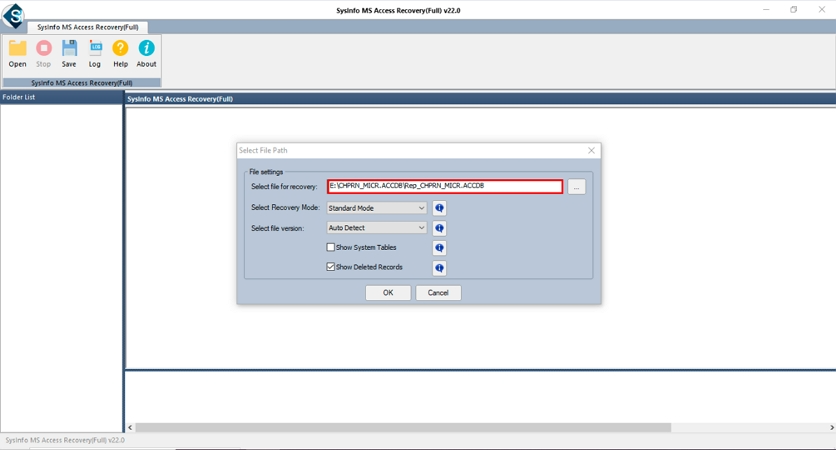
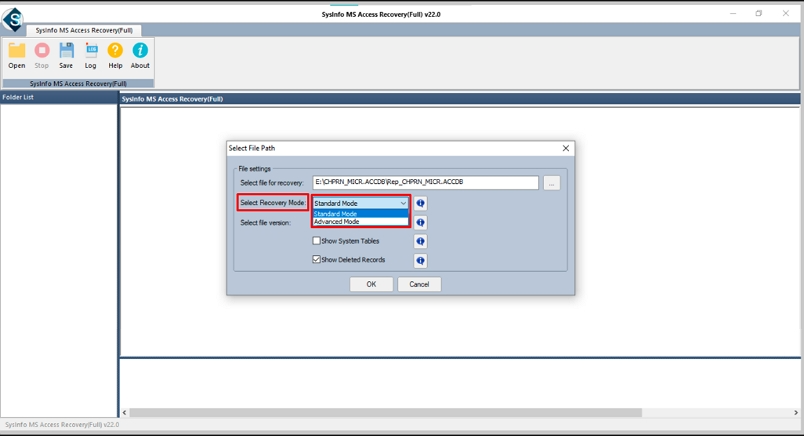
- After that, choose recovery mode and use other features.
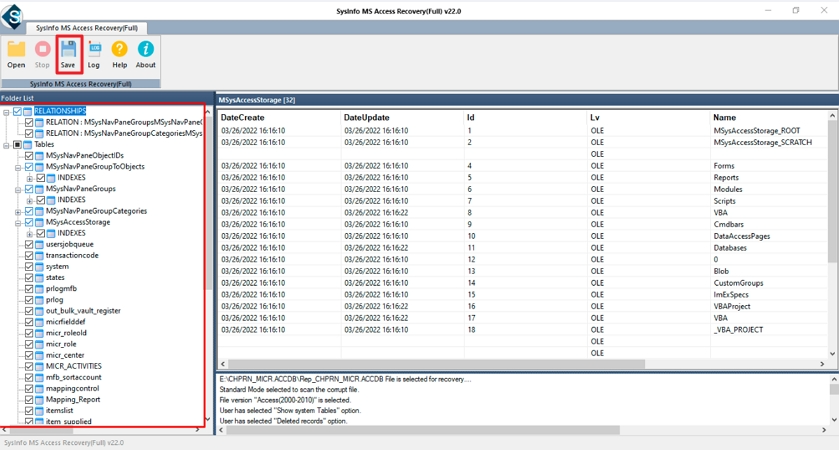
- Further, select and preview files and click Save.
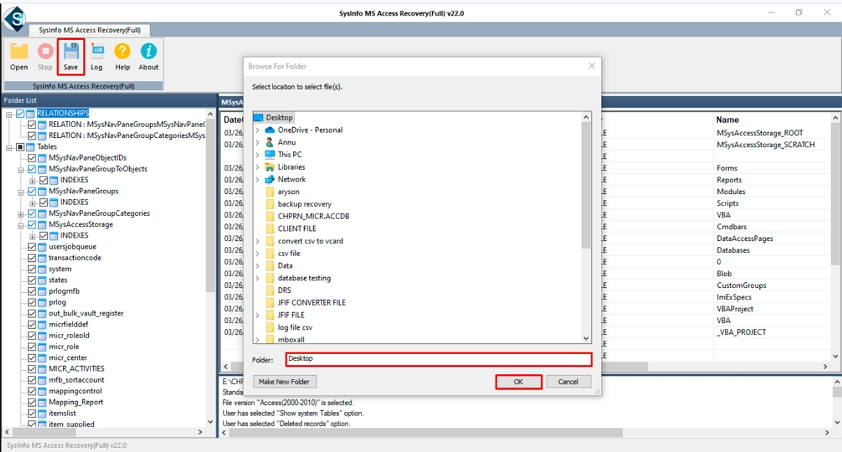
- At last, set the destination and click OK.
Manual Fixes vs Professional Method
|
Aspect |
Manual Fixes |
Professional Method |
|
Ease of use |
Can be confusing, especially for non-technical users |
Simple steps and easier to follow |
|
Best for |
Minor corruption issues |
Both minor and severe corruption |
|
Time required |
Takes more time, especially if multiple fixes are tried |
Faster and more direct recovery |
|
Risk level |
Higher risk of further damaging the database |
Lower risk, controlled recovery process |
|
Recovery scope |
As a limitation, recovery is restricted to basic database issues |
In addition, it can recover tables, queries, forms, and reports |
|
Success rate |
Ultimately, success depends on how badly the file is damaged |
Overall, it offers a more reliable recovery outcome |
|
Technical knowledge |
As expected, some technical understanding is required |
In contrast, very little technical knowledge is needed |
Conclusion
It is important to repair corrupt MS Access 2007, as it can cause many problems. Simple fixes like using backup files or the built-in may help you to fix the error. But the manual methods will not work if your file is highly damaged. The MS Access Database Recovery Tool is a better choice to get your data back safely and quickly.
Frequently Asked Questions
Q1: How can I repair a corrupt MS Access 2007 database?
Ans: Firstly, you can use manual fixes to repair normal corruption. If those fixes do not work, then at last you should use the MS Access Database Recovery Tool.
Q2: What should I do if Compact and Repair fails in Access 2007?
Ans: First, you always use the Compact and Repair to fix the issue. If it fails, thereafter use the DatabaseFileRecovery MS Access Recovery Tool to quickly fix the Access 2007.
Q3: Is it possible to fix a corrupted Access 2007 database on Windows 10 or later?
Ans: Yes, using the DatabaseFileRecovery MS Access Database Recovery Tool, you can easily fix corruption in Windows 10 or later.
About The Author:

Meet Shivam, an experienced SEO executive and content strategist. He combines creativity with strategy to craft engaging content that connects with audiences and supports brand goals. With strong expertise in digital marketing and content planning, Shivam helps businesses thrive online.
Related Post