-
Written By Shivam Rathore
-
Updated on January 1st, 2026
How to Fix SQL Database Restore Error 5243 in MS SQL Server
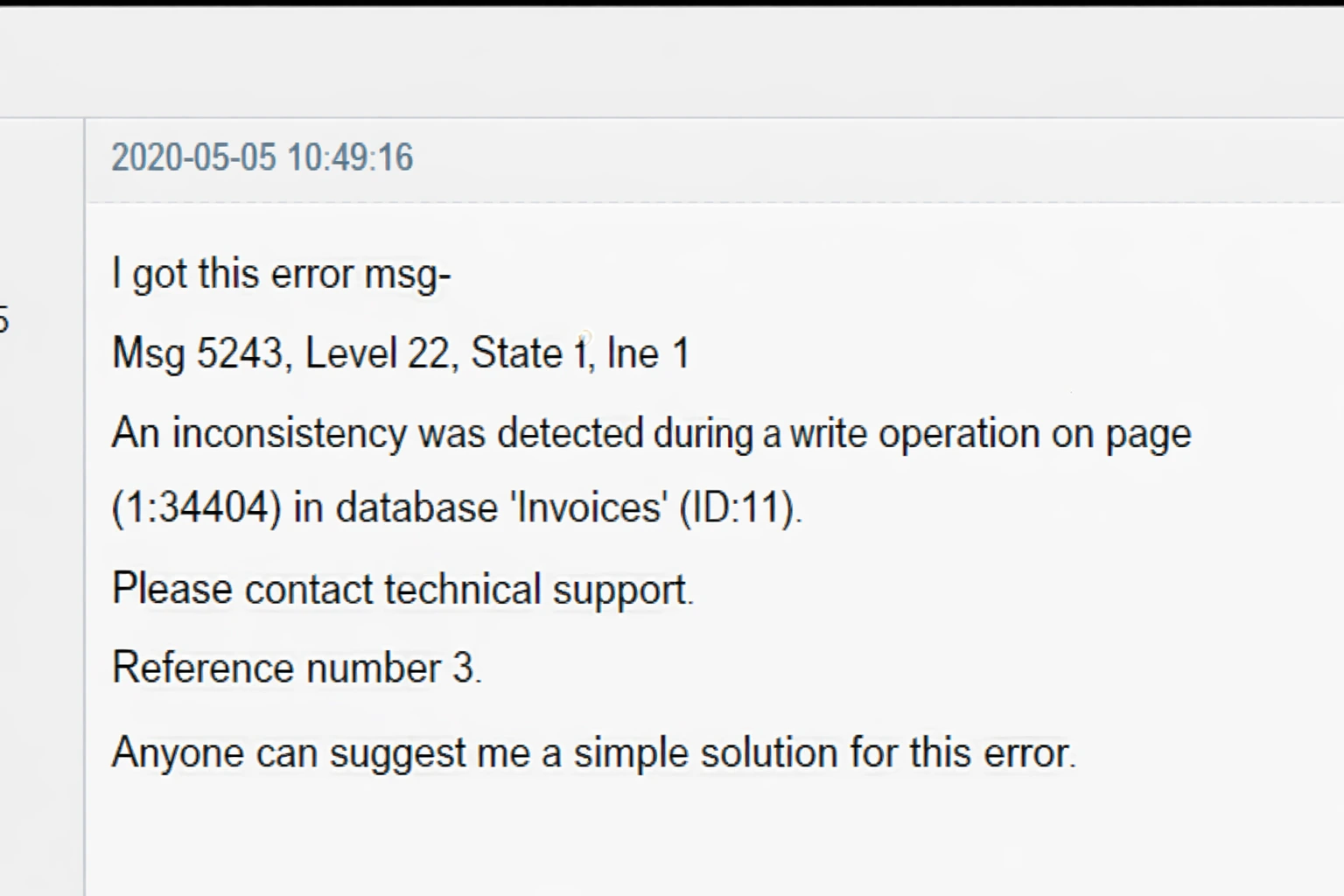
When you are working with a database, you should be aware of possible issues and errors. These errors can affect the databases and the data stored inside them. One of the common errors users encounter is DB error 5243. This blog will explain to you the cause of this error and ways to fix SQL Database restore error 5243. Here, we will cover the manual methods and the use of the SQL Database Recovery Tool to recover the database. Download Now Purchase Now
What is Microsoft SQL Server Error 5243?
- Firstly, Error 5243 is a particular error found in Microsoft SQL Server.
- It typically points to issues with the database engine or possible data corruption.
- This error happens when SQL Server tries to read or work with data but runs into an unexpected problem.
- As a result, database tasks may fail, or the database might become unavailable.
- Common reasons for this error include damaged database files, hardware problems, or improper system shutdowns.
Manual Solutions to Fix SQL Database Restore Error 5243
Error 5243 usually means the SQL database is corrupted, which can block access to your data. Here are some manual ways to deal with SQL Server Error 5243:
Solution 1: Restart the SQL Server Service
Sometimes, temporary glitches cause the error. Restarting the SQL Server service refreshes the system and can clear these problems.
Steps to Resolve SQL Server Error 5243:
- To begin with, press Windows key + R to open the Run dialog box.
- Then, type services.msc and hit Enter.
- After that, in the Services list, find SQL Server (MSSQLSERVER).
- At last, right-click it and select Restart.
This simple restart often resolves the error by clearing transient issues.
Solution 2: Restore the Database from a Backup
If you have a recent backup, restoring your database is a reliable way to fix Error 5243. This method returns your database to a stable, consistent state.
Important: Before the process to restore Error 5243 in MS SQL Server, make sure your backup file is valid and up-to-date.
Solution 3: Check Database Integrity Using DBCC CHECKDB
The DBCC CHECKDB command helps find and repair SQL Error 5243 in the database, including log files. It checks both the physical and logical structure of your database objects.
Additionally, running this command can help identify the cause of Error 5243 and sometimes fix the corruption automatically.
Effective Solution to Fix SQL Database Restore Error 5243
Manual methods may not be effective in case of serious database corruption. If that happens, the specialized SQL Database Recovery Tool is the only solution to fix the issue securely. With this tool, you can recover data from damaged MS SQL database files easily.
Steps to Fix Microsoft SQL Server Error 5243
- Firstly, open the SQL Recovery Software on your computer with administrator privileges.
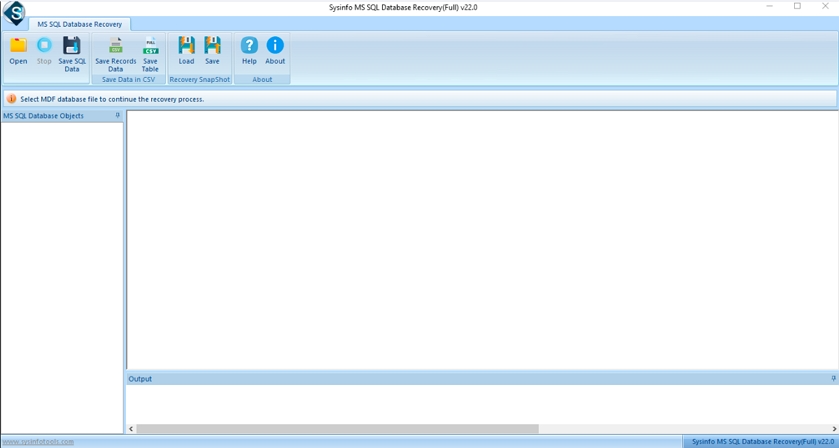
- Then, click the Open button and browse to select the corrupted MDF file.

- After that, verify the loaded MDF file path.
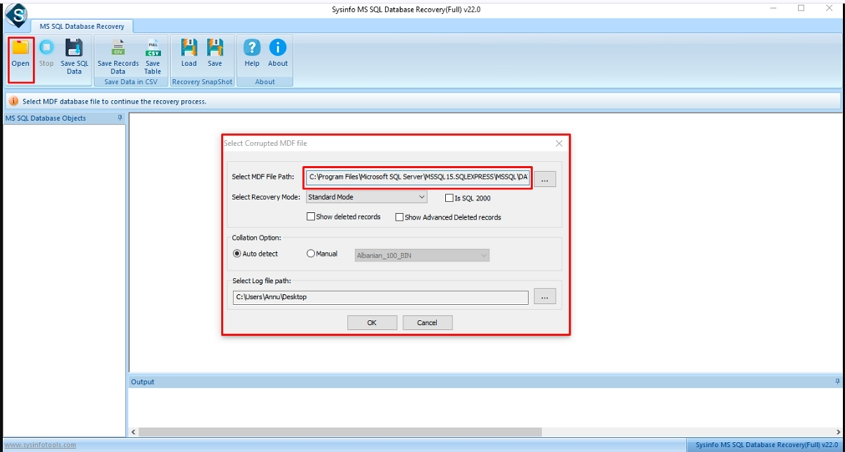
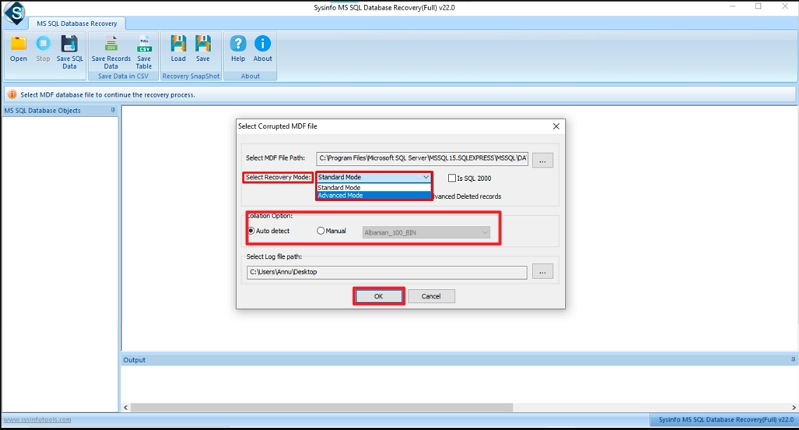
- Thereafter, choose the Recovery Mode (either Standard or Advanced) and pick the appropriate Collation setting. Then, click OK.
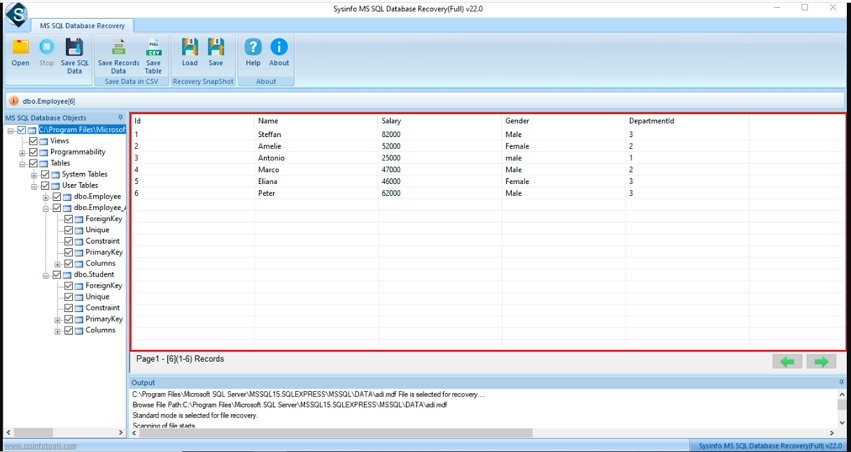
- Preview the contents, like files/folders/or subfolders within the corrupted database, and select the items you want to recover.
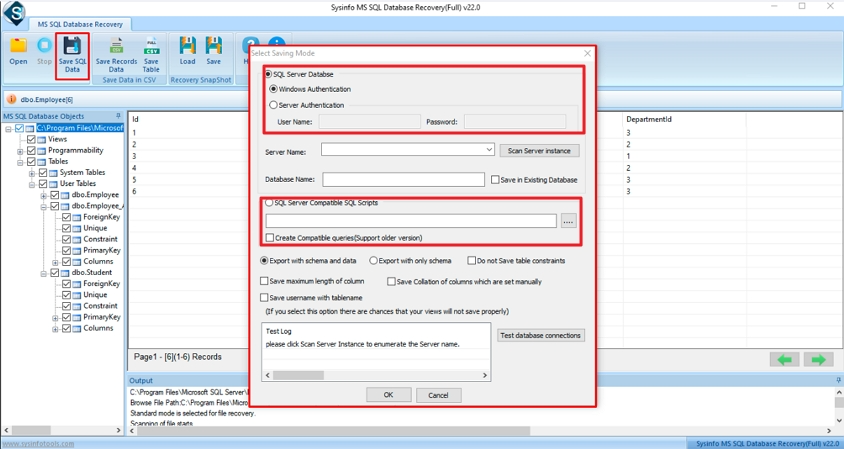
- Afterwards, select how you want to save the recovered data: either directly to an SQL Server Database or as SQL Server Compatible Scripts, then click OK.
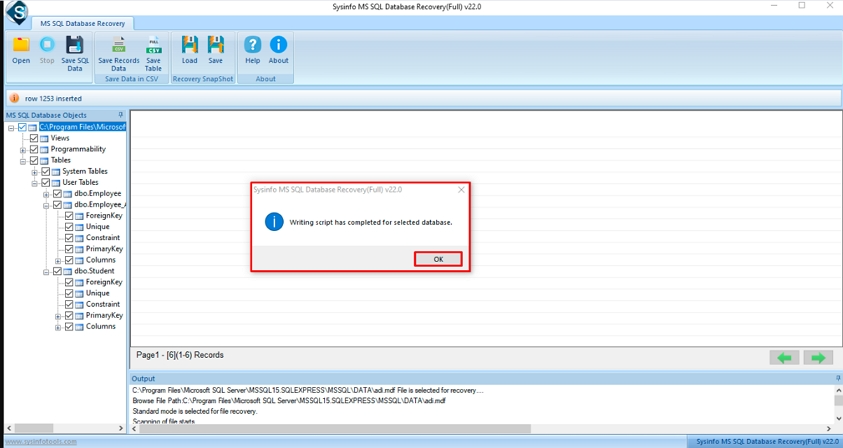
- Finally, once the recovery process completes, a message will appear to confirm. Click OK to finish.
Conclude
To conclude, Error 5243 is a very common problem that many SQL users can encounter while working with the database. The solutions shared aboveis useful for both experienced users and those with zero technical knowledge to resolve this error. If the manual steps are not able to solve the problem, using a professional utility can be a reliable alternative to fix SQL Database Restore Error 5243 effectively.
Frequently Asked Questions
Q1: Why does Restore Error 5243 in MS SQL Server occur?
Ans: Error 5243 in MS SQL Server usually happens due to corruption in the database files or issues with the SQL Server engine. Common causes include damaged MDF or LDF files, hardware failures, improper shutdowns, or interrupted restore processes. This error prevents SQL Server from accessing or restoring the database properly.
Q2: How do I repair SQL Error 5243 without data loss?
Ans: To repair SQL Error 5243 without losing data, start by using built-in tools like DBCC CHECKDB to check and repair database corruption. If the damage is severe, restoring from a recent backup is recommended. When manual methods fail, using a trusted SQL Database Recovery Tool can safely recover your data without running complex queries.
Q3: What is the most reliable way to fix Microsoft SQL Server Error 5243?
Ans: The most reliable way to fix Microsoft SQL Server Error 5243 depends on the severity of corruption. For minor issues, restarting the SQL Server service or running DBCC CHECKDB may resolve the error. For more serious corruption, restoring from a valid backup or using a professional SQL Database Recovery Tool ensures safe and effective recovery.
About The Author:

Meet Shivam, an experienced SEO executive and content strategist. He combines creativity with strategy to craft engaging content that connects with audiences and supports brand goals. With strong expertise in digital marketing and content planning, Shivam helps businesses thrive online.
Related Post