-
Written By Shivam Rathore
-
Updated on January 7th, 2026
Fix Access Database Error 2239: Causes, Solutions, and Tips
If you see the error message “FileName.mdb is not a database (Error 2239)” when attempting to open an Access database file, the most likely explanation is that the database file has been corrupted. Corruption may occur for several reasons, but we have solutions to fix Access Database Error 2239. Although receiving this type of warning can seem to indicate a serious problem, it is possible to recover from it by using either the built-in repair feature of MySQL Access or the Access Database Recovery Tool. Download Now Purchase Now
Why Fix “FileName.mdb” Not a Database (Error 2239)?
- You cannot open or access your Access database while this error exists.
- Important data stored in the file becomes unavailable.
- Ongoing work may stop because the database is not readable.
- There is a risk of permanent data loss if the issue is ignored.
- Applications connected to the database may stop working properly.
Manual Ways to Fix Access Database Error 2239
You can try these easy steps if you want to fix your database and want to get back your data:
Step 1: Make a Backup
The first step is to create a copy of your damaged .mdb file. This protects you from unwanted issues during the repair.
Step 2: Delete the Lock File (.ldb)
- Firstly, copy the .mdb to a different folder.
- Then delete the original .mdb file and the matching .ldb file.
- Finally, rename the copied file to the same name as the original file.
Step 3: Export and Rebuild a Damaged Table
If just one table is causing trouble:
- Export that table as a plain text file.
- Remove any connections or relationships linked to it.
- Compact the database and delete the damaged table.
- Then, create a new empty table.
- After that, open the exported text file in a simple text editor and remove strange or broken data.
- Thereafter, save it and import the clean data into the new table.
- At last, manually add any missing records if needed.
Step 4: Import Data Into a New Database
If the repair steps don’t work, then you can try this method:
- Open Access and click on External Data > Access.
- Find and select your damaged file.
- Then, choose to import the tables, queries, forms, and other objects.
- After that, click OK and pick the items to import.
- Let Access bring the data into a new, clean database.
Step 5: Use the Compact and Repair Tool
- Open Access without opening your damaged file.
- After that, click on File > Info > Compact & Repair Database.
- Finally, select the broken file and let Access try to fix it.
Limitations
- These steps might not fix very badly damaged databases.
- You could lose some data or relationships during the repair.
- Manually rebuilding tables can be time-consuming and tricky.
- Compact and Repair may not always recover all corrupted parts.
- There is a chance of missing attachments or linked objects.
Fix Access Database Error 2239 with Advanced Tool
The DatabaseFileRecovery Access Database Recovery Tool is the best tool to fix issue. It supports both the MDB and ACCDB files and helps to recover important items like tables and queries. Moreover, with this smart and advanced utility, you can preview your data before the recovery.
Steps to Recover Corrupt MDB Files (Error 2239)
- Firstly, download and start the MS Access Recovery Tool.
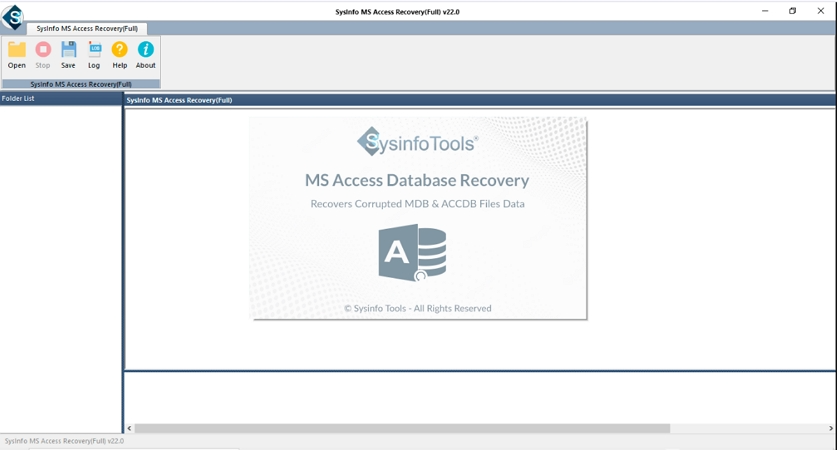
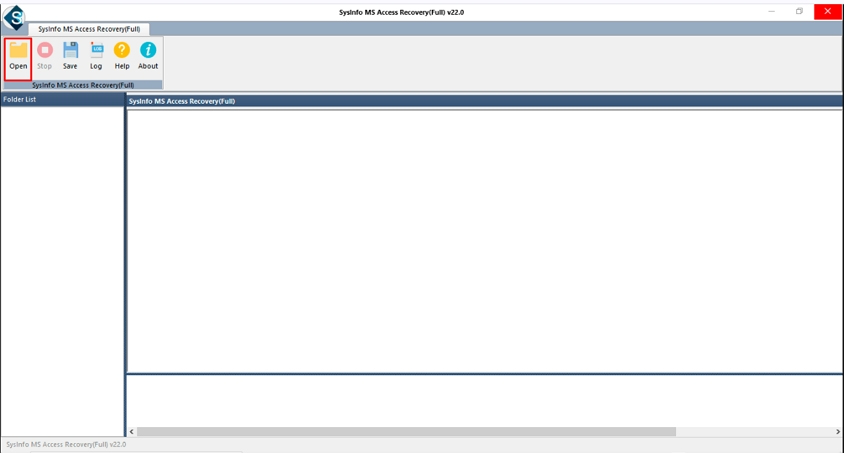
- Then, click Open and add the MS Access DB file.
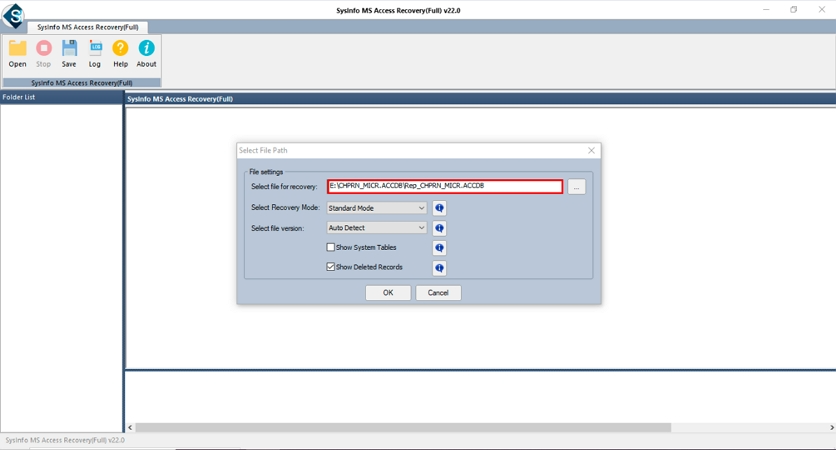
- After that, check the path and hit Open.
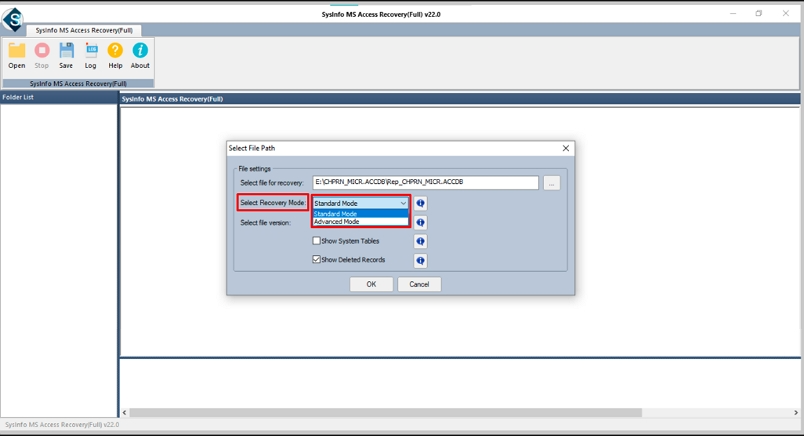
- Thereafter, choose recovery mode and apply filters.
- Next, preview and select files and click Save.
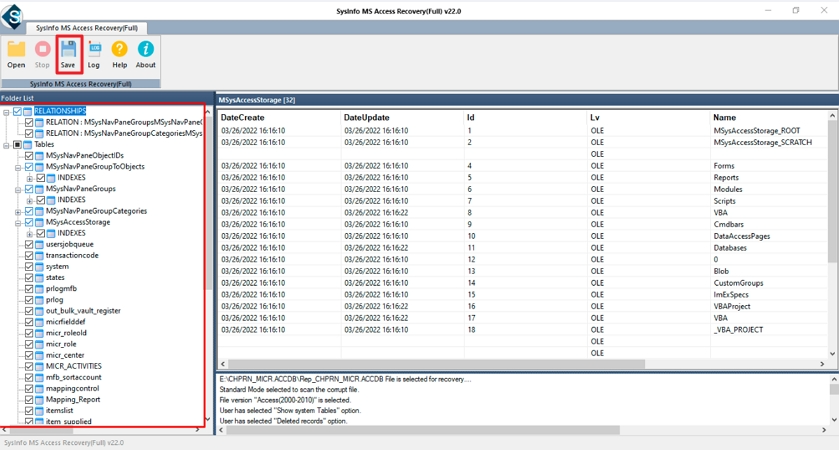
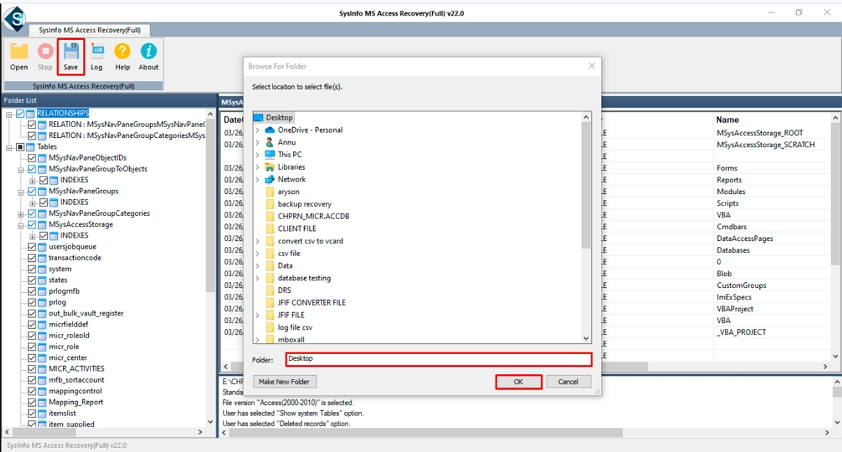
- Finally, set the destination and click Ok to resolve Access Database Error 2239.
Conclusion
It is mandatory and recommended for all users to keep a copy of their original file. Having a copy of your mdf file prevents you from unexpected errors. In some cases, the manual steps can fix Access Database Error 2239, but if not, then you need to use the professional tool. The MS Access Recovery Tool will help you to smartly resolve this error without any extra effort.
Frequently Asked Questions
Q1: How can I fix Access Database Error 2239?
Ans: If any user wants to fix the Error 2239, you can use the manual fixes, or else you can use a professional MS Access Recovery Tool.
Q2: Is Access Database Error 2239 a sign of severe corruption?
Ans: Yes, it means your Access database file is corrupted. Sometimes, the small corruption can be fixed using built-in options. For highly corrupted or damaged files, using advance Access Recovery Tool is the best choice.
Q3: Can Access Database Error 2239 occur due to version incompatibility?
Ans: Yes, this error can appear if a new version of Access is opened in any old version. This can show you the Error 2239.
Q4: Is it safe to recover corrupt MDB files using third-party tools?
Ans: The DatabaseFileRecovery Access Recovery Tool is the best solution to recover your corrupt MDB file. It makes sure that no data alteration will happen during the process.
About The Author:

Meet Shivam, an experienced SEO executive and content strategist. He combines creativity with strategy to craft engaging content that connects with audiences and supports brand goals. With strong expertise in digital marketing and content planning, Shivam helps businesses thrive online.
Related Post