-
Written By Robert Scott
-
Updated on April 9th, 2026
Complete Guide to Fix Access Database Error 3800
Got this Error 3800 in MS Access while working on my file, and I’m kind of stuck. Don’t know what triggered it. How do I sort this out without breaking anything?
-Lucas, Europe
While working in Microsoft Access, it’s pretty common to face errors now and then. Most of the time, they appear when opening a database or making changes. One of those issues is Access Database Error 3800, and yes, it can be a bit annoying when it shows up. In this blog, we’ll go through some simple manual ways to fix Microsoft Access Error 3800. Alternatively, we have another option, which is to use the DatabaseFileRecovery MS Access Database Recovery Tool.
Download Now Purchase Now
What is Microsoft Access Error 3800?
This error generally shows up if something’s wrong with the database file. Either the file is damaged, or the structure isn’t correct. It can happen when you open it, import data, or try to modify anything.
Common Reasons Behind the Error 3800
- File damage or corruption can cause this.
- A large database size might be a problem.
- Improper shutdown of Access can lead to errors.
- Conflicts with add-ins may occur.
- System-related issues can also be a reason.
Manual Ways to Fix Microsoft Access Error 3800
There are some manual fixes we talked about. The user should try these native methods before taking any other step.
01 Method: Restart MS Access
Sometimes the issue is temporary and can be easily solved. Using this method, users can resolved Access Database Error 3800.
- Close Microsoft Access.
- Restart your system.
- Open the database again.
02 Method: Use the Compact and Repair Tool
This is a built-in option in Access. This option works well for minor issues. And this method is not helpful if the database is badly damaged or shows serious errors.
Steps to Fix MS Access Runtime Error 3800:
- First, Open Access (without opening the file).
- Then, Go to Database Tools.
- After that, click Compact and Repair Database.
- Lastly, select your file.
03 Method: Import Data into a New Database
If the file is partially corrupted, this can help to manage encountered Access database error 3800.
- Firstly, create a new database.
- After that, go to External Data > Import.
- Afterwards, select your old database.
- At the end, import all objects.
04 Method: Check File Location and Permissions
Before trying anything else, it’s a good idea to check where your file is stored and whether you have the right permissions to access it.
- Make sure the file is not read-only.
- Move the file to a local drive.
- Ensure proper access permissions.
Automated Way to Fix Microsoft Access Error 3800
Manual methods often fail when the database is severely corrupted. In those cases, you’ll need something more reliable. That’s where an MS Access Database Recovery Tool comes in. It’s built to handle serious corruption without making things worse. You can use it to pull data from damaged MS Access files without much hassle. It’s not complicated. Just a safer way to get your data back when nothing else works.
Steps to Fix MS Access Runtime Error 3800:
- First, install, download, and open the MS Access Database Recovery tool on your PC.
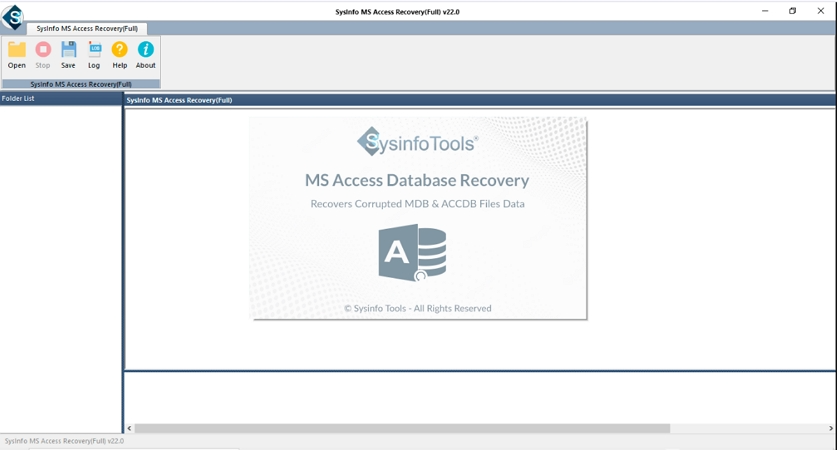
- After that, click Open to add the MS Access Database file.
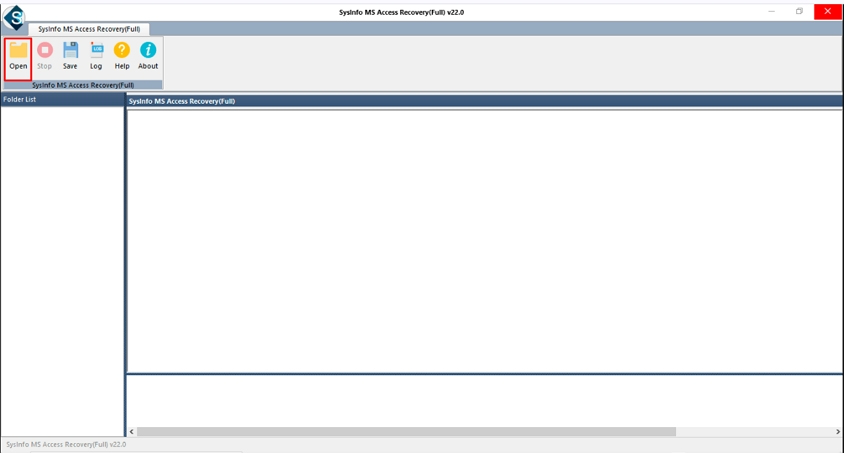
- Afterwards, verify the path of your file. Click Open.
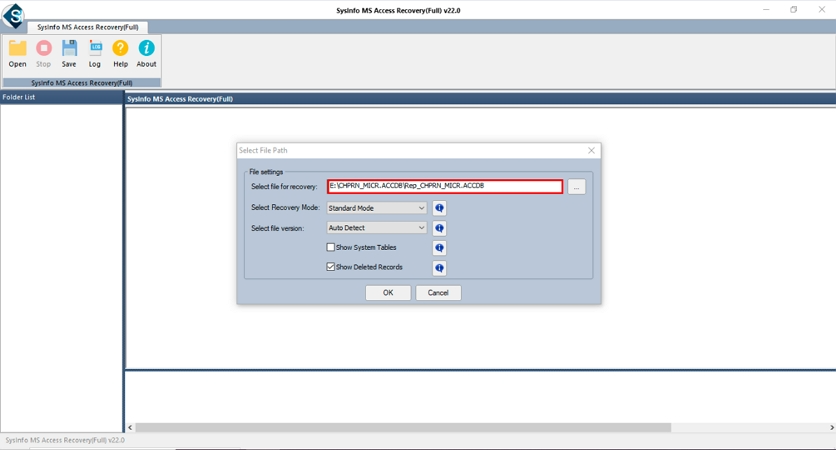
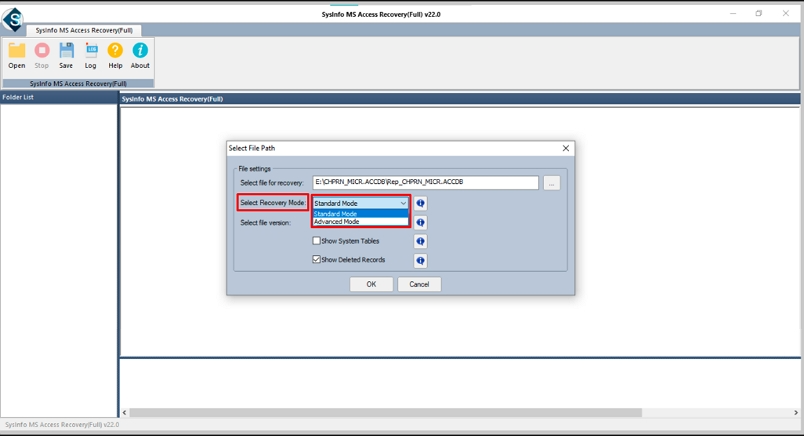
- Then, Select Recovery Mode, either Standard or Advanced, and apply features/filters of your choice.
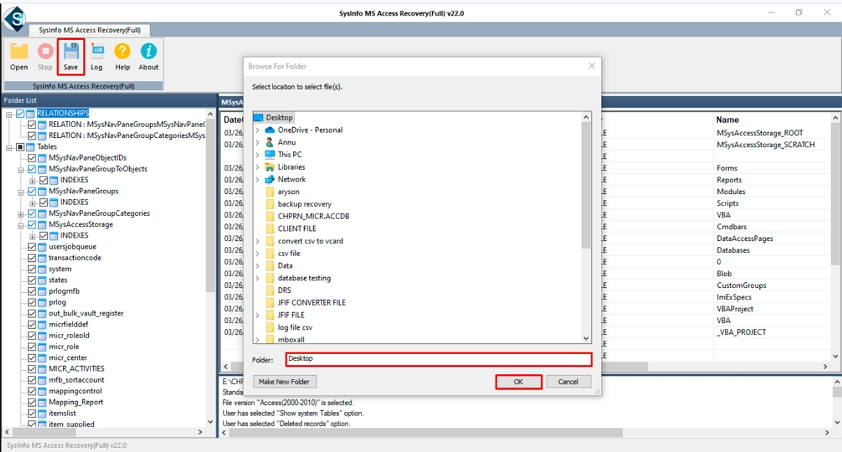
- Now, preview and select your files and folders. Click Save.
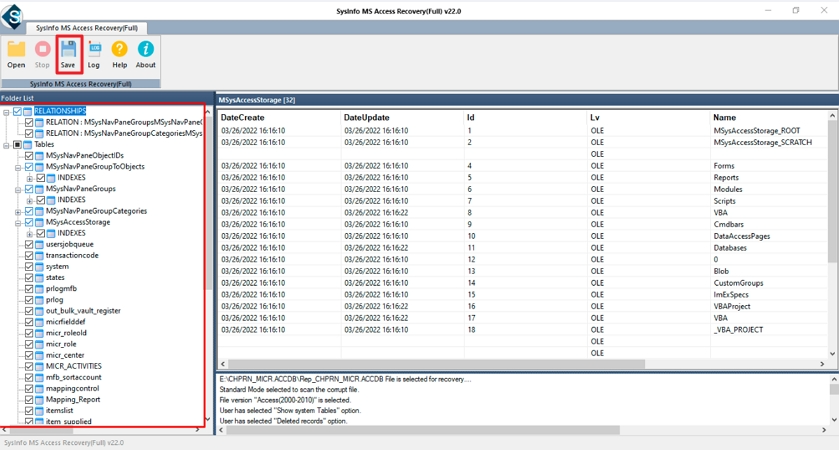
- Lastly, choose the destination and press the Ok button.
Final Thought
Error 3800 is pretty common in MS Access. A lot of users run into it while working on their databases. The fixes we went through usually help. Doesn’t matter if you’re new or have some experience; you can try them without much trouble. But yeah, sometimes they just don’t work. In that case, using a proper MS Access Database Recovery Tool to fix Microsoft Access Error 3800 makes more sense. It’s a straightforward way to deal with Error 3800 and get your database back on track.
Frequently Asked Questions(FAQS):
Q1. What causes MS Access Runtime Error 3800?
Ans. It usually happens due to a corrupted database file, large file size, improper shutdown, or conflicts with add-ins and system issues.
Q2. Does MS Access Error 3800 affect data integrity?
Ans. Yes, it can. If the database is damaged, some data may become inaccessible or behave unexpectedly. Using the DatabaseFileRecovery MS Access Database Recovery Tool can help recover data safely.
Q3. Is it safe to use third-party tools to fix Access Error 3800?
Ans. Yes, if you use a trusted tool like the DatabaseFileRecovery MS Access Database Recovery Tool. It helps repair the database without affecting your original data.
Q4. How can I prevent Access Error 3800 in the future?
Ans. Always close Access properly, keep backups, avoid very large files, and maintain your system regularly to reduce the chances of errors.
Q5. Can network interruptions cause Access Error 3800?
Ans. Yes, sudden network issues or interruptions while working on a database can lead to corruption, which may trigger this error.
About The Author:

With more than five years of experience in email migration, Data Recovery, Email Backup, and File Management, I combine my years of experience with a strong interest in new technology. My professional journey is fueled by a genuine passion for navigating and mastering the latest advancements in these fields, ensuring that I stay ahead of the curve and bring innovative solutions to the table.
Related Post