-
Written By Shivam Rathore
-
Updated on April 7th, 2026
Effective Ways to Fix MS Access Error 3014: Complete Guide
User Query: “MS Access has been throwing Error 3014 lately, and I don’t know why. I checked the basics, but nothing fixed it. Any easy solution that won’t risk my data?”
If you use Microsoft Access regularly, seeing errors isn’t unusual. Error 3014 pops up when Access can’t open a database or connect to something it needs. It can get annoying during work. In this blog, we will go through the steps to fix MS Access Error 3014 and use the professional DatabaseFileRecovery Access Database Recovery Tool. Additionally, we will learn why it’s helpful.
Download Now Purchase Now
What is MS Access Error 3014?
MS Access Error 3014 is basically a runtime error. It shows up when Microsoft Access can’t open a database or connect to a linked file.
You might see messages like:
- “Error 3014: Cannot open database.”
- “Runtime Error 3014”
In simple terms, Access is having trouble finding or reading the database file.
Common Reasons to Fix MS Access Error 3014
- It can stop you from opening your database when you need it.
- Work gets delayed, and that can be really annoying.
- There’s a chance you might lose important data.
- The file may start acting weird or crash often.
- Things can feel slow while working on the database.
- Small issues can turn into bigger problems later.
- It can mess up your daily workflow.
- Fixing it early saves time and stress later.
Simple Methods to Fix Microsoft Access Error 3014
You can fix this problem using some free approaches. They’re not too complicated, but don’t expect instant results. You’ll also need some basic technical knowledge. Here’s a simple guide to get you started.
01 Method: Check the File Location
Start with the basics. Make sure the database file is actually in the right place.
- Check the file path and confirm it hasn’t changed.
- If the file is stored on a network drive, see if the connection is working properly.
- You can also try opening the file directly from its folder instead of through Access.
02 Method: Verify Permissions
You might not have the required access rights.
- Firstly, right-click the file >> Properties.
- Afterwards, check security settings.
- Next, make sure you have full control.
If needed, try opening Access as an administrator.
03 Method: Use Compact and Repair
This is one of the easiest ways to resolve Runtime Error 3014.
- Firstly, open Access.
- After that, go to Database Tools.
- At the end, click Compact and Repair Database.
It can fix minor corruption and clean up the file.
04 Method: Import Data into a New Database
If the file still doesn’t open, try this method to fix Access Runtime Error 3014:
- Create a new blank database.
- Then, bring in all the tables, queries, and forms from the old one.
- This can work if the original file has some hidden problems.
05 Method: Restore from Backup
If you have a backup, now’s the time to use it.
- Replace the damaged file with a healthy copy
- Always keep regular backups to avoid data loss
Professional Way to Fix MS Access Error 3014
If the basic fixes don’t help, you’ll likely want a faster option. Trying the same steps again and again just gets frustrating. That’s where a tool like DatabaseFileRecovery Access Database Recovery Tool can help. You don’t have to deal with long manual steps either. It’s pretty straightforward to use. You can recover tables, queries, and other data without digging too deep into technical stuff. It also runs fine on different Windows versions, so compatibility isn’t really an issue. A good option when the problem gets serious.
Follow the above steps to resolve Runtime Error 3014:
- First, install, download, and open the MS Access Recovery Tool as an administrator.
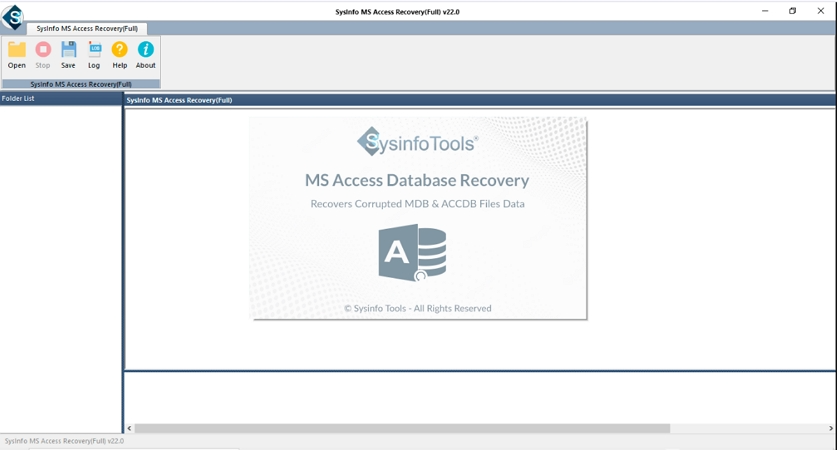
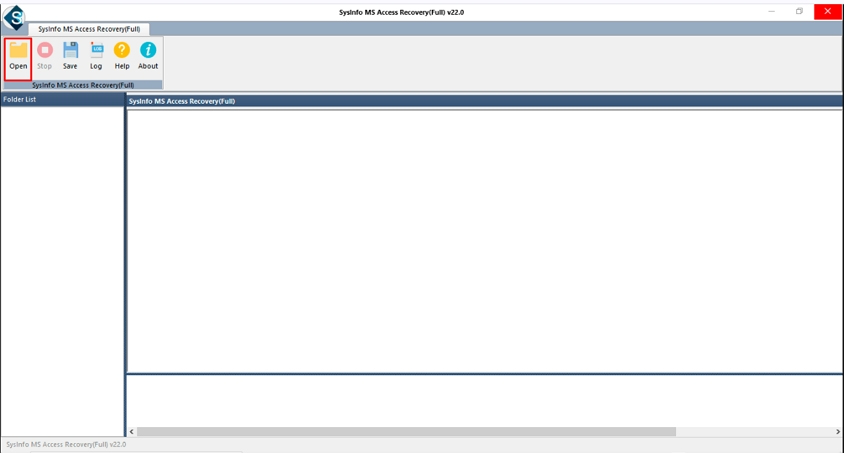
- After that, press the Open button to add your MS Access Database file.
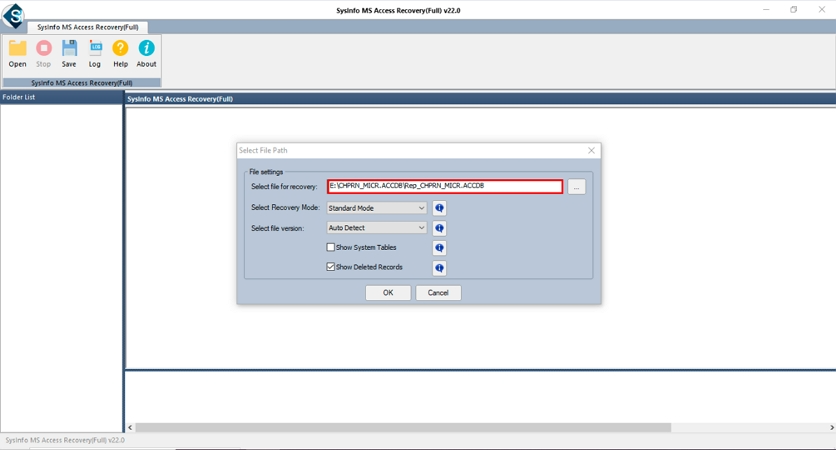
- Afterwards, check the path of the added file. Hit Open.
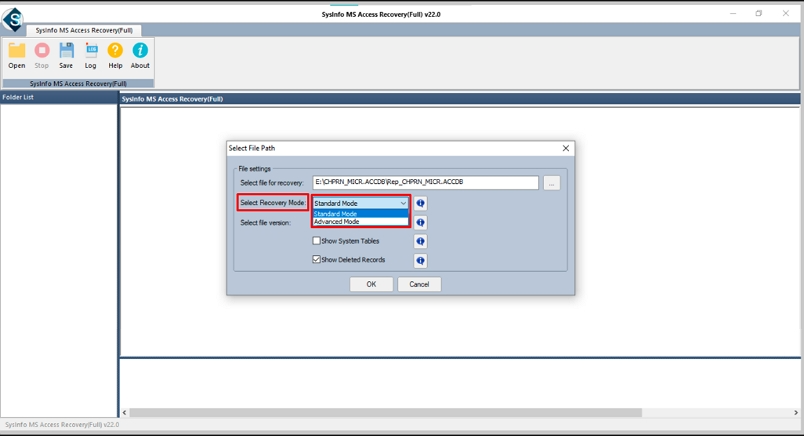
- Then, click Select Recovery Mode Standard/Advanced and apply other features.
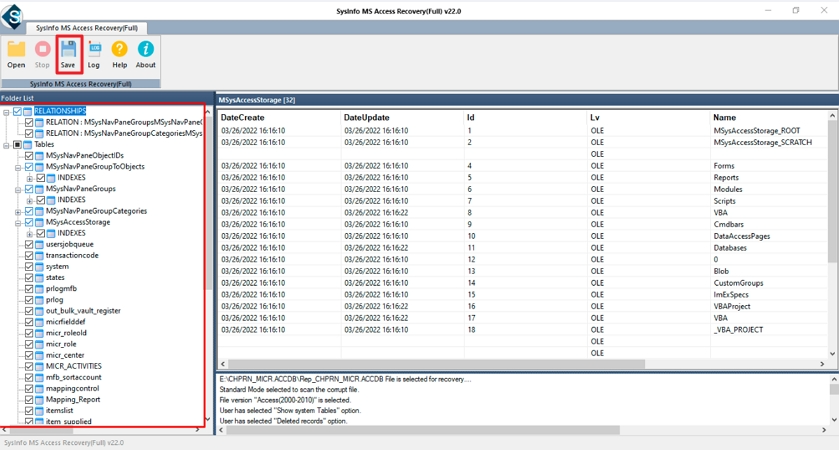
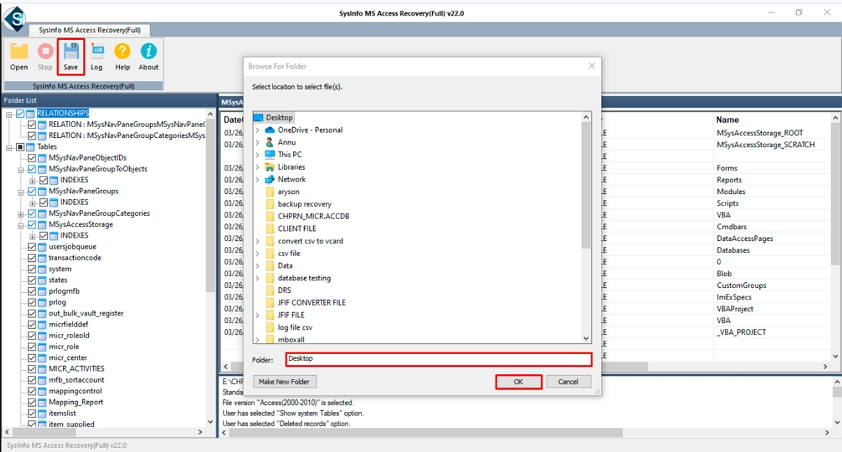
- Now, preview and select the files and folders. Press Save.
- Finally, specify the destination and press the Ok button.
Final Wording
MS Access Error 3014 often occurs when the database file doesn’t open the way it should. It could be because of corruption, incorrect file location, or access issues. The good part is that you can usually fix it with some easy manual steps. Start by checking and repairing the file. And if the issue is more serious, using an Access recovery tool to fix MS Access Error 3014 can make things easier.
Frequently Asked Questions(FAQS):
Q1. What is MS Access Error 3014?
Ans. It’s an error that shows up when Microsoft Access can’t open or read your database file properly. This usually happens due to file issues, wrong paths, or permission problems.
Q2. How can I fix Access Runtime Error 3014?
Ans. You can start with simple steps like checking the file location, verifying permissions, and using the Compact and Repair option. If that doesn’t work, you can use the DatabaseFileRecovery Access Database Recovery Tool to repair the file.
Q3. Can database corruption lead to Error 3014?
Ans. Yes, it can. If the database file is damaged or not saved properly, Access may fail to open it and show this error.
Q4. Can I fix MS Access Error 3014 without technical knowledge?
Ans. Yes, basic fixes are easy to try. For more serious issues, the DatabaseFileRecovery Access Database Recovery Tool makes the process simple without needing technical skills.
Q5. Does MS Access Error 3014 affect database data?
Ans. It can. If the issue is due to corruption, your data may be at risk. Using the DatabaseFileRecovery Access Database Recovery Tool can help recover and protect your data.
About The Author:

Meet Shivam, an experienced SEO executive and content strategist. He combines creativity with strategy to craft engaging content that connects with audiences and supports brand goals. With strong expertise in digital marketing and content planning, Shivam helps businesses thrive online.
Related Post