-
Written By Shivam Rathore
-
Updated on March 19th, 2026
Fix MS Access Error 3049 – Easy Solutions to Repair Database
“I have been working on MS Access for a few years, but recently I have been encountering error 3049 a lot. It is quite hard for me to resolve this issue, and I have tried the basic checks, but nothing seems to work. Can anyone help me resolve this error code 3049 quickly with zero data loss or alterations?”
-Emily Parson, Database Manager, Florida
Whether a DB user or a Microsoft user, encountering any errors in Microsoft Access can halt the entire operation. So, if you have previously or recently got hit with the Access error 3049: database cannot open, then this guide is for you. It explains different solutions to fix MS Access Error 3049, free or with the Access Recovery Tool to ensure no data loss. Furthermore, you can even explore its root causes and tips for prevention.
Download Now Purchase Now
Triggering Factors of Error 3049 in MS Access
To resolve MS Access Error 3049, one must be aware of its primary causes and effects. So, here are the top reasons that cause the following error:
“Error 3049: Cannot open database <dbname>. It may not be a database that your application recognizes, or the file may be corrupt.”
Reasons:
- Improper and sudden shutdown of the system or applications corrupts the database file structure.
- Insufficient read/write permissions for the database file and folder also restrict access.
- Issues with the database network or storage, and the hard drive on which it is stored, are a problem.
- Security softwares like Firewall and Antivirus also locks the database access as a threat to the file.
- It is possible that the file path is too long or there are broken or missing links in the Access database.
Possible Methods to Fix MS Access Error 3049
There are a few common troubleshooting manual approaches to repair the database block or corruption issues at a general level. But if the error is severe, then we have a smart and reliable software solution for its fix. Both methods are discussed with complete details and a stepwise procedure below. Explore them one by one to find which one is appropriate for your level of 3049 issue.
Troubleshoot Access Error 3049 for Free
Go through the top 7 manual solutions available to resolve the error code 3049 without any third-party software. Using the basic fix and built-in options, resolve the problem to whatever extent it can be as follows:
1) File and Permission Verification
- Firstly, shift your Access database file from a network drive to a local desktop and attempt reopening it.
- Next, select your MDB/ACCDB file, right-click it, and choose Properties.
- In its General settings, check if it is set to “read-only.” If yes, uncheck it.
- Afterward, completely close your MS Access. Then, restart it as an administrator.
- Finally, try re-opening the Access database that you were unable to view previously.
2) Compact Fix MS Access Error 3049
- Open MS Access with no previously opened database.
- Then, go to File and select Info from the menu.
- You will find a built-in option labeled Compact and Repair Database. Select it.
- Further, a dialog opens, where you can browse and select the affected database.
- At last, press the Compact button, and it will start with the fix.
Note: It will probably copy the corrupted data into a new file, but it may fail if your corruption is severe.
3) Import Fix Access Database Error 3049
- Initially, start MS Access and open a Blank Database.
- Then, from External Data, click New Data Source.
- Afterward, select From Database and choose Access.
- Next, browse and opt for the corrupted Access database.
- Choose to import tables, queries, forms, etc., and tap OK.
- Once all objects are selected, complete the import and save the new file.
Note: For specific objects like single forms and reports, it bypasses the damaged parts during the copy.
4) Disable Security Softwares
- Simply, open your Firewall or Antivirus Software.
- Then, disable it and try to reopen the database.
- If it is successful, add your db file to the Antivirus exclusion list and save changes.
5) Fix MS Access Error 3049: File Convert
- Start MS Access and from File, click Open.
- Press Browse and choose your MDB file and click Open.
- Then, again, go to File and click Save Database As.
- Afterward, select Access Database, and you will see an update pop-up message.
- Tap OK and change the MDB file to an ACCDB file to make the fix.
6) Troubleshoot Access Error 3049: Backup
- From the Access File tab, in Save Database As, choose the Backup Database option.
- Provide all the required information asked by the software.
- In the end, click Save As and complete the process to save it.
7) Repair with Drive Built-In
- First, open File Explorer and paste the path: C:\Windows\SysWOW64.
- Scroll down in it and locate the odbcad32.exe file. Launch it.
- Further, in the User DSN tab, click the Add button, and a new window opens.
- In the Create a New Data Source window, select Driver do Microsoft Access (*.mdb).
- Tap Finish and in the next window, click the Repair button.
- After that, select the drive and the folders containing the database files.
- Finally, press OK to finish the repair and resolve the error 3049.
How to Fix MS Access Error 3049 with Severe Damage?
In case of the above troubleshooting solutions, the error 3049 remains unresolved. Then, the Access file database structure is definitely severely damaged and needs a specialized solution. You can download the DatabaseFileRecovery MS Access Recovery Tool to handle complex corruption or recover deleted records. It is a powerful software with read-only recovery and a high success rate to extract data with 100% accuracy. Moreover, some of its key benefits include:
- Scans and supports the binary structure of both MDB and ACCDB files.
- Fix Access database error 3049, including all tables, queries, forms, relations, and indexes.
- Handles severely corrupted and damaged data and deals with unrecognizable Access databases.
- Retrieve deleted records that still reside in your Access file but are unlocatable.
- Repair files at a large scale and is best suited for enterprise and business environments.
- Fix files of more than 1 TB in a single go with precision and zero data loss.
- Works across all Windows OS versions and has a Demo for preview and evaluation.
Guide to Resolve MS Access Error 3049
- Launch the MS Access Repair Software and tap the Open button.
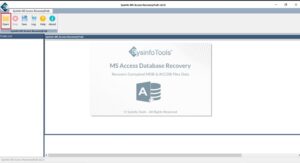
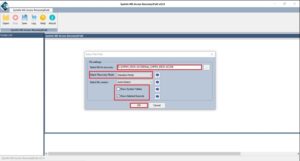
- Then, add db file, choose Standard or Advanced fix, other options, and tap OK.
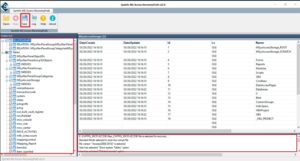
- Further, preview the scanned files in the panel and select folders. Hit Save.
- Choose the destination folder, opt to create a new folder, and click OK to fix and save.
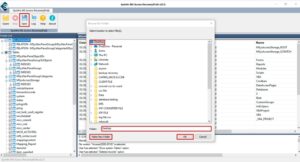
After it’s saved, you can reopen the Access file to verify that all the contents and tables remain intact in the same folder structure. The process takes only minimal time and provides guaranteed outputs.
Conclusion
Fix MS Access Error 3049, as it can be alarming, but not your data’s end if managed on time. Initially, take steps with basic troubleshooting, followed by compact and repair utility, and then, finally, use Access Database Recovery Tool for major fixes. Ensure not to open the file again and again to corrupt it even more. Also, take regular checks and maintain a backup to prevent error code 3049 in MS Access in the near future. Also, for any concerns, you can reach out to our expert support available 24*7!
Frequently Asked Questions(FAQS):
Q1. What is MS Access Error 3049?
Ans. Error 3049 indicates that a Microsoft Access Database File cannot be opened or recognized. This is typically due to file corruption, permission settings, or problems with network connectivity. Usually, the entire error message states: “Could Not Open Database < DB Name >. It May Not Be a Database That Your Application Recognizes, Or The File May Be Corrupt.”
Q2. How can I fix Access Error 3049 manually?
Ans. You can try the following steps to fix the Access db error 3049 manually:
Step 1. Move the database to your local hard disk
Step 2. Run the built-in Compact and Repair Database tool from the File menu.
Step 3. Create a blank new database and then import all objects from the database using the External Data tab on the menu.
These methods are usually successful for minor logical corruption of the database, but may not work if the header of the database is severely damaged.
Q3. What is the best way to repair Access database error 3049?
Ans. To ensure complete recovery from the error message, you should always use a professional third-party repair tool like DatabaseFileRecovery MS Access Database Recovery Software. It scans the database at the binary level to retrieve as much data as possible from the database, including tables, relationships, and even deleted records, making it the most effective way to permanently resolve the errors caused by Error 3049.
About The Author:

Meet Shivam, an experienced SEO executive and content strategist. He combines creativity with strategy to craft engaging content that connects with audiences and supports brand goals. With strong expertise in digital marketing and content planning, Shivam helps businesses thrive online.
Related Post