-
Written By Shivam Rathore
-
Updated on March 14th, 2026
How to Fix Microsoft Access Runtime Error 3024 File Missing
“I am quite frustrated with the experience with Access 2022. I bought the newest version of Access 2022, and I still get the runtime error 3024. Especially while trying to use the VBA DAO code to connect to SQL Server 2019. The error message simply says the file is corrupt and doesn’t offer any other information. I have tried using ADO and DAO connections, but neither seems to work. Can anyone help resolve this runtime error without difficulty?”
-Cavin Marshall, UK
Software errors rarely say I broke instead, they represent issues like files not found, databases cannot be opened, etc. And while this is happening, the real issue may exist somewhere else in the system path, database link, or permissions. One such common issue is error 3024, which generally arises when Access attempts to locate a file, linked table, or external database and cannot reach it. Thus, it halts regular procedures, and so this guide describes effective solutions to fix Microsoft Access Runtime Error 3024. With the Access Database Recovery Tool or free troubleshooting, you can resolve the issue efficiently and resume operations with ease.
Download Now Purchase Now
How Does Microsoft Access Error 3024 File Not Found Occur?
Microsoft Access Error 3024 can occur due to issues with both the system and the database. The common factors are as follows:
- File Path Is Invalid: If a macro, query, or VBA script references an invalid file path, Access will be unable to find the file.
- Files Have Been Moved/Deleted: Access databases sometimes have links to external files or linked tables on the disk. If these files or tables have been moved to another folder or deleted, Access will be unable to locate them and will throw this error.
- Linked Tables Have Broken Links: Access databases often contain linked tables that live in other Access databases or SQL servers. If the link was created using an incorrect path or has been deleted, it will no longer work, and Access will throw an error.
- Source File Cannot Be Found on Network Drive: When a user attempts to open a file saved on a recently removed shared network drive, Access will not be able to make the connection.
- Database is Corrupted: In some cases, the database itself becomes corrupt. When this occurs, the database may no longer contain references to the objects that were required for the requested operation.
Besides this, other common reasons for the issue may be invalid registry keys, malware infestation, and incomplete installations.
Manually Fix Microsoft Access Runtime Error 3024
There are different free techniques to resolve this issue without much hassle. However, it may take time, and you require technical skills. The stepwise guide is as follows:
Method 1: File Path Verification
- Open your Access database and locate macros or queries that trigger the issue.
- Then, review your file path used within the object.
- Further, check that reference files exist in the same location.
- Finally, correct the path if the file is removed or shifted elsewhere.
Method 2: Linked Tables Relinking
- Start Access database and go to the External Tab >> Linked Table Manager.
- There, select your affected tables and click Relink.
- Locate the correct source file and wait until Access completes:
- Table connection update
- Missing file reference removal
If this doesn’t fix “Runtime Error 3024 Could Not Find File in Microsoft Access”. Proceed with the other methods.
Method 3: VBA Code Verification
- In an Access database with errors, go to the Database Tools tab.
- Then, from Macro, click Visual Basic. The Project Explorer window opens.
- Here, check the codes for the related objects (forms/queries).
- Verify all the syntaxes, make changes if required, and lastly, apply them.
Method 4: Fix Security Settings
- In Access, from File, click Options and go to Trust Center.
- Then, click Trust Center Settings, and a dialog opens.
- Enable all the macros there and click OK to save.
Method 5: Via dbsQLPassThrough
This is a Transact SQL (T-SQL) query used with the ODBC connection string to fix Error 3024 file not found. The syntax is: expression.Execute(Query, Options). Here,
- Database object by an Expression
- SQL Query with Query
- Variant datatype by Options
Yet, if an error still occurs, place ([ ]) around the table name in the SQL String.
Still cannot fix Microsoft Access Runtime Error 3024 File Missing? No worries, we still have two free solutions and an expert technique left to cover. Check them out.
Method 6: Repair Broken or Missing References
- Start the MS Access application and press Alt+F11 keys to open the VBA Editor.
- Next, go to Tools and select References. A dialog box will open up.
- Then, check under Available References; all are selected. If not, press OK.
Method 7: Corrupted Access Database Repair
- Initially, close all the Access database files and open MS Access.
- Then, from Templates, double-click Blank Database.
- Further, move to File, click Close, and browse to the Database Tools tab.
- Afterward, select Compact and Repair Database, and a window opens.
- Select your corrupted database and finally, press Compact to fix.
However, in many cases, this built-in Compact/Repair tool doesn’t work effectively. Especially when the database corruption is high and severe. So, at such times, using an automated solution is a smart choice.
Professional Fix Microsoft Access Error 3024 File Not Found
Enterprises often require rapid and absolute solutions to repair their corrupted Access databases and resolve errors. DatabaseFileRecovery Access Database Recovery Tool is a smart, dependable, and expert-trusted solution to instantly repair severely damaged Access MDB and ACCDB files with zero loss. Additionally, it overcomes all issues with manual troubleshooting and doesn’t require any technical skills. Moreover, it restores entire database objects with complete integrity and precision on all versions of Windows OS.
Simple Guide to Fix Microsoft Access Runtime Error 3024
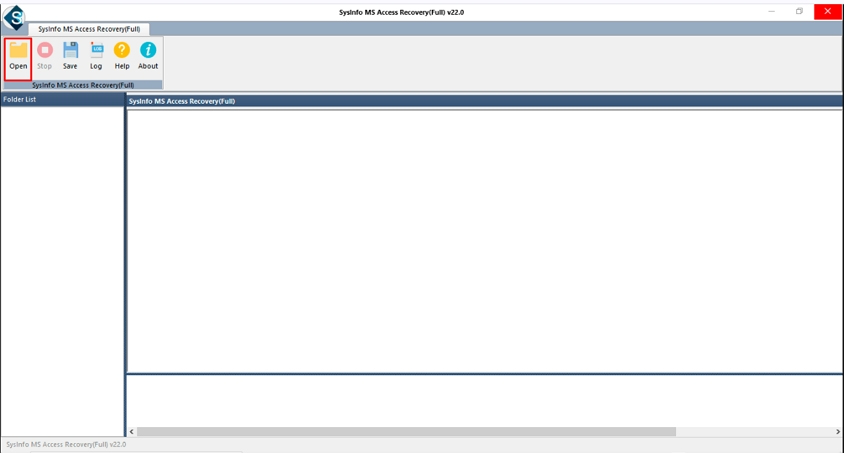
- Launch the MS Access Recovery Tool and press the Open icon.
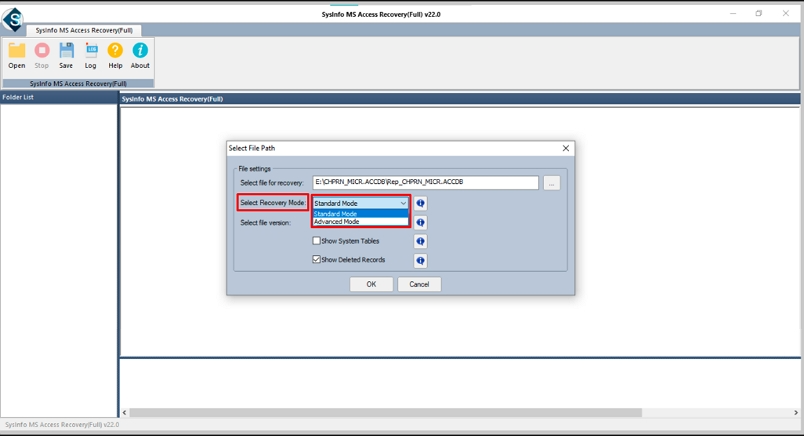
- Then, add your file for recovery and choose Standard/Advanced repair mode. Click OK.
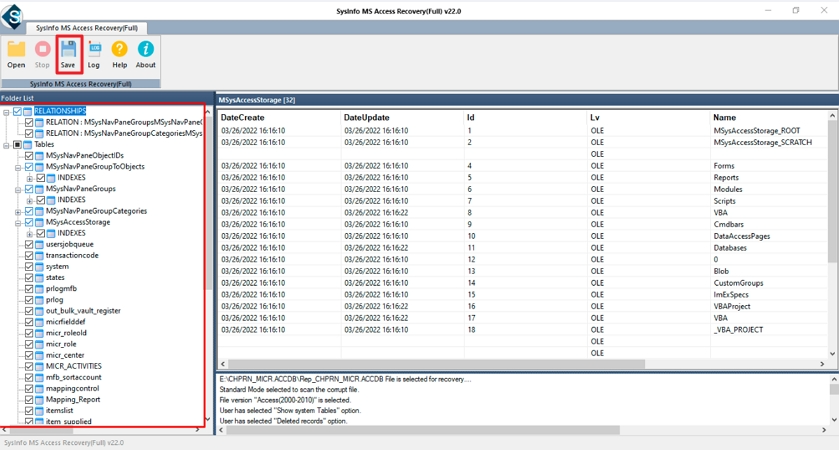
- Further, preview and select the Access files and folders, and click Save.
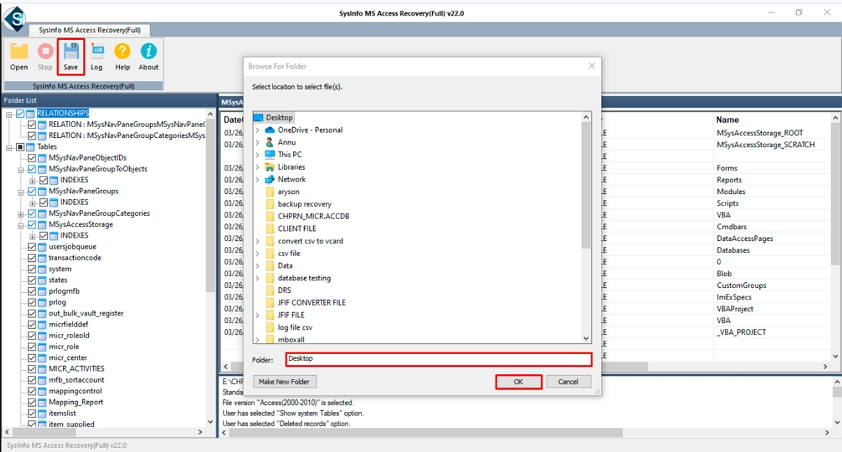
- Finally, specify the destination to restore the recovered MS Access data and click OK.
Isn’t it too straightforward? A few simple steps, and you are done with the Access file recovery and error 3024 fix.
Beneficial Factors of the Access Repair Tool
This excellent tool helped to fix “Runtime Error 3024 Could Not Find File in Microsoft Access” in minimal time. Some of its core advantages are:
- Proficient recovery modes
- Read-only recovery, no overwrites
- Handles files of more than 1 TB
- Offers a preview with complete recovery
- Available for technicians and administrators proficient with MS DOS
- Support for all Access DB versions, MDB and ACCDB files
- Demo Version for evaluation and function check
Prevent Error 3024 File Not Found With Best Practices
Organizations working with MS Access databases must maintain these practices regularly to prevent errors like 3024 and others:
- Taking frequent data backups to ensure data can be restored in case of loss.
- Updating linked tables whenever a file is removed or relocated.
- Monitoring database size, as large ones are more vulnerable to corruption. So, keep them within limits.
- Using stable networks during database transfers or performing other operations.
- Ensuring that database files hosted by the shared drives remain accessible to all users.
Closing Remarks
Runtime Error 3024 in MS Access commonly occurs when the file is not located at the linked source. It can be for any reason, from database corruption to incorrect file path, broken links, and more, as discussed above. But it is very easy to fix Microsoft Access Runtime Error 3024 with the right approach. Here, we learned numerous manual troubleshooting methods and a dedicated Access Recovery Software tool for the repair of corrupted and damaged Access files. With the right solution and prevention practices, you can handle errors easily and smartly without losses.
Frequently Asked Questions
Q1. In Microsoft Access, what is the meaning of Runtime Error 3024?
Ans. Microsoft Access Runtime Error 3024 occurs when Access cannot find a file or other object, such as a linked table, that is missing from your database.
Q2. Does corruption of a database lead to Runtime Error 3024 in Microsoft Access?
Ans. Yes. When a corrupt database breaks internal references to files or tables, Access will not be able to find them and will throw an error.
Q3. What steps do you take to fix or resolve the issue of runtime error 3024 could not find the file?
Ans. There are a number of options available to resolve the error: check the file path, re-link tables, restore missing files, or perform a repair on the database if it is corrupted.
Q4. Can data be recovered from a database that received runtime error 3024?
Ans. If the database was corrupt before running the repair tool, it should have no issues recovering your tables, queries, and other objects in your database using the DatabaseFileRecovery Access Database Repair Tool.
About The Author:

Meet Shivam, an experienced SEO executive and content strategist. He combines creativity with strategy to craft engaging content that connects with audiences and supports brand goals. With strong expertise in digital marketing and content planning, Shivam helps businesses thrive online.
Related Post