-
Written By Shivam Rathore
-
Updated on December 26th, 2025
Troubleshooting Guide to Fix Access Database Error 2542
MS Access is a very popular and user-friendly database management system. It is preferred for its offered features, functionality, and simple user interface in the world. But many users face Access DB error 2542, which prevents users from accessing their data. In this blog, we will discuss ways to fix access Database error 2542. Here, we will cover manual approaches and use MS Access Recovery Tool to recover your database instantly.
Download Now Purchase Now
What is the Need to Resolve Access Database Error 2542?
- If the issue lasts longer, it can disturb regular office work and reporting schedules.
- Leaving the error unresolved can make the database condition worse over time.
- Fixing the error brings back access to the database and lets work continue normally.
- Solving it early helps avoid wasted time and repeated interruptions.
Manual Fixes to Fix Access Database Error 2542
There are some manual fixes that you should try to fix your access DB error 2542. These fixes can resolve the issue, but it’s not guaranteed. Follow the steps carefully to avoid miscellaneous errors.
Fix 1: Run the “SFC /Scannow” Command
Next, you can try using the System File Checker (SFC), which is a built-in Windows tool. It helps repair corrupted or missing system files that may be causing this Access error.
Steps to troubleshoot Access Database Error 2542:
- Firstly, click on the Start button and type cmd in the search box.
- Right-click on Command Prompt > Run as administrator.
- In the command window, type the following command: sfc /scannow
- At last, press Enter and wait for the scan to complete.
After that, follow the on-screen instructions and let the process finish completely.
Fix 2: Check for Microsoft Access Updates
Another possible reason for this error is using an outdated version of Microsoft Access. Older versions often contain bugs that can cause unexpected errors.
So, make sure your MS Access application is fully updated. Installing the latest updates can fix known issues and improve application stability.
Fix 3: Repair or Reinstall MS Office
If the issue persists, repairing the MS Office installation can help resolve the Access database error 2542.
Steps to fix MS Access Database Error 2542:
- Firstly, close all running MS Office applications.
- Then, open Control Panel > Programs > Uninstall a program.
- After that, locate Microsoft Office and click on Change.
- Thereafter, choose Quick Repair or Online Repair.
- Finally, click Repair and then select Continue.
Limitations with manual fixes:
Manual fixes sound simple, but in real situations, they often take a lot of time. Sometimes you follow all the steps and still don’t see any result. When the Access database is badly damaged, these methods usually don’t help much.
Secure Way to Fix Access Database Error 2542
If your file is corrupted, then the above fixes may not work. For effective results, using a expert recommended MSAccess Recovery Tool is the correct choice. This tool is compatible with Windows operating systems and does not require any technical knowledge. With this expert solution, the process is so quick and provides accurate results in a few minutes.
Steps to Repair Registry Entries Error in MS Access:
- Firstly, start the MS Access Recovery Tool by running it with administrator access.
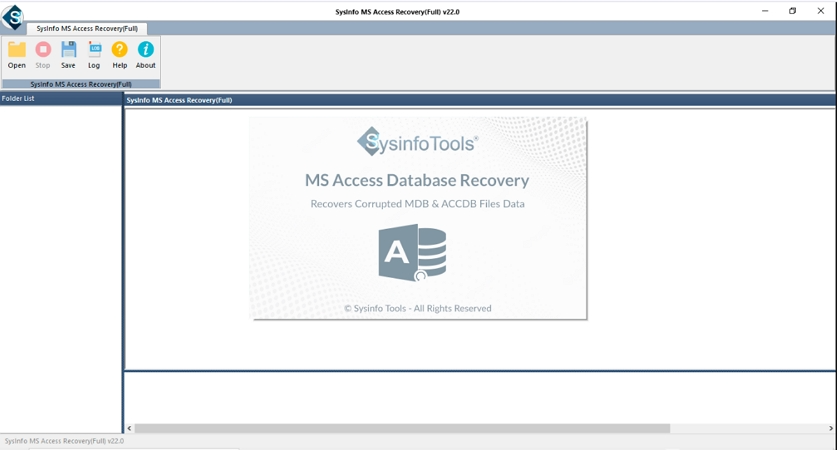
- Then, click on the Open option and browse to select your Access database file.
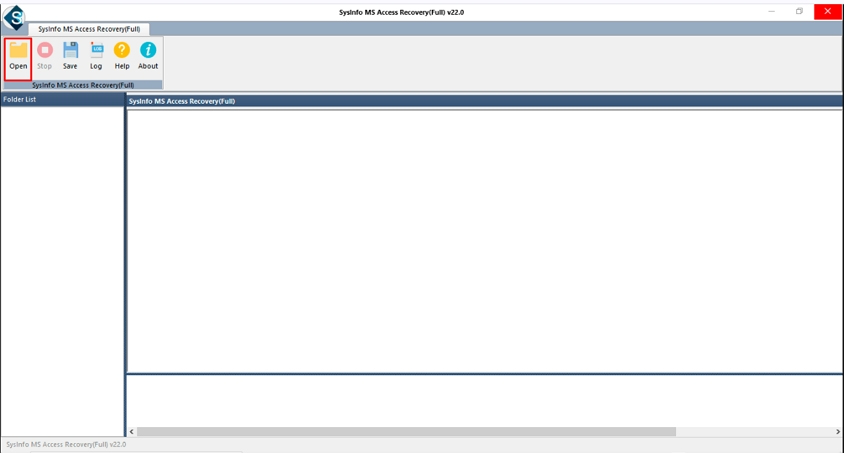
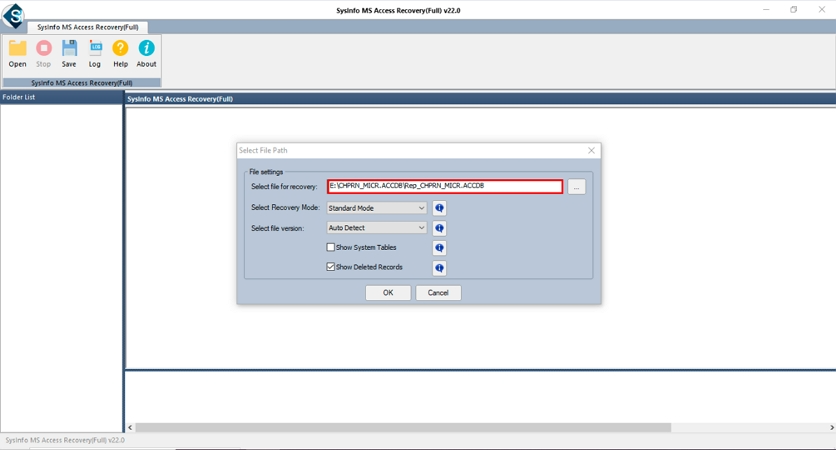
- Once the file path appears on the screen, confirm it and click Open to proceed.
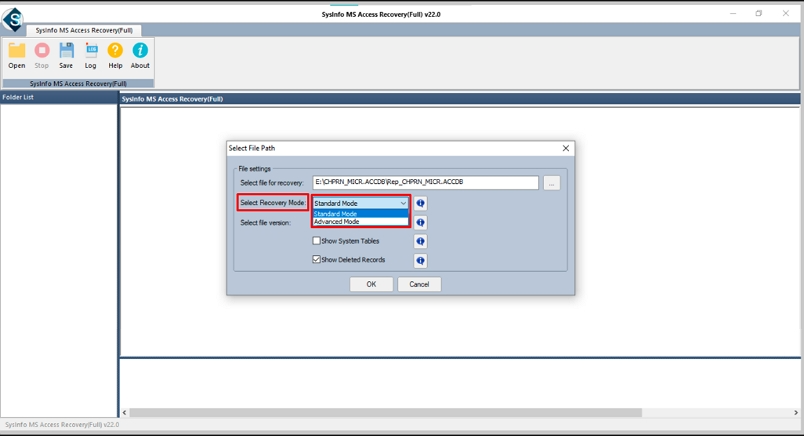
- After that, choose a recovery mode (Standard or Advanced) based on the level of corruption, and adjust other required settings.
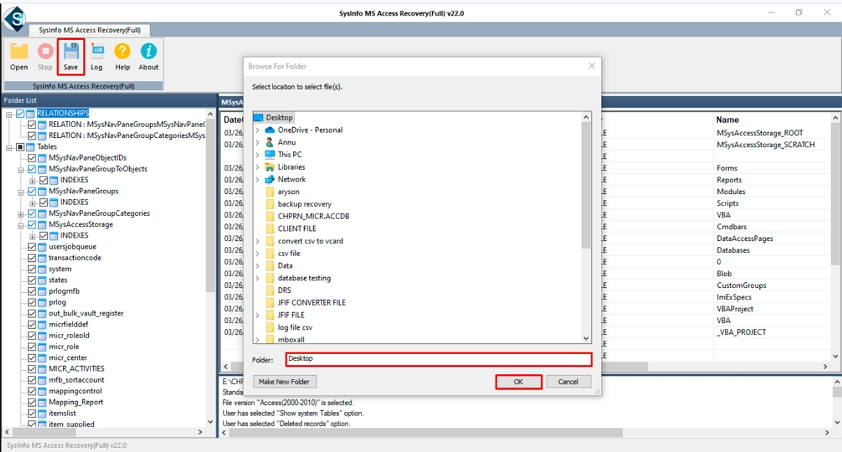
- Thereafter, preview the recovered data, then select the files, folders, or subfolders you want to restore and click Save.
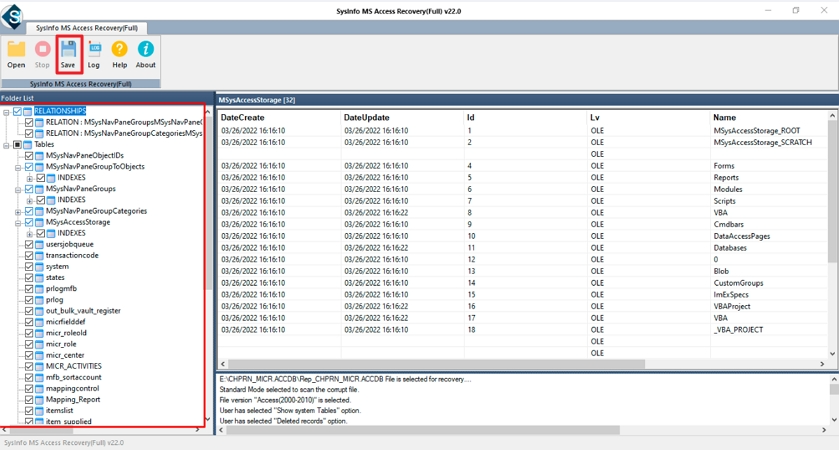
- Finally, select a location to store the recovered data and click OK to complete the process.
Conclude
This blog explains ways to fix Access Database Error 2542 simply and understandably. We have discussed manual fixes and a fix for this error by using advance tool. Users can choose a method based on their comfort level and requirements. Manual methods may work in some cases, but can be time-consuming and complex. Using a professional MS Access Recovery Tool is a more convenient and reliable option.
Frequently Asked Questions
Q1. How can I fix Access Database Error 2542 quickly?
Ans: The quickest way to fix Access Error 2542 is to first try basic manual fixes such as running the SFC /Scannow command, updating Microsoft Access, or repairing MS Office. When database corruption causes the error and manual methods fail, a professional MS Access Recovery Tool provides the fastest and most reliable way to restore database access.
Q2. Is there any automated solution to fix Access Database Error 2542?
Ans: Yes, there are automated solutions available. An expert-recommended MS Access Recovery Tool can automatically scan corrupted database files and repair them without manual effort. This type of tool is helpful when manual fixes fail and is suitable for users who do not have technical expertise.
Q3. How can I prevent Access Database Error 2542 in the future?
Ans: To prevent Access Database Error 2542, keep Microsoft Access and Windows updated, avoid sudden system shutdowns, regularly scan your system for malware, and maintain proper backups of your Access database files. Running routine database maintenance can also help reduce the chances of corruption.
Q4. Is Access Database Error 2542 related to Windows updates?
Ans: In some cases, yes. Incomplete or outdated Windows updates can affect system files and lead to Access-related errors, including error 2542. Keeping Windows and system components up to date helps prevent such issues and ensures better compatibility with Microsoft Access.
About The Author:

Meet Shivam, an experienced SEO executive and content strategist. He combines creativity with strategy to craft engaging content that connects with audiences and supports brand goals. With strong expertise in digital marketing and content planning, Shivam helps businesses thrive online.
Related Post