-
Written By Shivam Rathore
-
Updated on December 13th, 2025
Top Methods to Fix Microsoft SQL Server Error 945
Whenever Microsoft SQL Server Error 945 appears, it can stop your SQL database from loading and bring your applications to a stop. In this guide, we will explain how you can fix Microsoft SQL Server error 945 using simple manual checks. And if the database is damaged or the usual steps don’t work, you can use the DatabaseFileRecovery SQL Database Recovery Tool to safely restore your MDF file without risking data loss.
Download Now Purchase Now
Why does Need to Resolve Microsoft SQL Error 945?
- Error 945, also known as “DB_IS_SHUTDOWN”, appears when SQL Server can’t bring a database online because something is blocking access.
- It often shows up when the server doesn’t have enough free storage or the system is running low on memory.
- Sudden shutdowns or system crashes can leave the database in an inconsistent state, causing SQL Server to refuse to load it.
- The MDF or NDF files may be damaged, missing, locked by another process, or partially corrupted.
- Sometimes, to resolve SQL Error 945, the SQL service account doesn’t have the required permissions to read or write the database files.
- High load or low server resources can also prevent SQL Server from opening the database properly.
- A backup restored incorrectly or moved the wrong way can trigger the same issue.
Manual Approaches to Fix Microsoft SQL Server Error 945
It’s worth trying a few simple checks. Many people, especially those managing finance systems, use these steps first because they can fix MS SQL Error 945 if the database isn’t badly damaged.
Method 1: Check Disk Space & File Permissions
A lot of the time, SQL Server doesn’t load the database simply because it doesn’t have enough room or can’t reach the files.
- Start by looking at the drive where your database sits. If it’s almost full, clear out junk files or move some large items somewhere else.
- If the storage is still tight, you may need to plug in or assign a bigger drive for the SQL files.
Next, check whether SQL Server has permission:
- Right-click the MDF, NDF, or LDF file.
- Open Properties -> Security and allow the SQL Server service account full access.
Once you’ve changed the permissions, open SQL Server Configuration Manager and restart the SQL service. This refresh helps to fix SQL Server Error 945.
Method 2: Enable Auto-Growth in SQL Server
Sometimes the database hits its size limit and can’t grow anymore.
- Open SSMS and connect to your SQL instance.
- In Object Explorer, right-click the database and open Properties.
- Under Files, make sure auto-growth is enabled so SQL Server can expand the file when needed.
Method 3: Additional Manual Fixes to Try
If the above solutions don’t help, try a few more technical options:
1. Use Attach Database in SSMS and load your MDF file manually.
2. Then, bring the database online with the command:
|
ALTER DATABASE [DBNAME] SET ONLINE; |
3. After that, try restoring the database from a healthy backup.
4. If corruption is suspected, run:
|
DBCC CHECKDB |
5. Finally, to check and attempt repairs.
Limitations Associated With the Manual Way:
- If storage is extremely low, manual cleanup may not create enough free space.
- Permission changes must be done carefully; a wrong setting can block SQL services.
- Auto-growth only works when proper configuration exists—if set incorrectly, the error may occur again.
- DBCC CHECKDB can repair only minor corruption; in severe cases, it may lead to data loss.
Best Way to Fix Microsoft SQL Server Error 945
When the usual fixes don’t work, many users turn to the MS SQL Database Recovery Tool. It’s built to deal with badly damaged MDF and NDF files and bring back everything inside them: tables, views, triggers, deleted entries, functions, and more. You don’t need those technical skills to use it. This software guides you through repairing the data and saving it either into a fresh database or as script files on your system. It also includes several other practical options that make the recovery process smoother.
Steps to Troubleshoot MS SQL Server Error 945
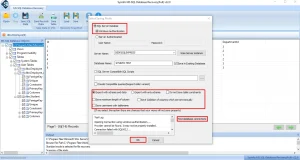
- Firstly, open the SQL Database Repair Tool and click Open on the top menu.

- Select your MDF file using the (… ) button, then choose either Standard or Advanced recovery mode.

- Then, enable the options for deleted records and collation, and then hit OK.
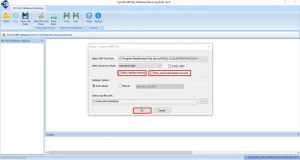
- Now, it will scan the file and show the results in a tree view preview, and select what you want to recover.
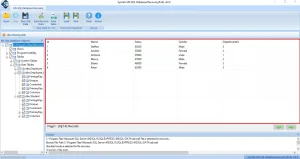
- After that, click Save SQL Data, pick where you want to store the recovered items, and continue.
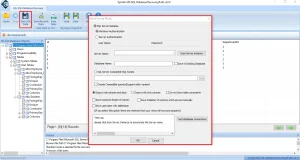
- Finally, apply any filters you prefer and click OK to complete the recovery.
Conclusion
To fix Microsoft SQL Server Error 945, you must look for possible causes such as insufficient disk space available, inadequate permissions on the database file(s). Possible solutions for resolving this issue are to use a reliable SQL Data Recovery Tool to recover damaged database files or repair corrupt database files. It is recommended that you regularly check your available disk space and perform regular backups of your databases.
Frequently Asked Questions
Q1. What is the best tool to quickly fix Microsoft SQL Server Error 945?
Ans: The MS SQL Database Recovery Tool quickly and easily fixes this error, especially when damaged or corrupted database files cause it.
Q2. Can low disk space cause SQL Server Error 945?
Ans: Yes, low disk space on the drive storing your database can prevent SQL Server from opening the database, causing this error.
Q3. What should I do if manual fixes don’t solve SQL Error 945?
Ans: If simple steps don’t work, using a professional recovery tool like the MS SQL Database Recovery Tool is recommended to repair and restore your database safely.
About The Author:

Meet Shivam, an experienced SEO executive and content strategist. He combines creativity with strategy to craft engaging content that connects with audiences and supports brand goals. With strong expertise in digital marketing and content planning, Shivam helps businesses thrive online.
Related Post